Cache & Recovered Images
Overview
Find retained web resources, recover selected objects and connect them to source URLs where available. Cache can contain embedded or background content. Retrieval does not establish deliberate viewing, an intentional download or who acted.
Relevant browser artefacts
Identify the acquired profile and its actual cache layout. Chrome-family cache and Firefox cache formats change; some profiles use a separate local cache directory. Record every copied path and keep index/data files together. Do not assume that copying a roaming profile also collected its cache.
Distinguish the cache entry's URL and HTTP metadata, a recovered object's bytes, EXIF embedded in an image, and file-system times created during export. These describe different events. A JPEG creation date is not a browser visit date.
Available Browser tools
| Tool | Purpose / documented browser scope | Key capability and when to use | Important limitation |
|---|---|---|---|
| ChromeCacheView | Chrome and documented compatible Chromium caches | List resources and export selected object bytes | Format, compression and eviction affect results; not a complete page reconstruction. |
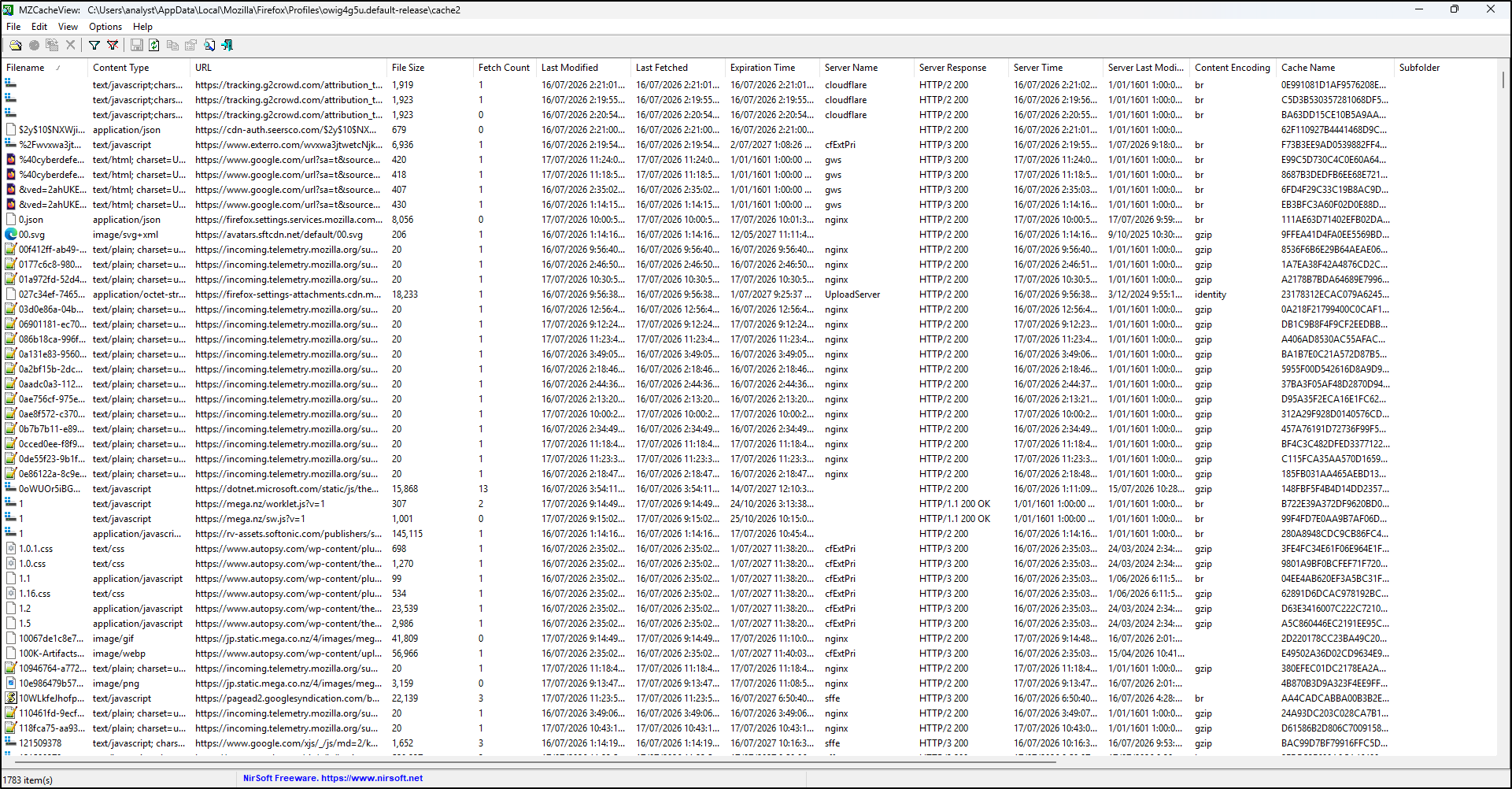
| MZCacheView | Firefox/Mozilla cache formats supported by the build | Review resource metadata and extract objects | Validate the actual cache layout and collection completeness. |
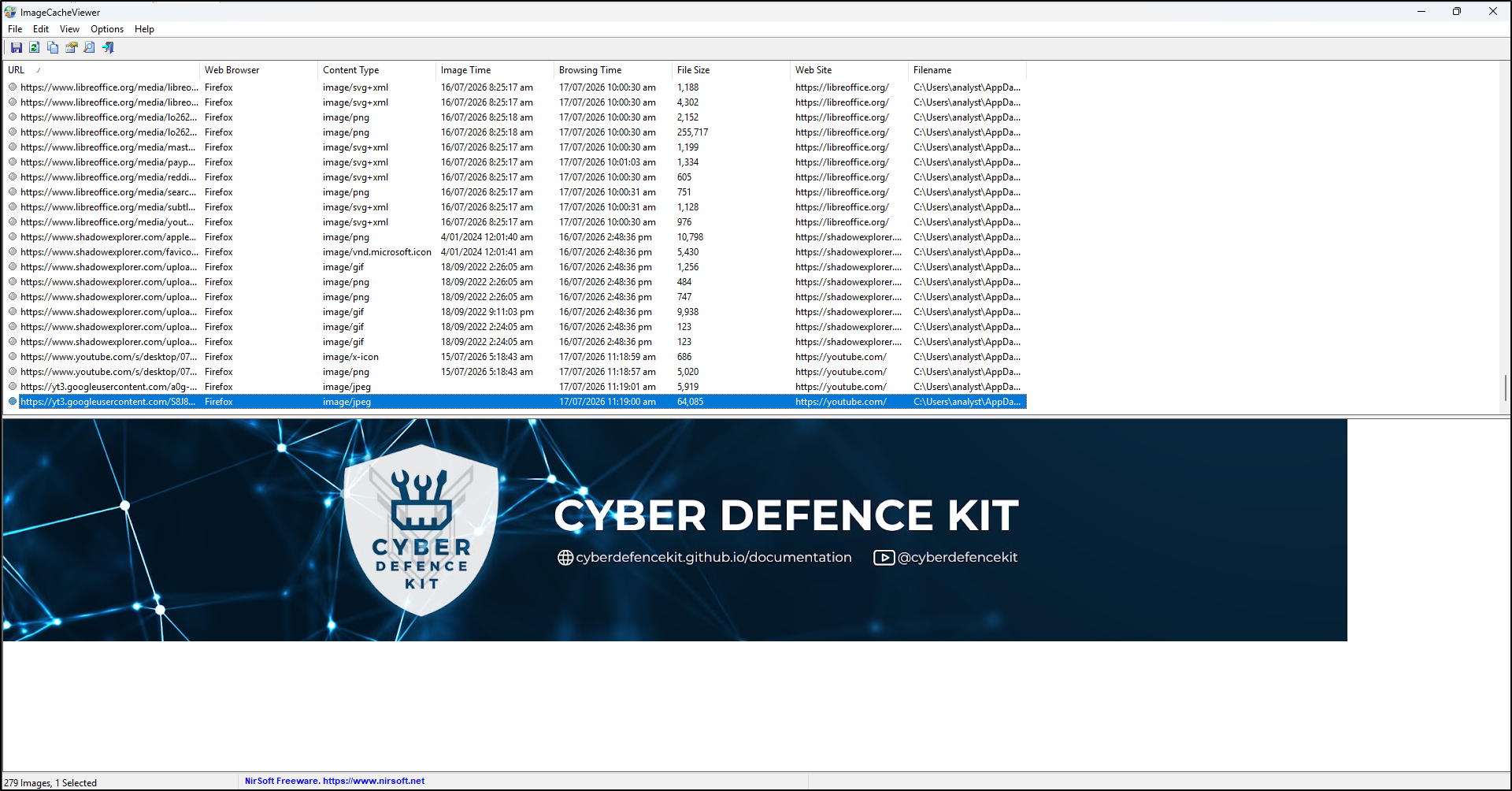
| ImageCacheViewer | Images from documented IE/Firefox/Chrome cache formats | Preview cached images with URL/time context | Not every cached object is an image or recoverable; filter defaults can hide older entries. |
| WebCacheImageInfo | EXIF-bearing JPEGs in supported browser caches | Examine embedded image metadata | No EXIF result is expected for many images; it is not a general image recovery tool. |
Investigation workflow
- Identify: define a domain/resource question, browser/profile and capture interval. Locate the cache actually acquired.
- Preserve: follow working-copy preparation. Retain cache structures and source paths; export to a separate directory.
- Select: check the viewer's documented format/version scope against a known training object. Record load errors and default date filters.
- Examine: review URL, content type, entry identifiers and available times; distinguish server metadata from a local event. Avoid opening evidence URLs online.
- Export: save the resource listing, then recover selected harmless objects separately. Record the mapping from cache entry/URL to output path, size and SHA-256. Export timestamps may be newly created.
- Correlate: compare with history and downloads. Multiple pages can reference the same resource, so a resource URL alone does not identify a unique parent page.
- Report: explain partial/evicted objects, unsupported formats, EXIF absence and any missing URLs. Do not claim a complete site or deliberate viewing from one object.
Tool-specific instructions
ChromeCacheView
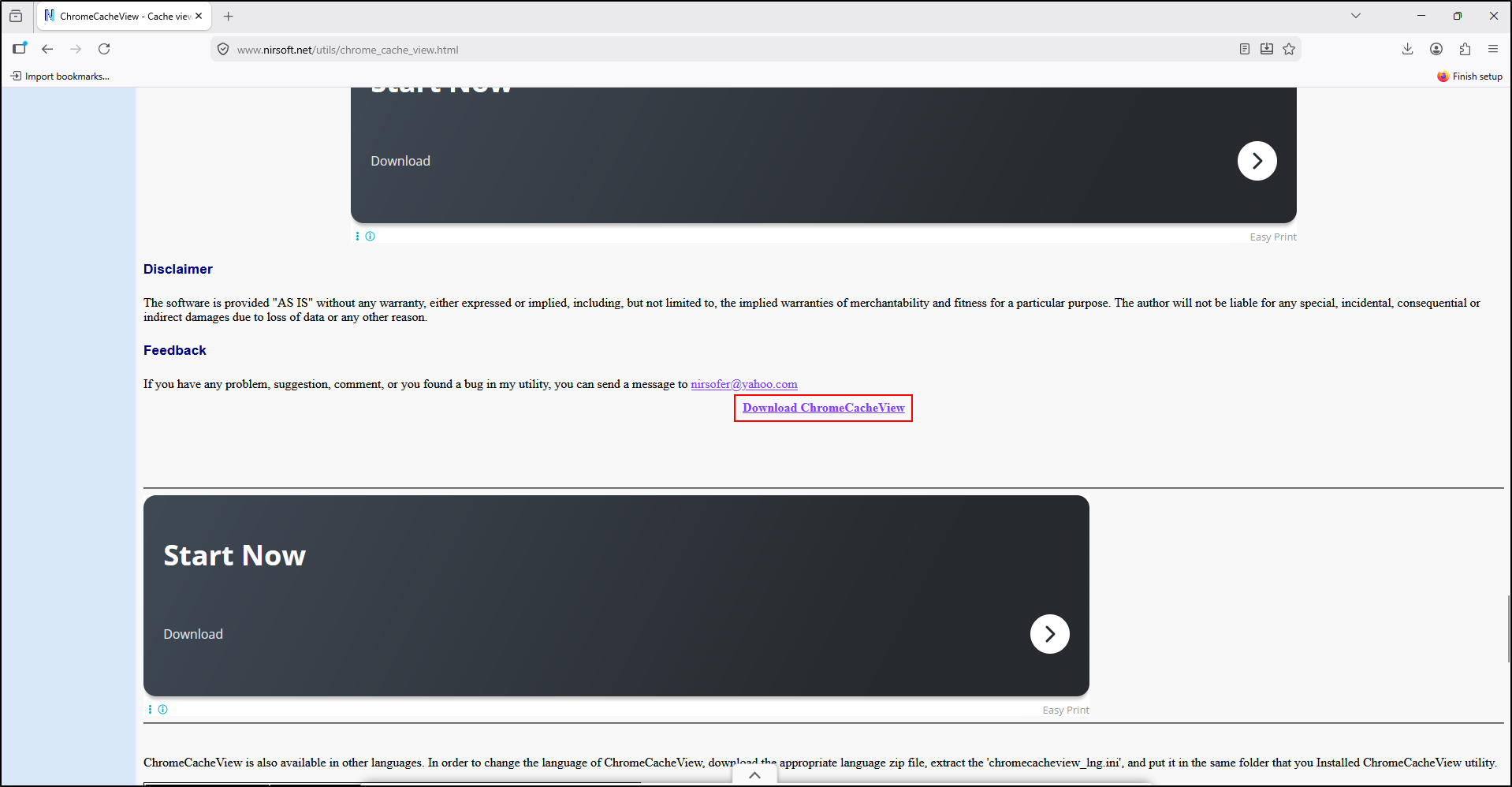
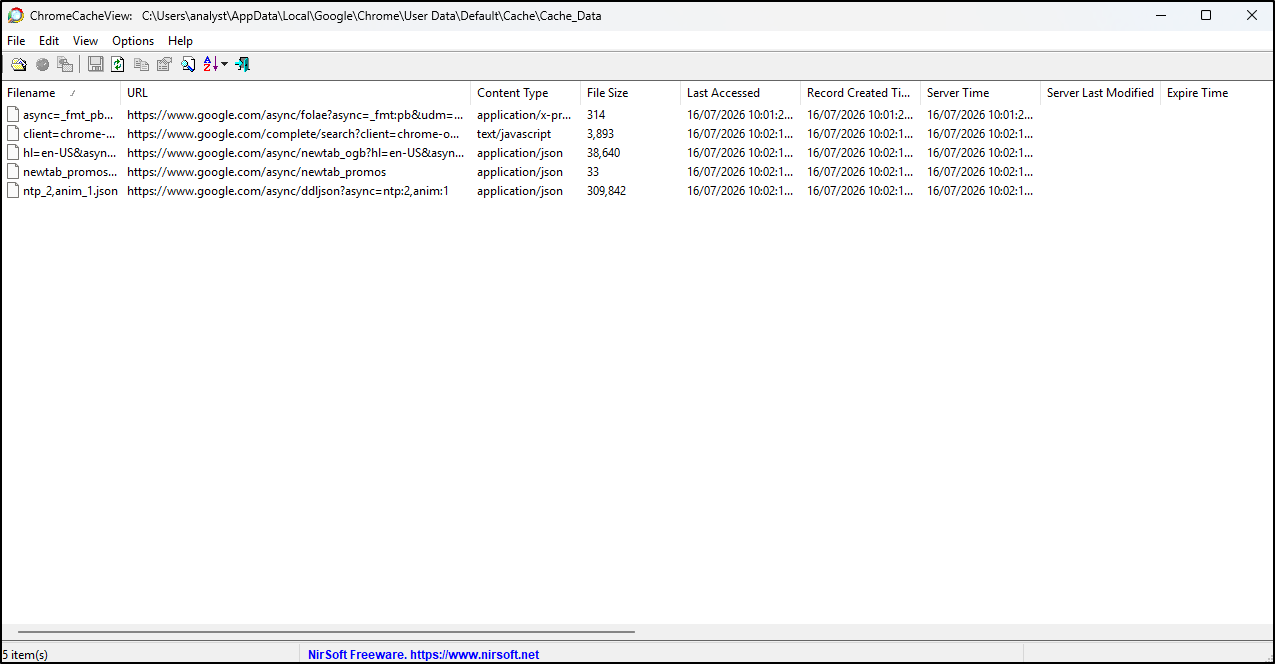
Extract into C:\Tools\ChromeCacheView. Use Select Cache Folder to select the working cache, not a default analyst profile. In the documented export controls, distinguish saving the listing from Copy Selected Cache Files To. Record the filename mode used and keep a URL-to-output mapping. Do not use Open Selected Cache File on untrusted active content.
ChromeCacheView screenshots
The following screenshots show download and startup. Select the copied cache as your evidence source.
MZCacheView
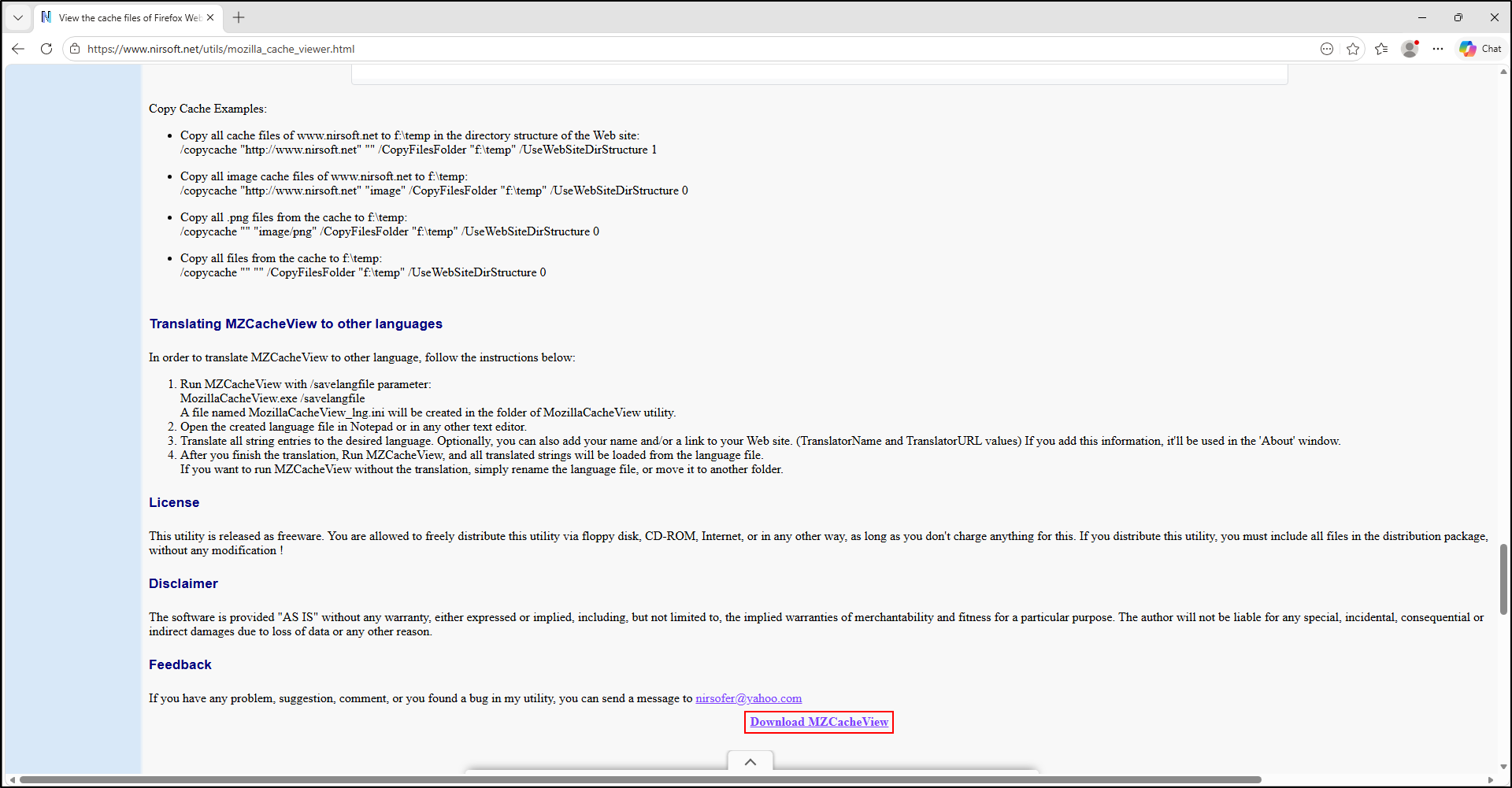
Extract into C:\Tools\MZCacheView; the executable may retain the publisher's MozillaCacheView name. Use Select Cache Folder (F9) for the working directory. Save the listing and use the selected-file copy function for recoverable objects. The publisher's notes describe supported cache structures; record the format and warnings rather than interpreting an empty table as no browsing.
MZCacheView screenshots
ImageCacheViewer
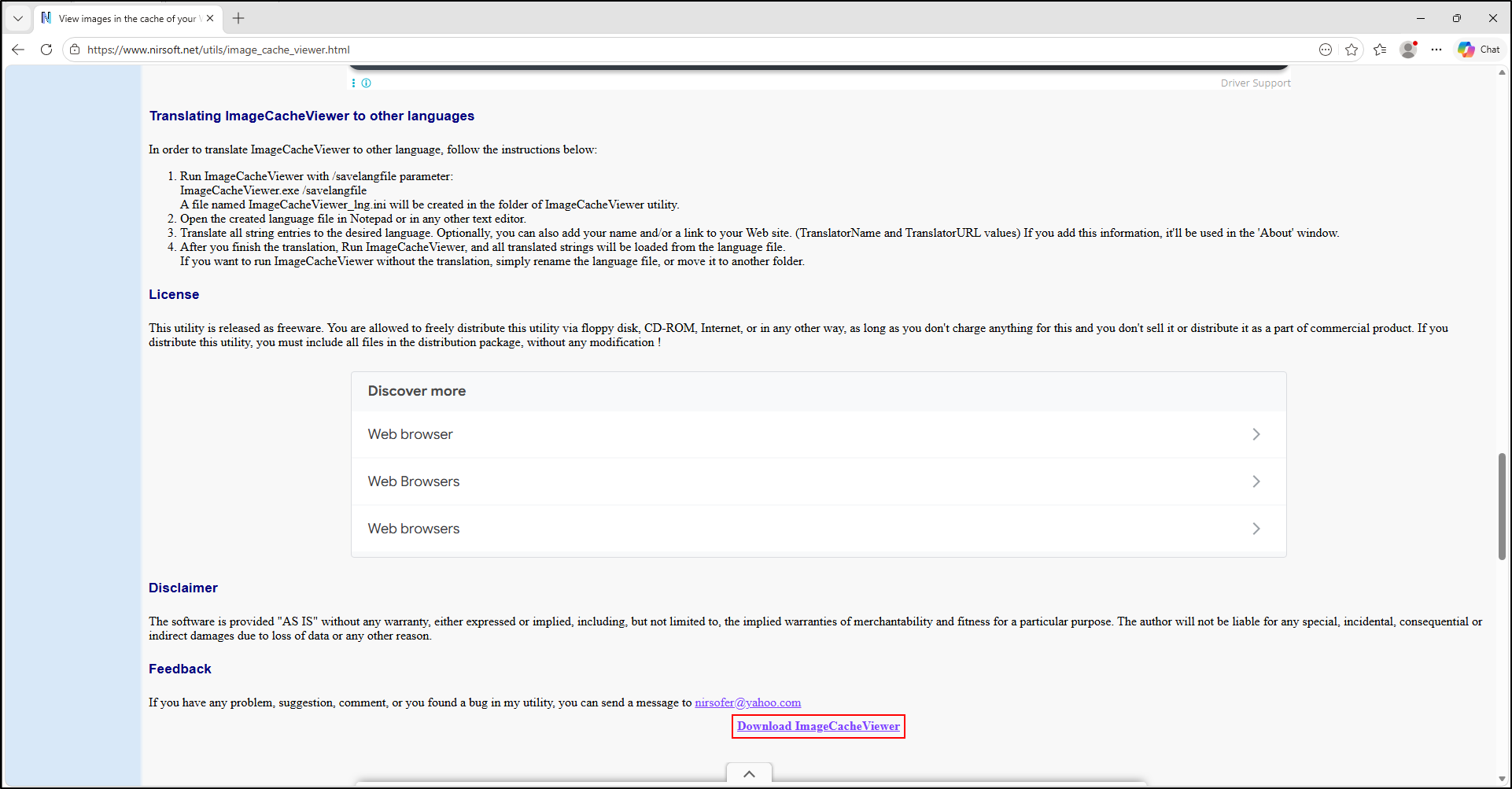
Extract into C:\Tools\ImageCacheViewer. In Advanced Options (F9), select the copied cache directories and review the default last-day filter. Inspect a selected image and its URL/browser context; export the listing or supported selected-image output. The author's instructions define the controls and format support. Keep an unsuccessful preview as a result, not a recovered image.
ImageCacheViewer screenshots
WebCacheImageInfo
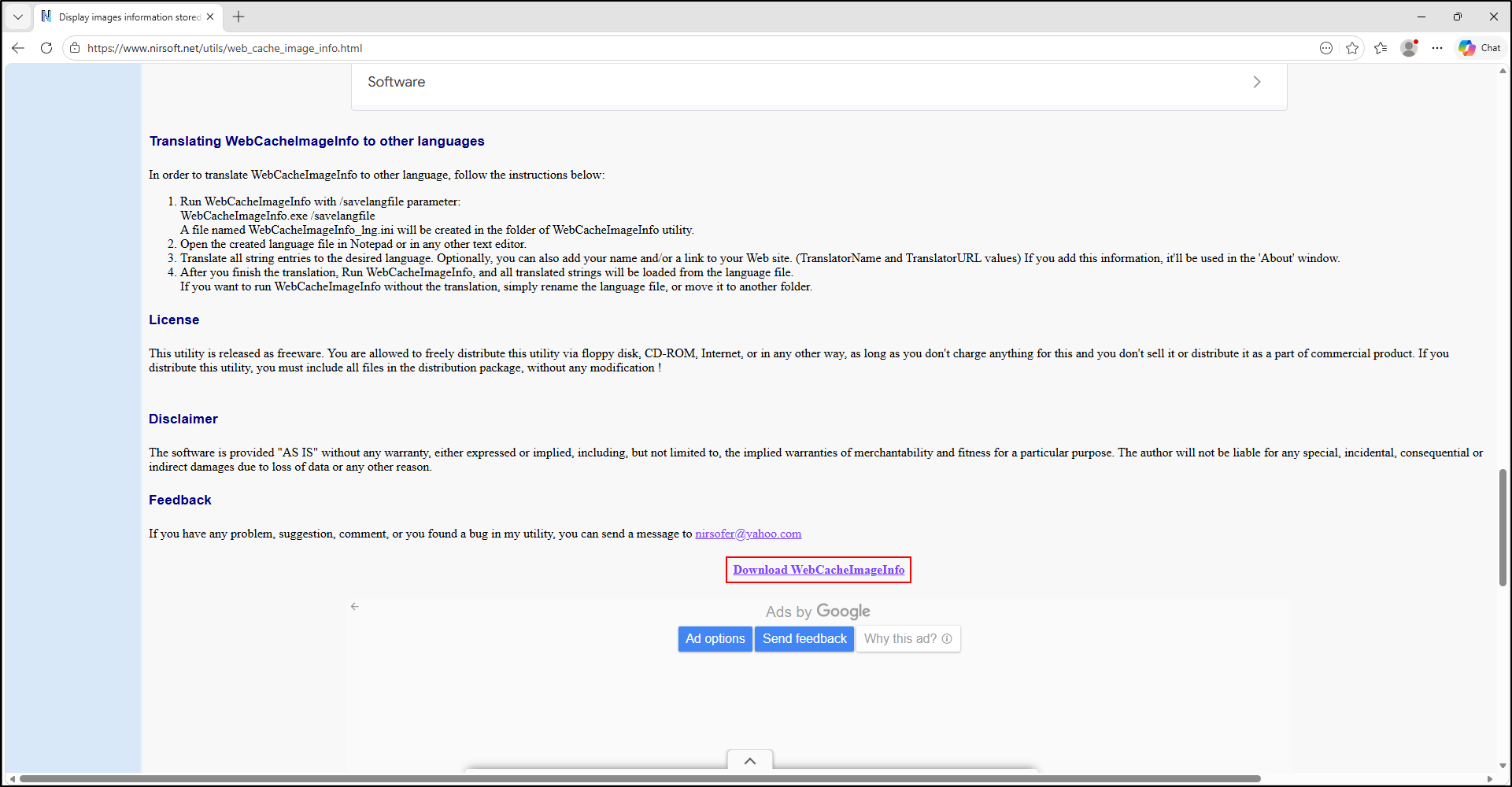
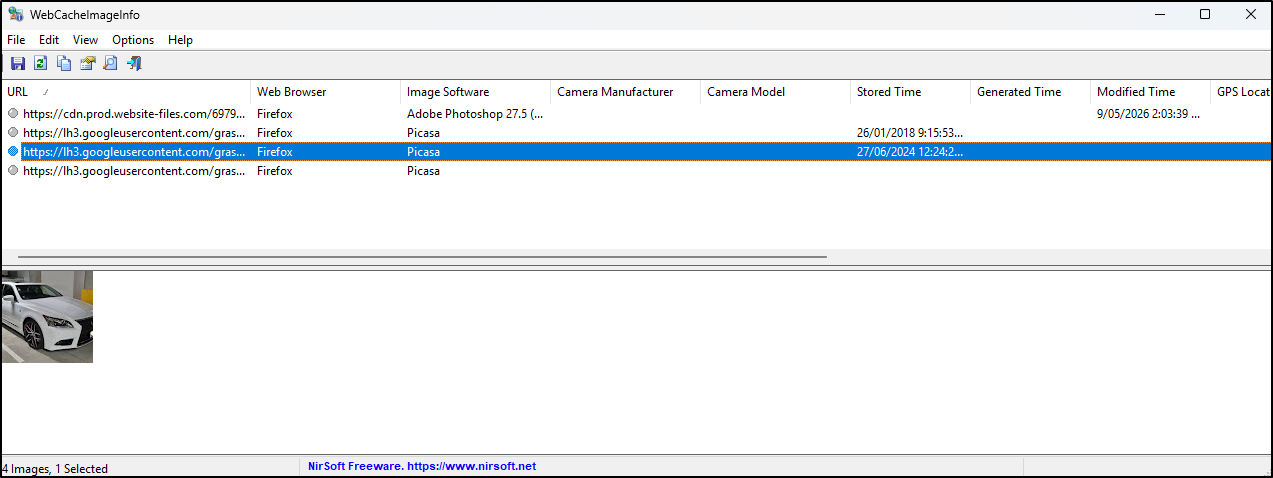
Extract into C:\Tools\WebCacheImageInfo. Use Advanced Options (F9) to select the working cache directories. Review only JPEGs with retained EXIF fields; preserve the associated source URL where available. Export the observed metadata and distinguish embedded camera/software/time fields from browser activity. Publisher documentation lists the supported browsers and cache versions.
WebCacheImageInfo screenshots