Write and Test Rules
First see the original illustrated example, then test its condition on harmless text files. Your goal is to understand why each file matches or does not match.
Accessing YARA in SUSA
Download the Windows build
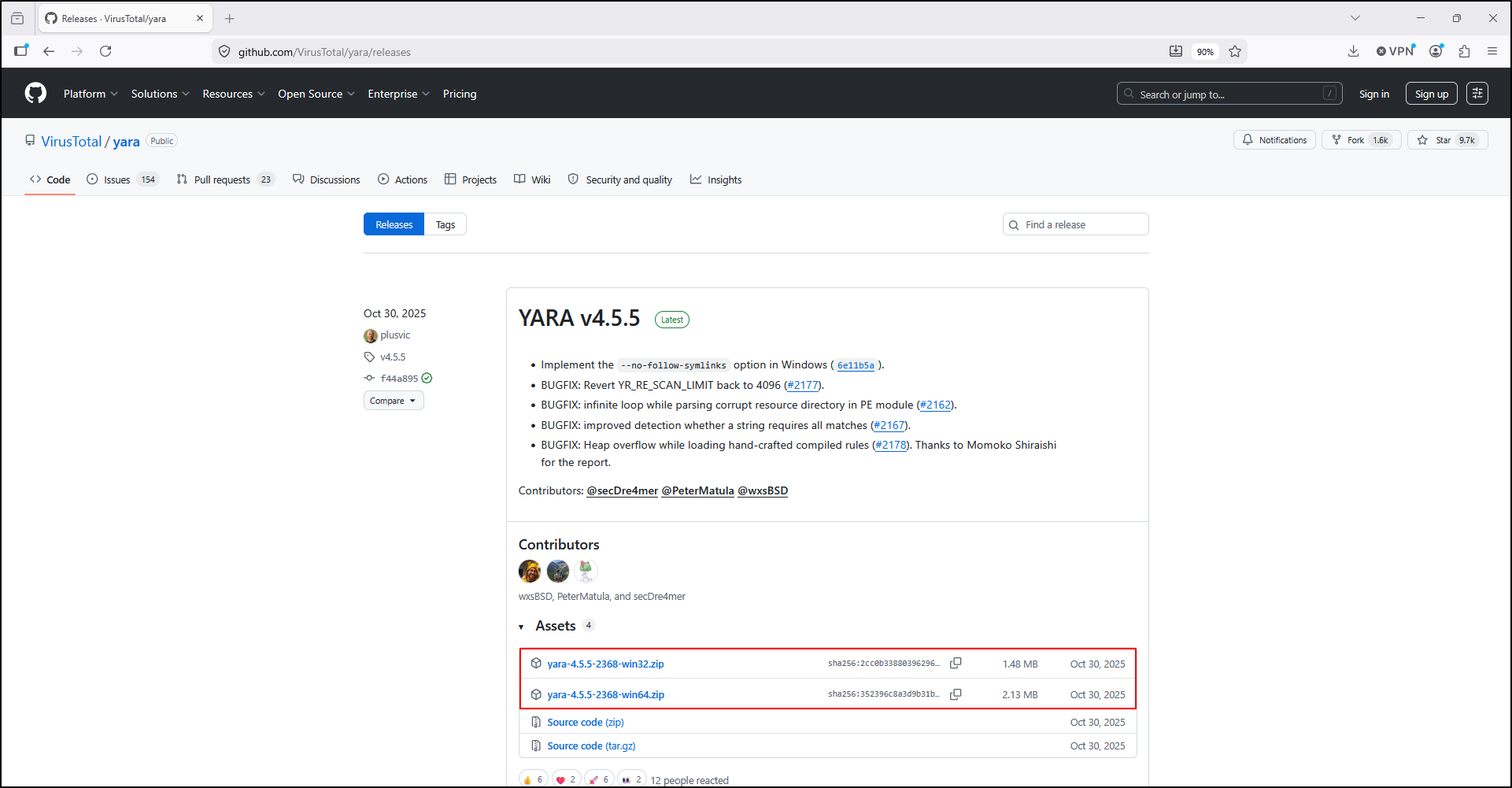
Download YARA from VirusTotal's official GitHub release page. Choose the Windows archive matching your analysis system; the illustrated 64-bit example contains yara64.exe. The screenshot shows a reference release, so use the filenames actually supplied with your download.
Extract and locate the executable
Move the downloaded ZIP archive to C:\Tools\YARA and extract it. One archive matching your system is sufficient; the original screenshot shows both architectures extracted.
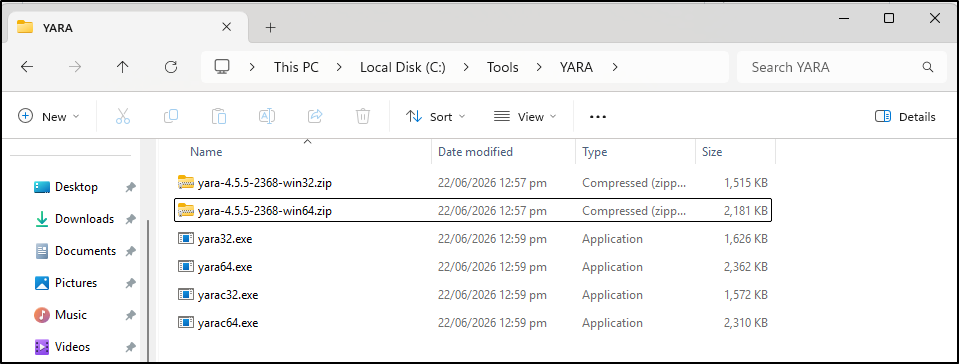
yara64.exe- The scanner used below. It accepts a rule source file and a target.
yarac64.exe- The rule compiler. You do not need a separate compilation step for this exercise.
Open Command Prompt and check the path and version:
Look for: a version number. If Windows cannot find the executable, check the extracted folder and its actual name. A ZIP archive is not the executable.
The original scan screenshot uses an administrator window. Scanning these readable training files does not require elevation. The browser lab mirrors that window for familiarity; administrator access does not make a match more reliable.
Understand the original rule
Create a text file named powershell.yar in C:\Tools\YARA. Show file extensions in File Explorer so it does not accidentally become powershell.yar.txt.
rule Suspicious_PowerShell_Download
{
    strings:
        $iex = "IEX" nocase
        $download = "DownloadString" nocase

    condition:
        all of them
}
| Rule element | Plain-language meaning |
|---|---|
rule Suspicious_PowerShell_Download |
Give the rule a recognisable name. The name is not a verdict. |
strings: |
Define the pieces of content to search for. |
$iex and $download |
Identifiers for the two patterns; these names are used inside the rule. |
nocase |
Ignore letter case, so iex can match IEX. |
condition: all of them |
Require every defined string in the same target. Here, both are required. |
YARA tests content, not PowerShell meaning. The strings may appear in comments or unrelated parts of the file; this rule does not require one operation to call the other. These semantics follow the official rule-writing guide.
Testing YARA: the illustrated example
The original walkthrough creates powershell_test.ps1 with this text:
With the original sample and rule saved in C:\Tools\YARA, the illustrated Command Prompt command is:
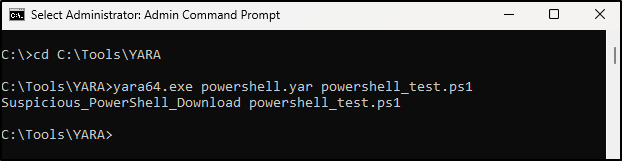
Read the output: Suspicious_PowerShell_Download is the matching rule; powershell_test.ps1 is the scanned target. This simulates the content-matching part of an investigation. It does not establish that the file is malicious or that a download occurred.
Test with harmless controls
Create three known inputs
In a new writable training folder, create these ASCII text files using Notepad's ANSI encoding (the supplied text uses ASCII characters only). Save powershell.yar there too. Check file extensions before continuing.
| Filename | Entire text to save | Predict |
|---|---|---|
positive.txt |
Training text only: IEX and DownloadString |
Match: both strings. |
iex-only.txt |
Training text only: IEX |
No match: missing DownloadString. |
download-only.txt |
Training text only: DownloadString |
No match: missing IEX. |
The two non-matching files are negative controls: known examples that should fail the condition. Together they check that either string alone is insufficient. All three files are harmless.
Scan one file at a time
Open Command Prompt in your training folder. Use the full executable path if YARA is not on your PATH:
C:\Tools\YARA\yara64.exe -s powershell.yar positive.txt
C:\Tools\YARA\yara64.exe powershell.yar iex-only.txt
C:\Tools\YARA\yara64.exe powershell.yar download-only.txt
The order is executable, options, rule file, target. -s prints matching strings and their byte positions as well as the rule match. The two controls should return to the prompt with no matching rule line. Check errors and target paths before treating an empty result as a successful non-match. Official command-line reference
Compare the results and preserve them
Record your prediction, exact command, actual output and any errors for each target. A wrong prediction is useful: check the rule and sample before changing anything. Keep rule files and logs outside scan targets; scanning a folder containing the rule itself can produce misleading matches because it contains the same strings.
Troubleshoot one issue at a time
| What happened? | Check this first |
|---|---|
| YARA is not recognised | Use the extracted executable's full path. In Command Prompt, quote paths containing spaces; do not add PowerShell's &. |
| Cannot open target or rule | Check the current folder, spelling, quotes and read permissions. |
| Syntax error | Check braces, quotation marks, dollar signs and condition:. |
| Positive file does not match | Check its contents and encoding. UTF-16 text has different bytes; this introductory rule uses ordinary text strings. |
| A control matches | Check for extra text and confirm the condition still says all of them. |
| No output | Inspect errors and confirm the intended file was scanned successfully. Silence alone is insufficient. |
Turn the match into a finding
Ready to practise? Continue to the Interactive Lab, then use the Full Lab to save a reproducible test with the real tool.