Kernel OST Viewer
OST examination / Windows Your goal: open the right working copy, locate an item relevant to the case question, and leave another analyst enough context to repeat your observation.
An OST is a local cache. Missing items can reflect cache settings, synchronisation state or acquisition scope; absence in this viewer is not proof that an item never existed.
Before you open a file
- Confirm authority, account, source identifier, acquisition method and case question. Keep the original separate; compare the original and working copy SHA-256 values.
- Record the viewer version, licence, examination time zone and working copy path. Allow space for any permitted output.
- Use a controlled training or examination environment. Do not follow recovered links, launch attachments or send messages from the examination.
Installation and SUSA setup
Accessing Kernel OST Viewer in SUSA
Kernel OST Viewer is a tool used to open and view Outlook OST files without needing Microsoft Outlook or an Exchange connection.
Download Kernel OST Viewer.
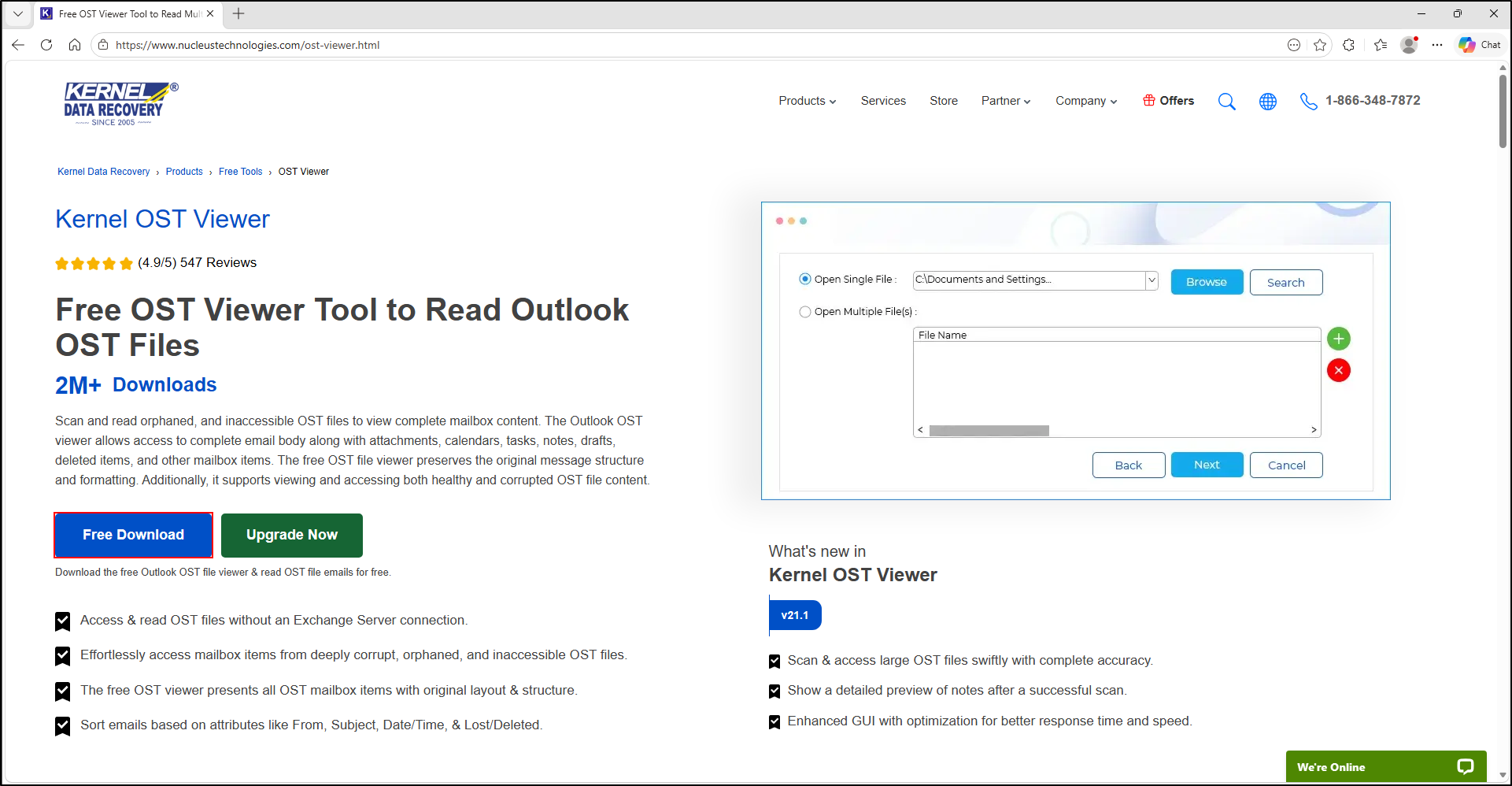
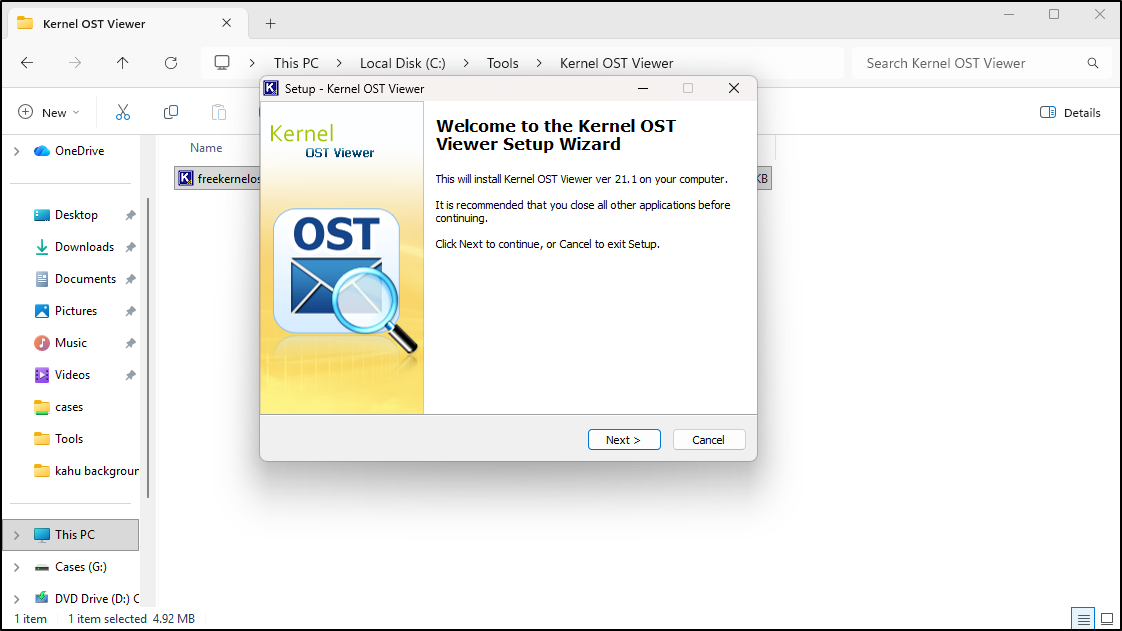
Move the downloaded executable to C:\Tools\Kernel OST Viewer directory and double click the application. Click Next, accept the license agreement. Select default options and click Next.
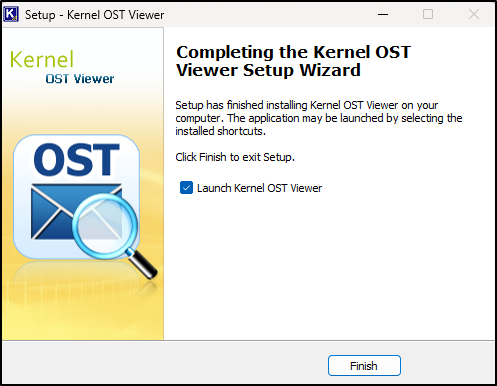
Once the install is complete, click Finish.
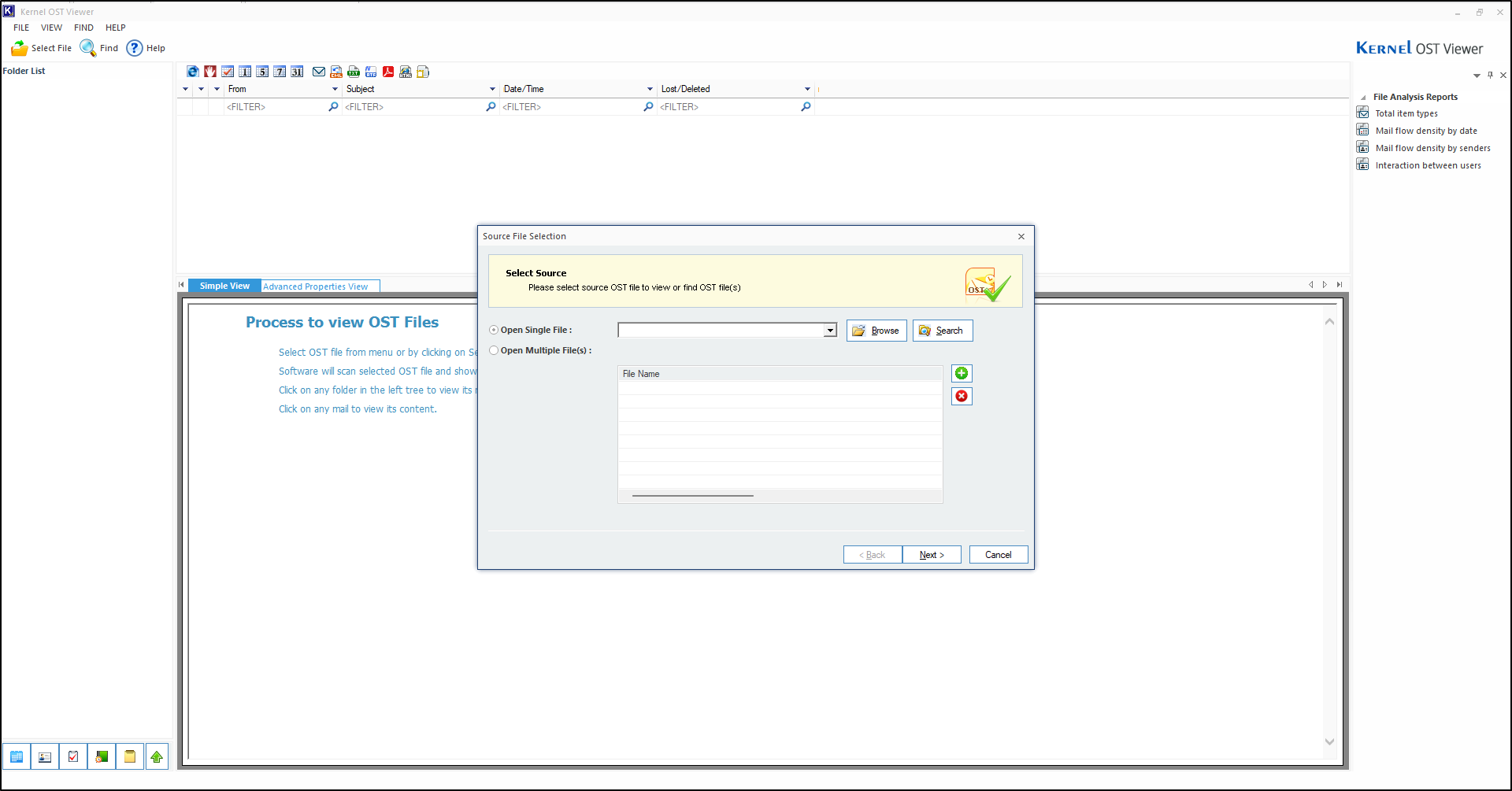
This creates a desktop shortcut and launches the application.
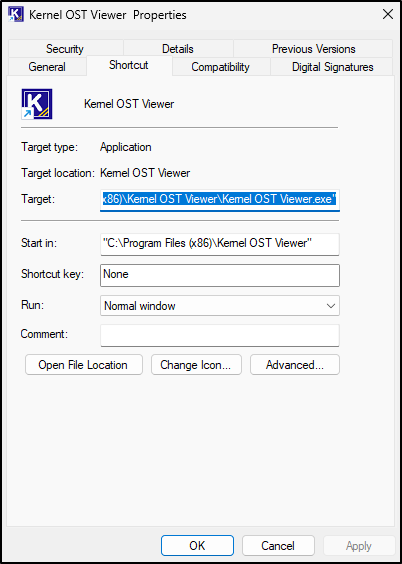
Right click the Kernel OST Viewer desktop shortcut and select Properties. Record the application location (C:\Program Files (x86)\Kernel OST Viewer\Kernel OST Viewer.exe).
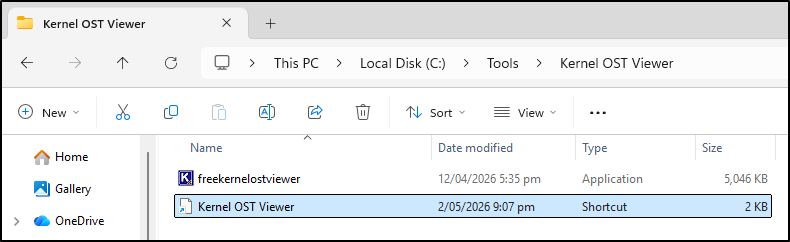
Move the shortcut to C:\Tools\Kernel OST Viewer.
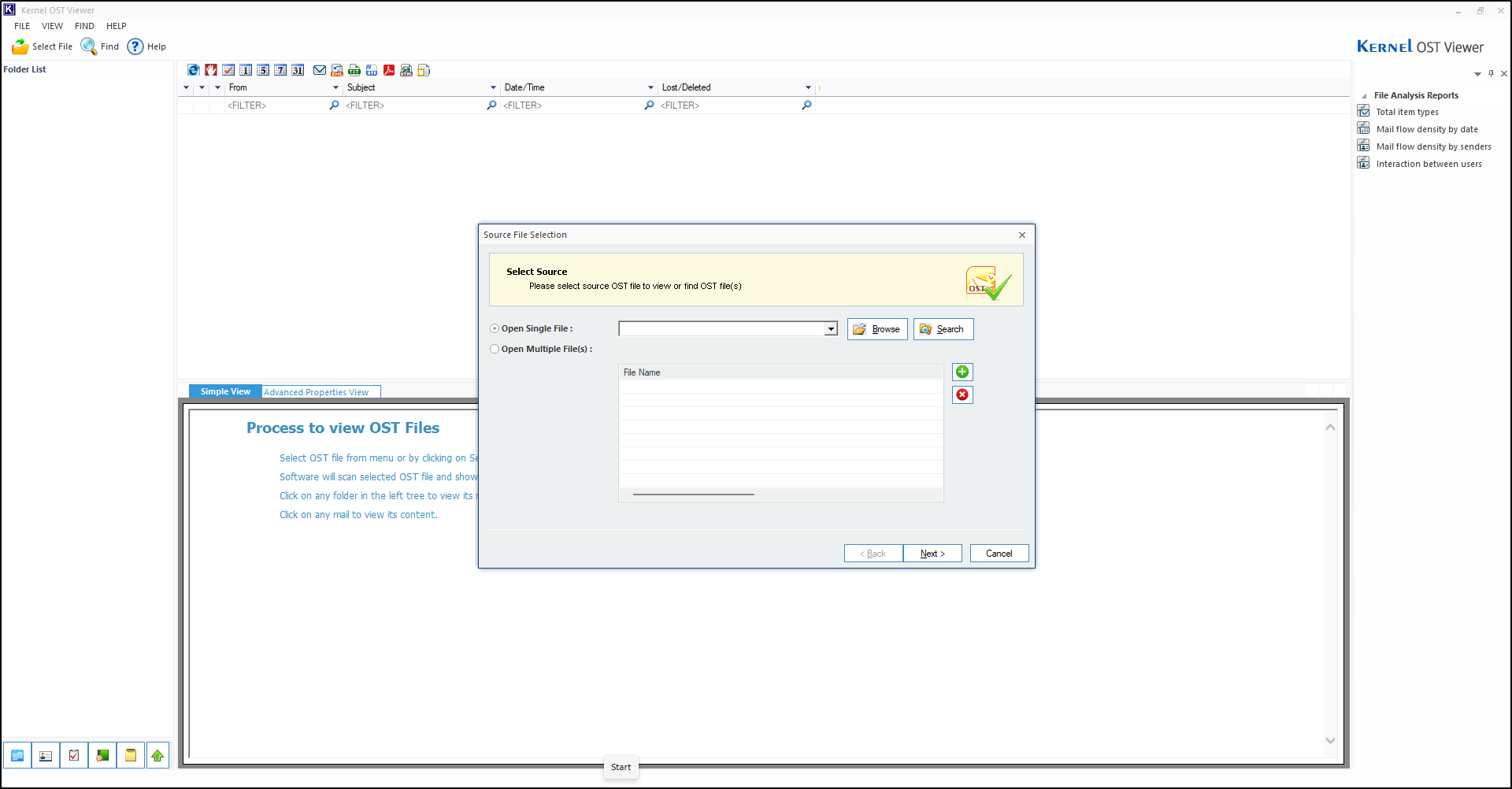
Double click Kernel OST Viewer to verify that it runs without an error.
Open and examine an OST
1. Select the working copy
Open Kernel OST Viewer. In Source File Selection, use Open Single File and Browse to choose the verified .ost working copy. Check the full path before Next. On Process Information, review the displayed information, then click Finish. Wait for the folder tree and message list before selecting an item.
Choose an OST working copy, not a live Outlook profile. Do not reconnect it to an account to fill gaps during this examination.
2. Walk the folder tree
Select a relevant folder in Folder List, then choose a row in the message list. Read it in Simple View. Keep the source, folder and row together; a search hit without context is hard to reproduce.
Check Inbox and Sent Items when the case question calls for them. A visible sent item alone does not prove delivery or that anyone read it.
3. Narrow the search
Open Find to use Find Message(s). Choose the folders and enter a distinctive Subject, From or To value; add a range of received dates or attachment filter only when relevant. Use Find Now, review the hits and record the exact filters.
Start broad enough to catch variants. If no hits appear, check selected folders, spelling, date range and source scope before concluding there is no relevant message.
4. Read, then record
Record the displayed sender, recipients, subject, date/time, folder, relevant body text and visible attachment name. Note which field you actually saw: a display name is not verified sender identity.
If available, inspect Advanced Properties View for the required properties; record the exact property and value. Availability varies. Do not assume that this view supplies complete internet headers or every Message-ID.
The load, preview and search controls follow the vendor's OST guidance, PST guidance and PST interface walkthrough. Your installed labels and edition take precedence; document differences.
Save useful output without overstating it
The vendor describes an HTML save of the message list in the free viewers, accessed through the list's HTML/e icon. Check the scope of the saved list and reopen it to verify the rows. Treat it as a listing: it is not a complete message, attachment export or forensic evidence package. Retain the source and filter context alongside it.
Complete message saving or export can require another edition or product. If your edition cannot provide a required output, record that limitation and request an approved method. Do not purchase, convert or repair the source as an unrecorded examination step.
| Record | Why it helps the next analyst |
|---|---|
| Working copy path, hash, account and acquisition context | Identifies what you actually examined |
| Version, licence, folder and search filters | Makes the workflow repeatable |
| Displayed fields, time zone context and contextual screenshot | Separates visible observations from interpretation |
| Output path/hash, scope and unavailable fields | Explains what was saved and what remains unverified |
If something does not look right
The file will not open
Confirm that the file is a OST, the correct application is running, and the working copy matches the expected hash. Record the exact error and version. Check vendor compatibility before requesting an approved alternative; changing the extension to PST does not convert it.
A message, field or attachment is missing
Record the limitation, inspect the relevant folders and search filters, and check acquisition scope. An OST is a local cache. Missing items can reflect cache settings, synchronisation state or acquisition scope; absence in this viewer is not proof that an item never existed. A preview or attachment name alone does not establish the attachment's bytes, safety or execution.
The displayed times do not match another source
Record the field name, displayed value and examination time zone. Keep the original offset when available. Compare equivalent fields; a message Date, server receipt time and file timestamp describe different events.
Practise with the model interface or continue with real supplied evidence.