Install and Open Hayabusa
Step 01 / ready to analyse
Keep the executable and its support files together
Use a Windows training workstation and saved logs you are authorised to examine. The saved-file workflow normally needs no administrator rights, provided your account can read the logs and write the output folder.
Download and extract
Download the appropriate Windows archive from Hayabusa releases, matching your computer's architecture. Extract the complete archive to C:\Tools\Hayabusa. Rename the Windows executable to hayabusa.exe, preserving the supplied rules and configuration files alongside it.
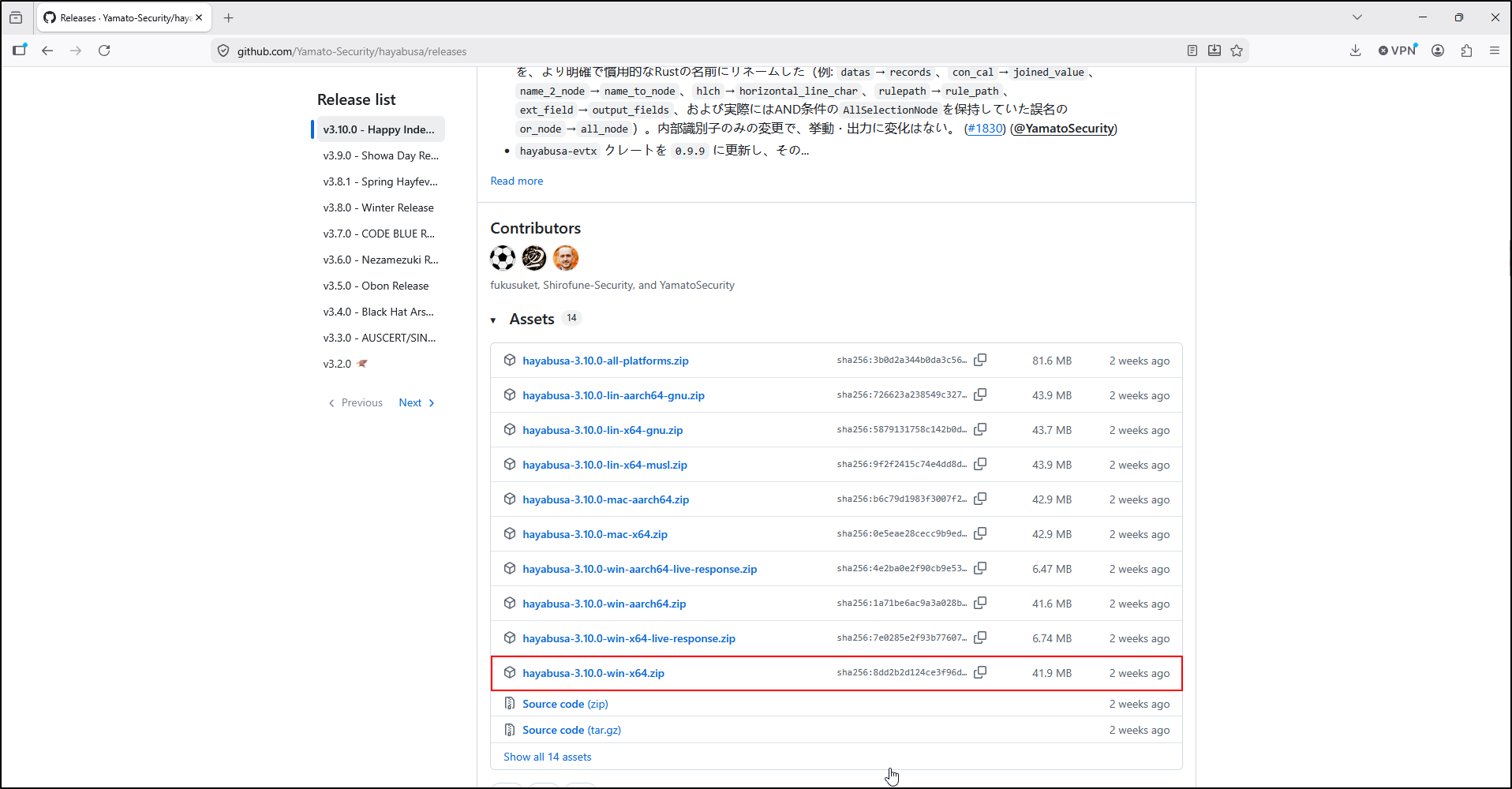
Open a terminal and check the release
Open Command Prompt, then run:
Look for: a version string and a list of commands. Record the release URL, archive name, download date and version in your case notes. In PowerShell, use Set-Location C:\Tools\Hayabusa and prefix the executable with .\, for example .\hayabusa.exe help.
If listed in your help, use this command to generate CSV by default. The browser lab models version 4.3.1.
If your release lists this command instead, use it for CSV. The input, output and profile examples in this lesson use the same basic structure.
Check the command you actually have:
For an older release, replace dfir-timeline with csv-timeline. An “unrecognized subcommand” error is a reason to check the release and help, rather than repeatedly changing unrelated options.
Update rules before a new case
From the extracted tool folder:
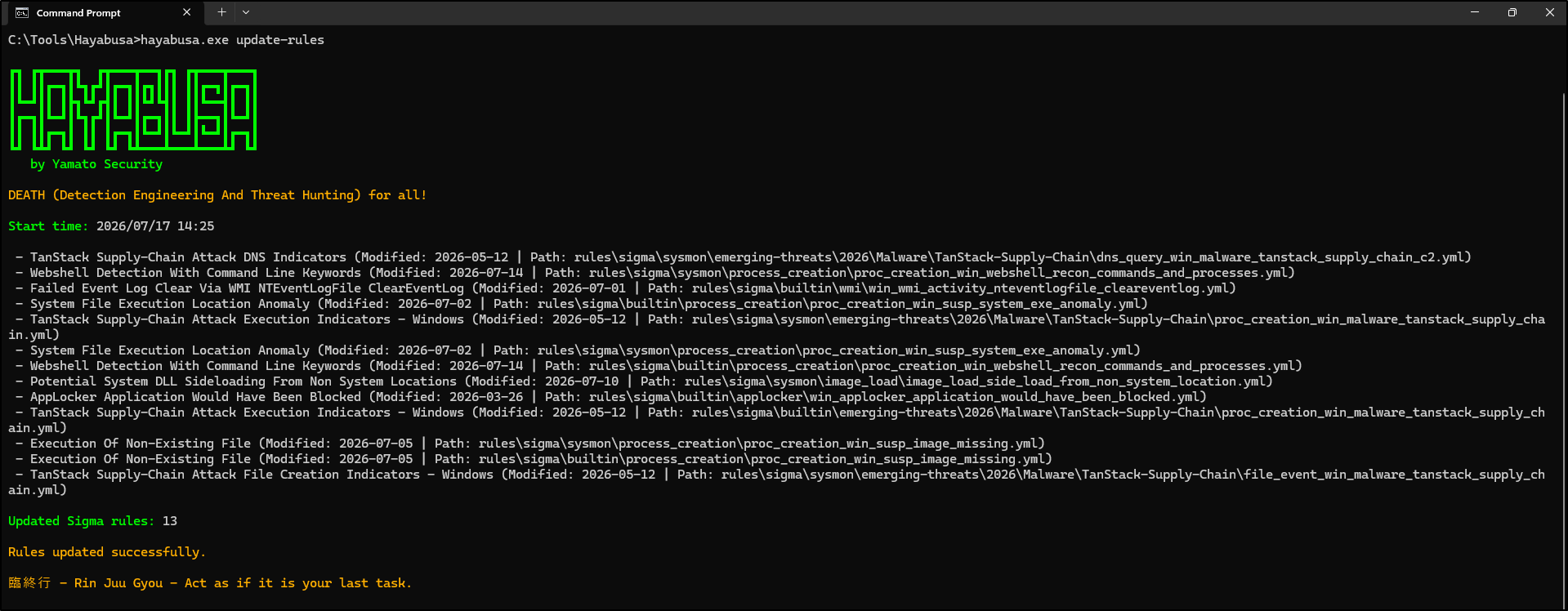
Look for: a completed update or confirmation that rules are already current. Keep the update output and the rules directory used for analysis. Do this before starting your case run; changing rules between scans can change the findings. If the machine is offline, use the supplied rules and record that they were not updated. Do not treat a failed update as a successful one.
Why not just copy the executable?
Hayabusa needs its rule configuration and field mappings. Run from the extracted directory so the default relative paths resolve. A “rules/config not found” error usually means the working directory or package is incomplete. Restore the matching support files from the same official package.
Continue to Create a timeline.