Analyse a File with CAPA
Use this sequence for an approved training file or a preserved copy from a malware investigation. Start with the original Notepad setup check, then learn to inspect one capability rather than trying to explain the whole screen at once.
Accessing CAPA in SUSA
Download the latest stable standalone CAPA binaries from the official release page.
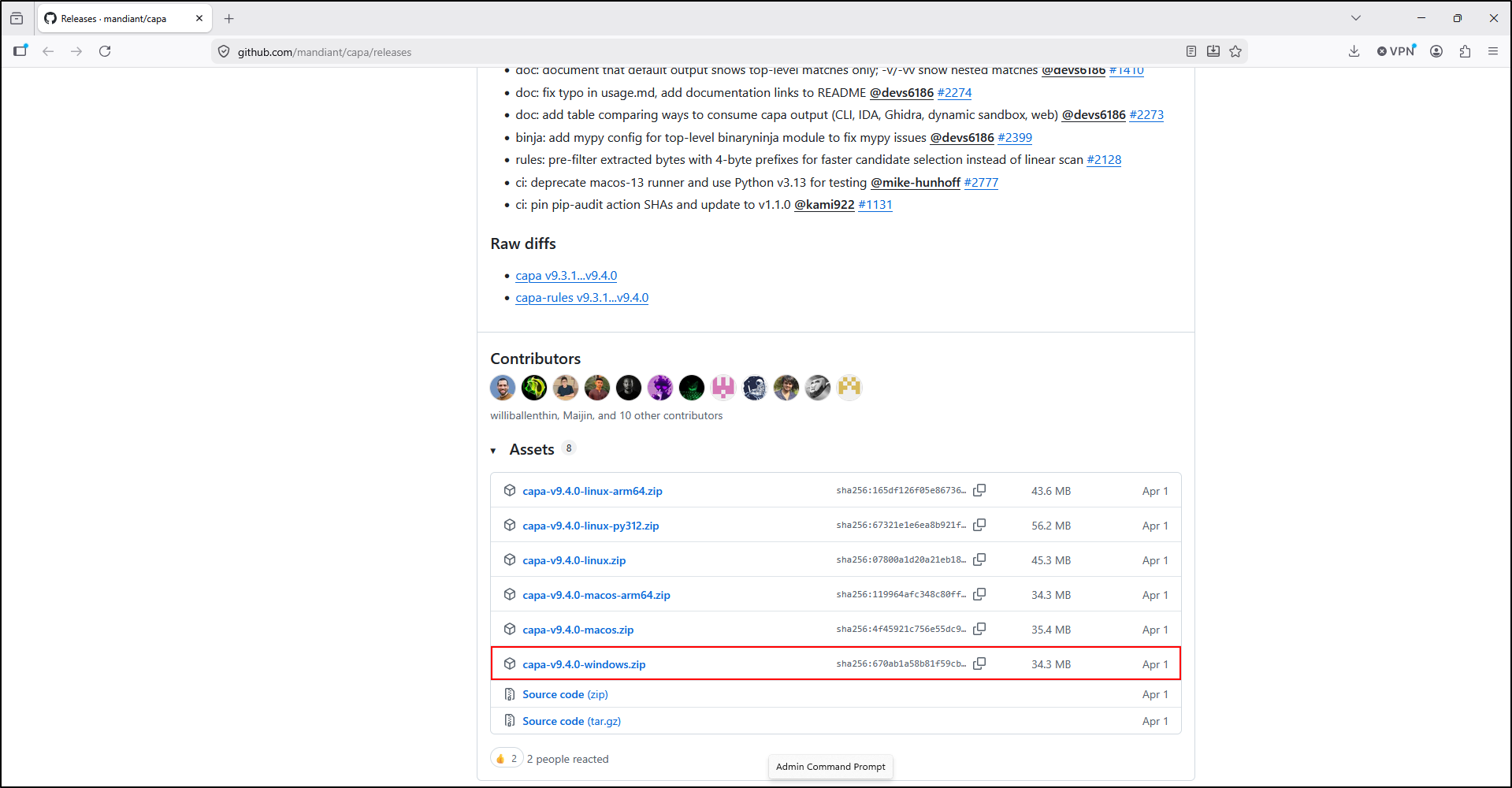
What to notice: choose the Windows standalone archive for this walkthrough. Record its version and download source. Standalone releases include the resources needed to run CAPA; you do not need a Python setup for this route.
Extract the ZIP archive to the C:\Tools\capa directory.
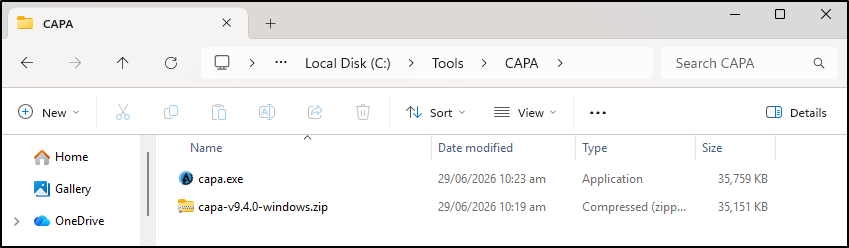
Open Command Prompt and check the tool using its full path:
If your extracted executable is elsewhere, use its actual path throughout. Keep the version with your notes.
Adding CAPA to PATH environment variable
PATH lets you enter capa from another folder. This is optional: using the full executable path above works too.
Open Environment Variables (Start › Environment Variables › Edit the system environment variables › Environment Variables).
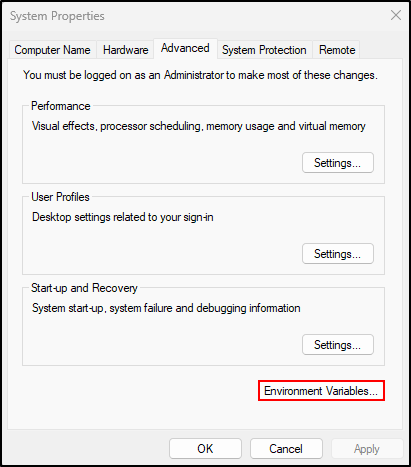
Under User variables, select path and click Edit.
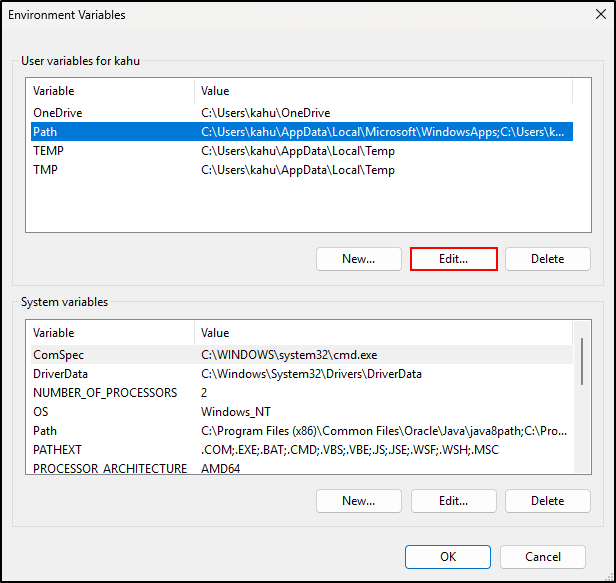
Click New and add (one entry per line):
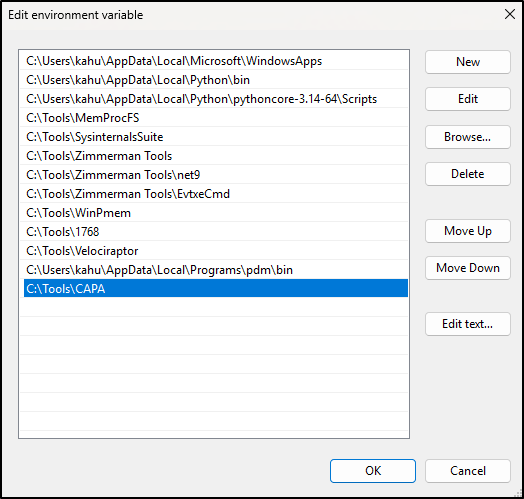
Click OK (then OK on other windows to save changes).
Open a new Command Prompt before testing PATH. If capa is not recognised, use the full path and check that the directory contains capa.exe.
Testing CAPA
The original walkthrough uses an administrator Command Prompt, as shown in the screenshot. Elevation is not normally needed to read a file you have permission to access. Analysing a target file is different from starting it.
Open an administrator Command Prompt and run CAPA against notepad.exe:
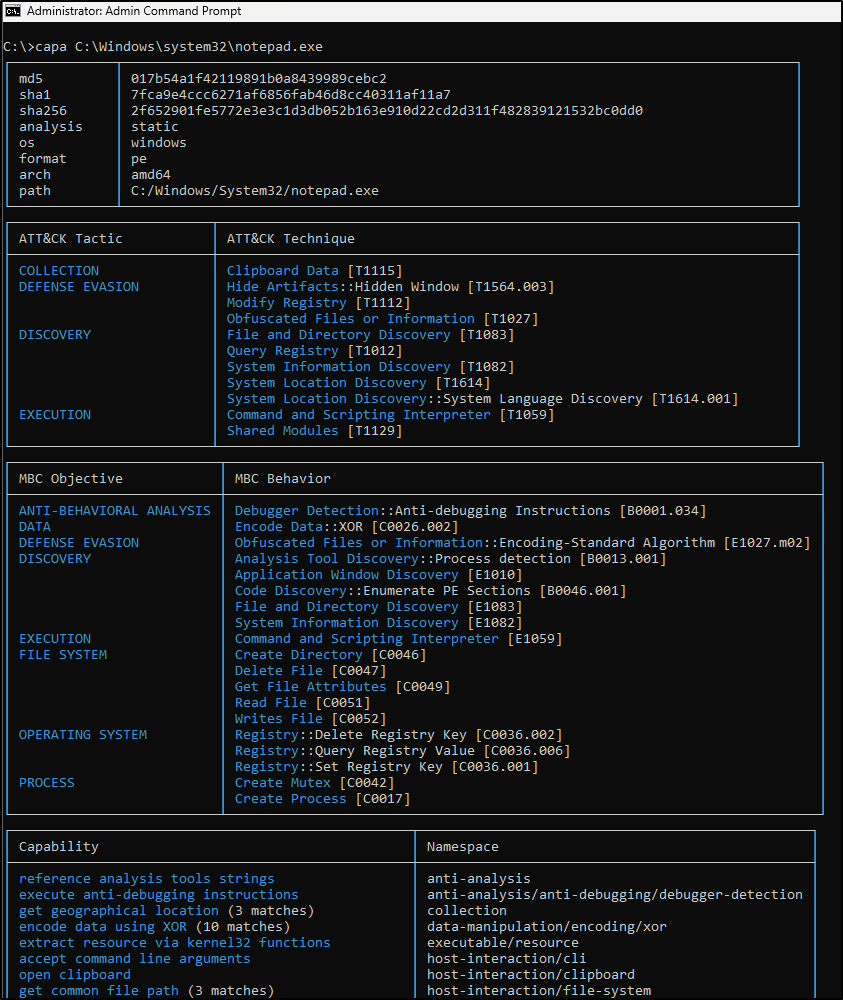
Read this first: this is the original example output, not an expected malware verdict or a promise of identical results on your Windows build. The screenshot's filename alone does not verify the file's origin. In your own analysis, retain the file hash, source, CAPA version and warnings. Packaged applications or different Notepad builds may give different or limited results.
Read the file identity and summary
At the top of screenshot 06, find sha256, analysis, format, arch and path. They identify the input and how it was analysed. Here analysis: static means the file was examined without observing it run.
The ATT&CK table maps matched rules to tactics and techniques. MBC is the Malware Behavior Catalog, another way to classify behaviours. These labels describe rule mappings, not a record of actions on a host.
Read the capability table
The capability table begins at the bottom of screenshot 06 and continues below:
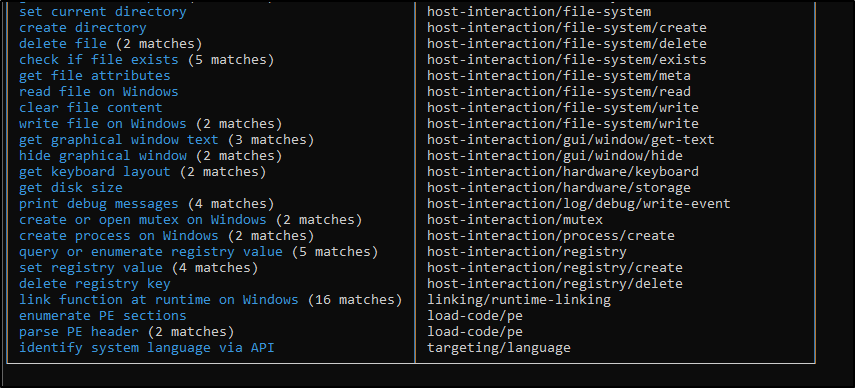
The left column names a capability. The right column is its namespace, the category used to organise rules. A match count indicates matching locations, not the number of times a program ran.
Choose one row to investigate. For example, a file-reading or computer-name capability gives you a focused question. Anti-debugging or ATT&CK labels deserve context; they do not establish that a file is malware on their own.
Prepare an identified working copy
For an investigation, record the source host, original path, collection time and method. Keep the original separately and examine a working copy in an authorised analysis VM. Do not double-click the target file.
Calculate its SHA-256 in Command Prompt:
Use your real working-copy path. For a ready-to-follow exercise, the Full Lab supplies a small benign executable, its source and a published hash. The browser lab uses the same file's verified analysis as a rehearsal.
Analyse the file and inspect one rule
Start with the summary, then request detailed evidence:
"C:\Tools\capa\capa.exe" "C:\Cases\CAPA-01\working\sample.exe"
"C:\Tools\capa\capa.exe" -vv "C:\Cases\CAPA-01\working\sample.exe"
-vv shows the rule's supporting features and locations. A line such as api: kernel32.GetComputerNameA @ ... means the analysis identified that API feature at the printed address. It does not show that the function was called on an investigated host.
-v shows additional rule matches. -t selects rules by metadata, such as a rule name or namespace; it is not a search of the file's arbitrary text. Refer to the official options and your installed capa -h.
Save the result and write a finding
Save normal output and errors separately. These are Command Prompt commands; PowerShell uses different error and encoding behaviour.
"C:\Tools\capa\capa.exe" -vv "C:\Cases\CAPA-01\working\sample.exe" 1> "C:\Cases\CAPA-01\details.txt" 2> "C:\Cases\CAPA-01\errors.txt"
echo %ERRORLEVEL%
Read the error file and completion status before interpreting a result. Redirected output is normally plain text, so it can look different from the coloured terminal output. Use new filenames when retrying to preserve earlier runs.
Your finding should name the input hash, capability, supporting feature and location, interpretation, limits and next evidence source. Confidence is your assessment of the evidence, not an automatic CAPA score. For example: “The file contains code features matching hostname discovery. This supports a possible capability; process or endpoint evidence is needed to investigate execution.”
Troubleshooting
| Problem | What to check |
|---|---|
capa is not recognised |
Use the full executable path or reopen Command Prompt after changing PATH. |
| Cannot open the target | Check quotes, file location and read permission. A failed analysis is not a result with no capabilities. |
| Output differs from the screenshots | Compare the file hash, Windows build, CAPA version, rules and warnings. |
| Packed-file or unsupported-input warning | Preserve the warning and describe the limitation. Do not claim the file is safe. |
| Very verbose output feels overwhelming | Select one named capability, then inspect its rule evidence. Leave the other matches for a later pass. |
Continue to Hands on Labs.