Browser History, Searches & Bookmarks
Overview
Reconstruct recorded web activity without treating a URL as proof of intent. Finish with source-labelled visits, search leads and saved links that can be correlated with a case interval. Use the selection guide for common preparation and tool provenance.
Relevant browser artefacts
Chrome-family profiles commonly contain a History database; Firefox profiles use places.sqlite for history and bookmarks. These are filenames to locate in the acquired profile, not instructions to assume a fixed profile path. Record actual paths and companions. Legacy bookmark files and IE Favorites folders need different input handling.
Visits, URL summaries, search-query URLs and bookmarks have different meanings. A bookmark can exist without a recorded visit. A query can be suggested, redirected or synchronised. Preserve individual visits where the viewer offers them rather than silently merging repeated URLs.
Available Browser tools
| Tool | Purpose and documented browser scope | Key capability / when to use | Important limitation |
|---|---|---|---|
| BrowsingHistoryView | Multi-browser history: Chrome, Firefox, Edge, IE, Opera and documented variants | Start with a broad, profile-labelled view | Combined rows do not establish one actor; supported schemas vary. |
| ChromeHistoryView | Chrome and supported Chromium history | Inspect a specific History source and visit details | Record transitions and time settings; presence is not intent. |
| MZHistoryView | Firefox/Mozilla history, including places.sqlite | Review Firefox records separately | First/last-visit summaries can hide individual visit detail. |
| MyLastSearch | Recognised search queries in supported browser history/cache | Extract terms to test against source URLs | Not a universal search engine or query parser. |
| FavoritesView | IE Favorites and supported Mozilla/Netscape/Firefox bookmark formats | Examine a saved link with folder context | Older utility; validate the specific bookmark format first. |
Investigation workflow
- Identify: list browser/profile sources and the case interval. Keep profiles separate even if their account labels match.
- Preserve: follow common preparation; work from copied artefacts with companions.
- Select: use the broad viewer for discovery or a browser-specific viewer for a focused source. Test a known benign record before treating an empty table as meaningful.
- Examine: review source file, browser/profile, URL, title and available visit fields. Search terms must be linked back to a query URL; saved links need bookmark-source context.
- Export: keep column headers, source paths, filters, parser version and original/displayed time zone. Do not open evidence URLs in a networked analyst browser.
- Correlate: compare relevant visits with downloads, cookies or cache. Coincident times are leads, not proof of causation.
- Report: separate observations, interpretation and gaps. Explain missing profiles, merged visits, sync and time uncertainty.
Tool-specific instructions
BrowsingHistoryView
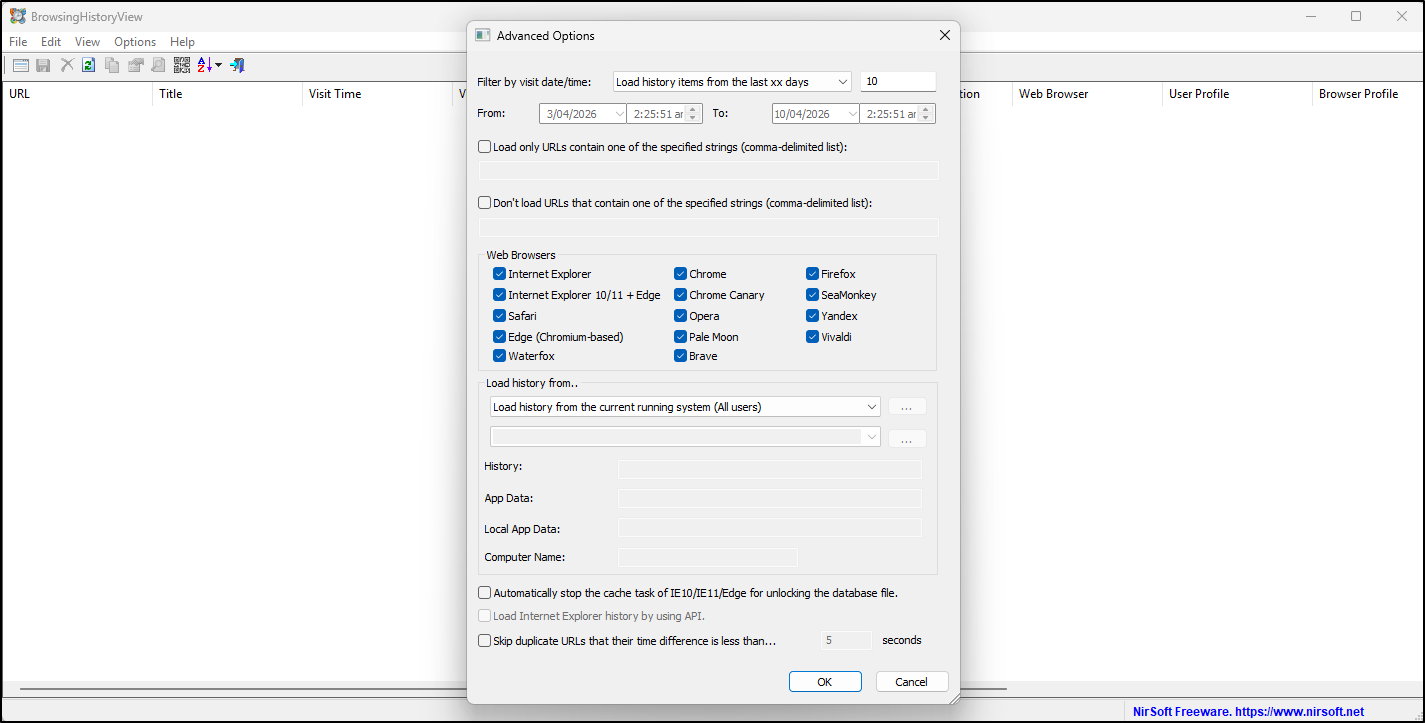
Use the publisher's BrowsingHistoryView documentation to confirm your version's source modes. In Advanced Options, choose specific copied history files or the appropriate external source. Set the browsers, visit interval and time handling; record them. Keep browser, user profile, history-file and record identifiers where available. Export CSV with headers for correlation.
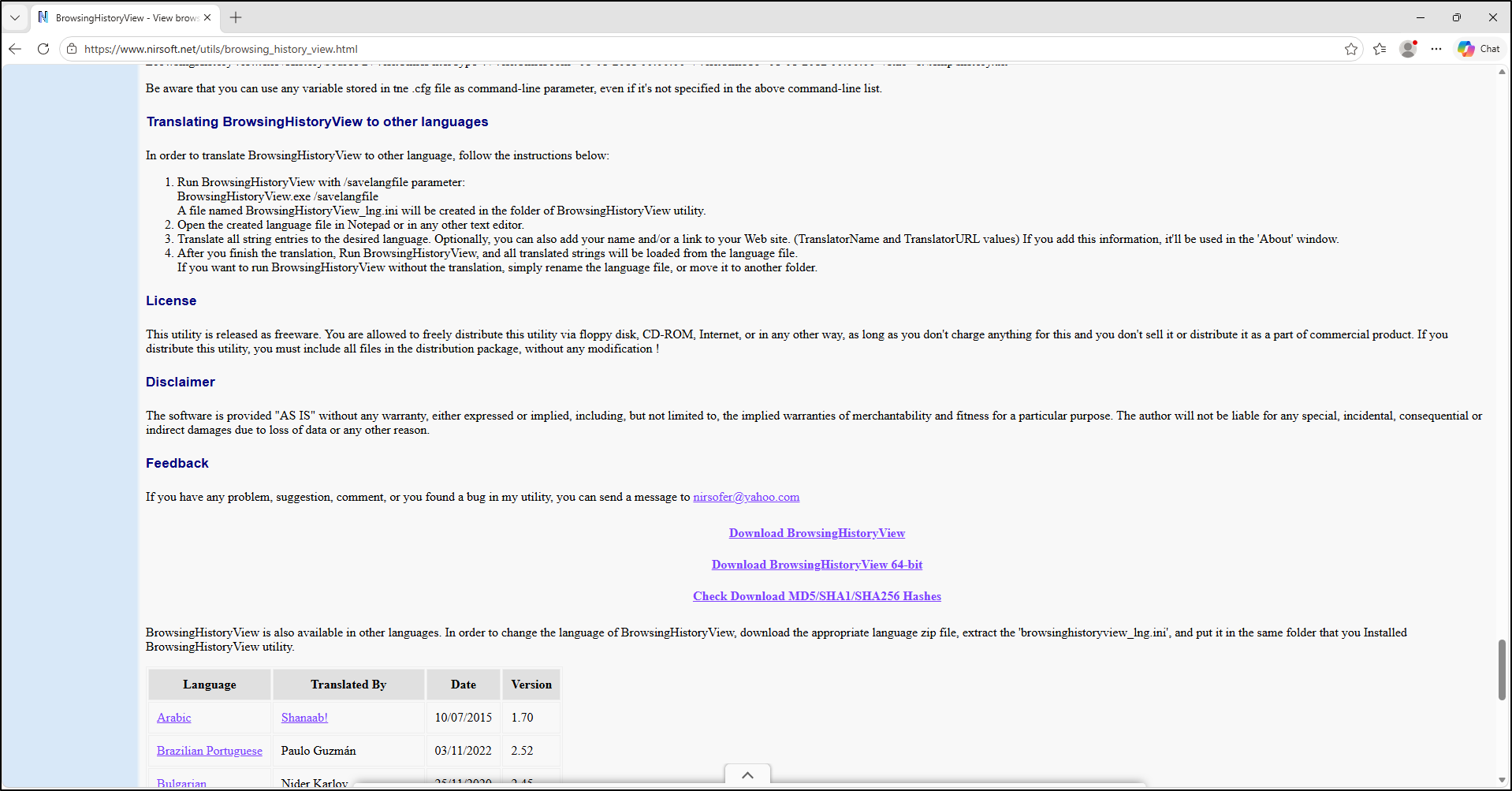
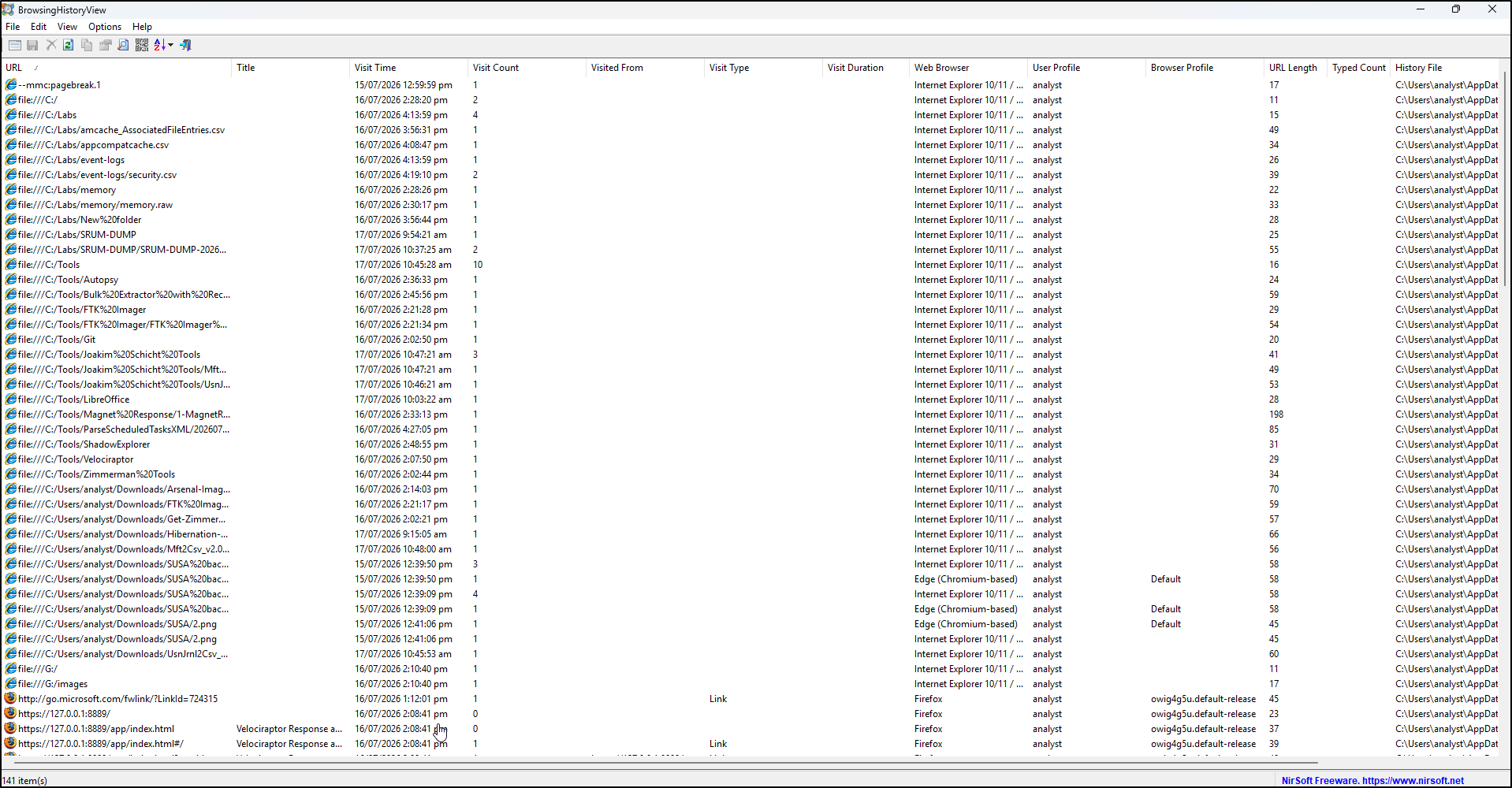
BrowsingHistoryView screenshots
Extract the archive into C:\Tools\BrowsingHistoryView. The following screenshots show download, browser/date selection and the populated interface. Select your working-copy paths for evidence examination; the screenshot contents are setup examples, not lab results.
ChromeHistoryView
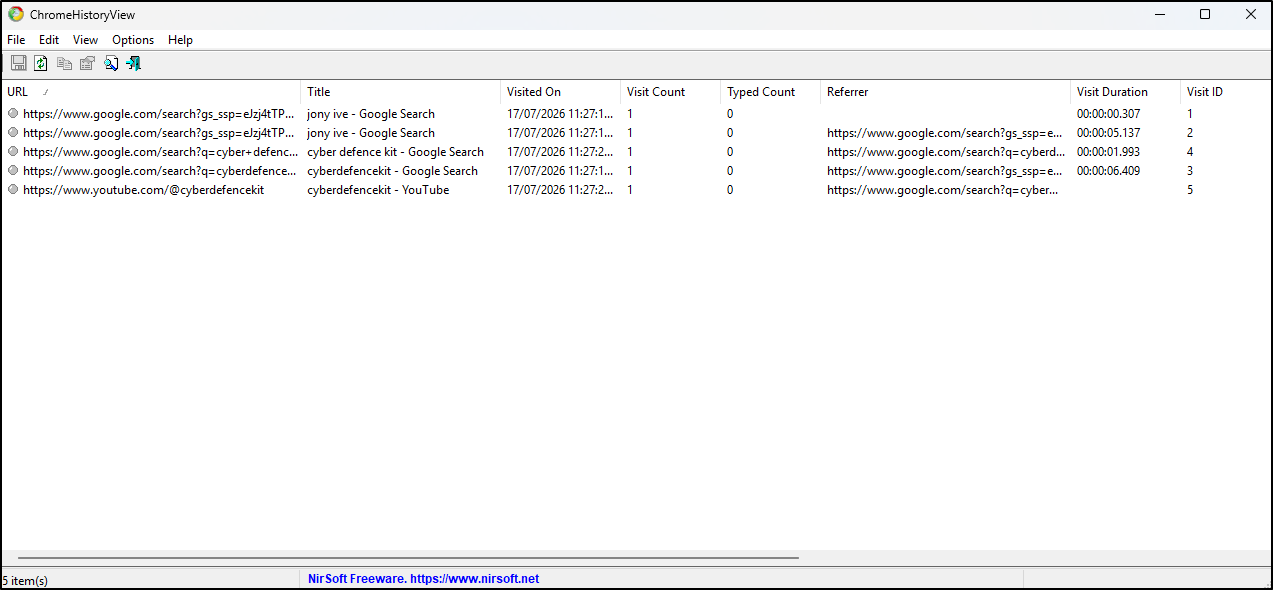
In ChromeHistoryView, use Advanced Options (F9) to select the working history file or supported User Data source. Review profile/History File and visit fields. Save selected records with Ctrl+S; select CSV with headers for a timeline. Keep the selected range and any transition interpretation in your notes.
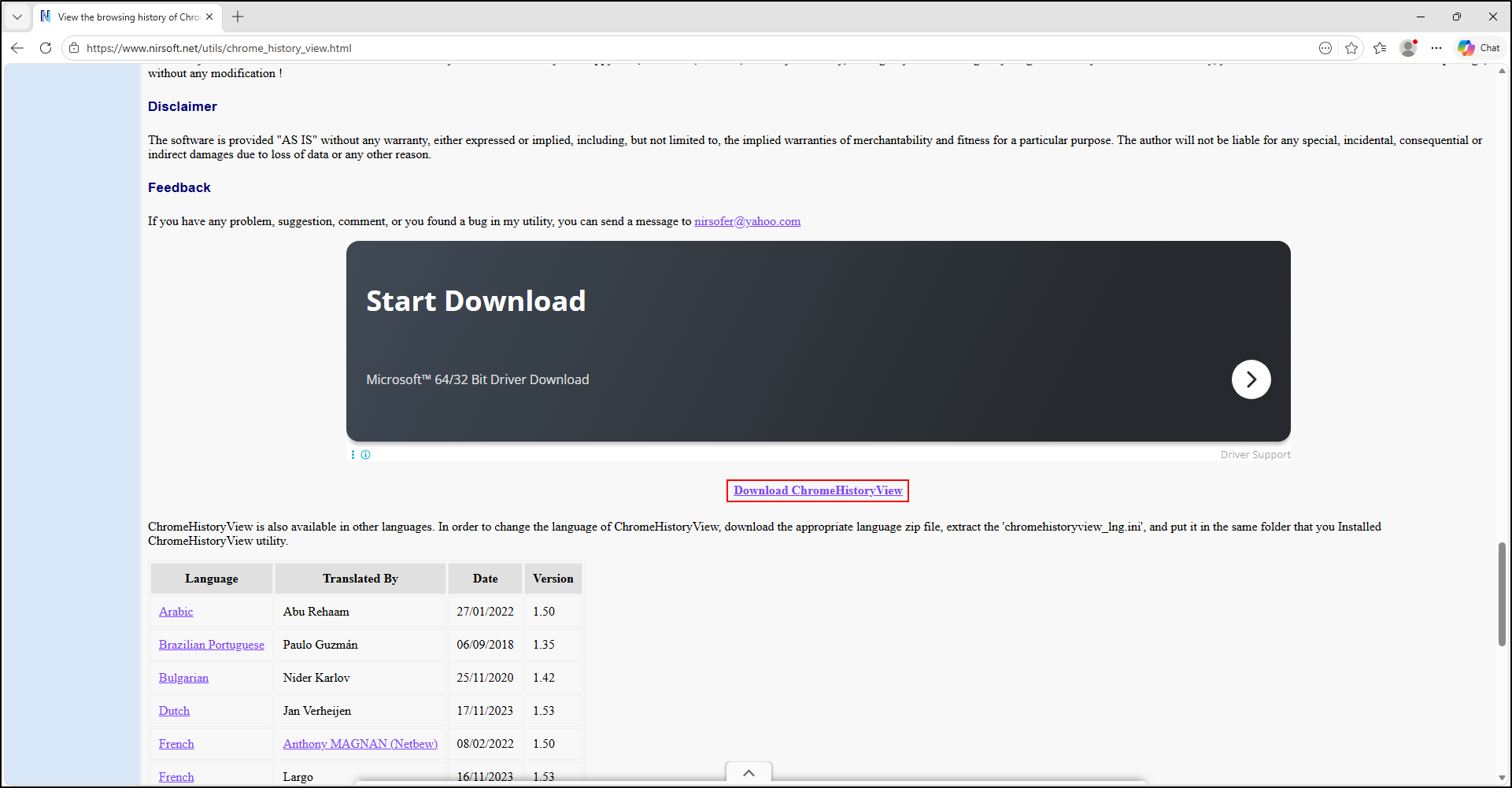
ChromeHistoryView screenshots
Extract into C:\Tools\ChromeHistoryView. The following screenshots show download and startup. Select a copied supported history file for examination and validate compatibility with your capture.
MZHistoryView
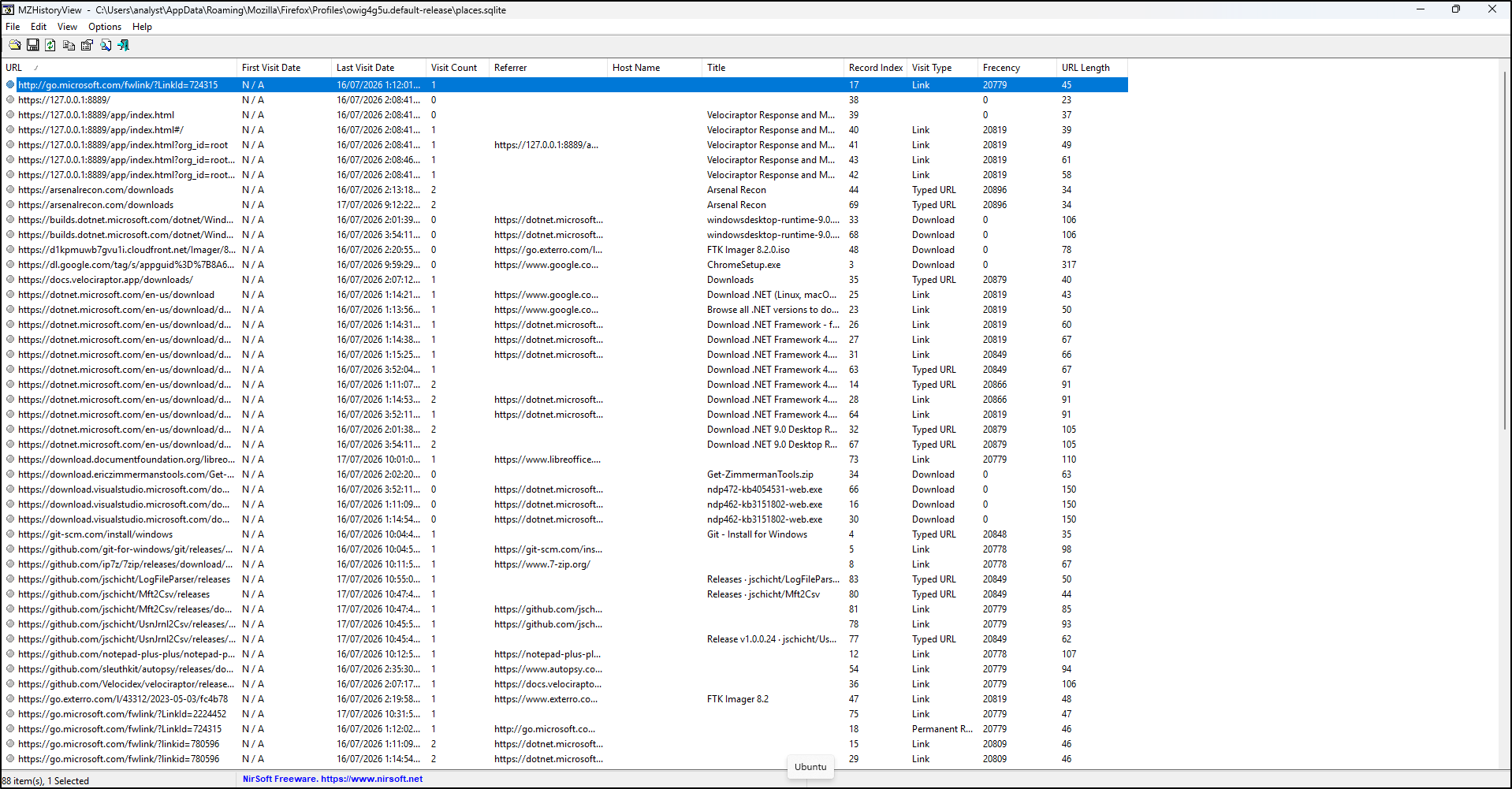
Use MZHistoryView's history-file selection to open the copied places.sqlite or supported legacy history file. Record the date filter and whether identical URLs are merged. Preserve first/last visit meanings rather than labelling either an exact single navigation. Export with headers. Current documented builds read places.sqlite without requiring an installed Firefox SQLite library; older builds differ.
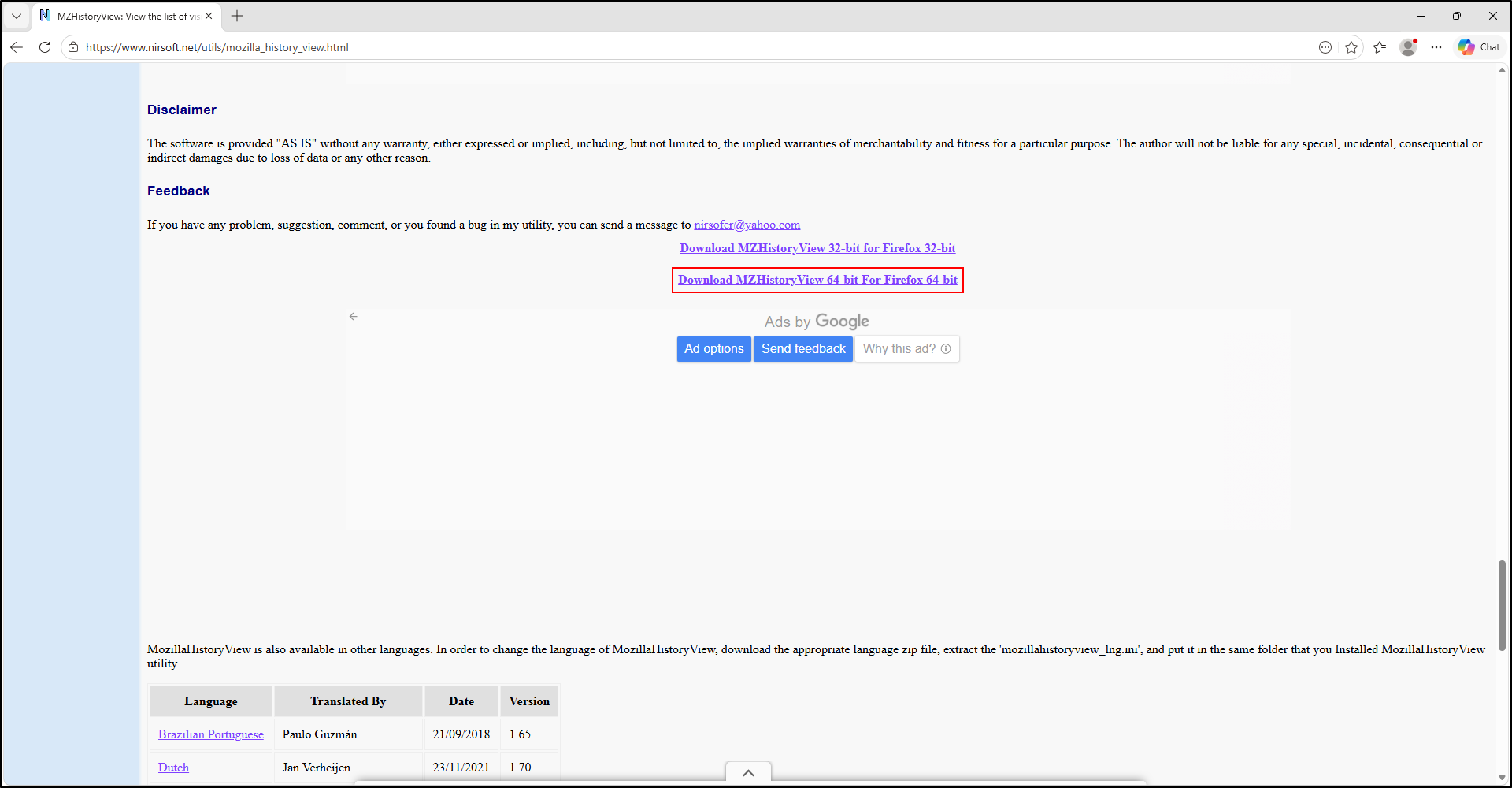
MZHistoryView screenshots
The following screenshots use C:\Tools\MZHistoryView and rename the supplied MozillaHistoryView executable to MZHistoryView. This is an optional local naming convention; record the actual filename/version/hash.
MyLastSearch
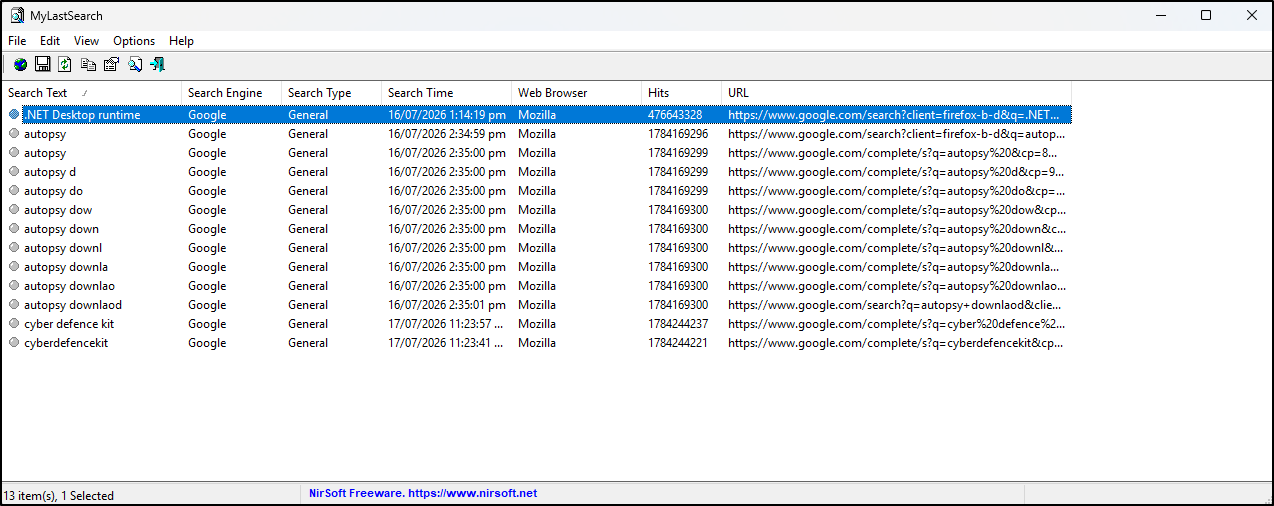
Use MyLastSearch on supported working history/cache sources, selecting the appropriate source settings rather than the analyst's own profile. Retain the extracted term, engine, source browser, reported time and full query URL. Validate important terms in the underlying URL and compare with browser history. Export selected results; an unrecognised search engine or absent cached query can produce no result.
Select copied sources explicitly
The documented /loadfrom syntax takes six ordered inputs: IE history folder, IE cache folder, Mozilla history file, Mozilla cache folder, Opera cache folder and Chrome cache folder. Use "" for an unused position. Confirm your installed version's help before building the command; a Chrome cache path is not a Chrome History database path. Retain the command and export settings with your notes.
MyLastSearch screenshots
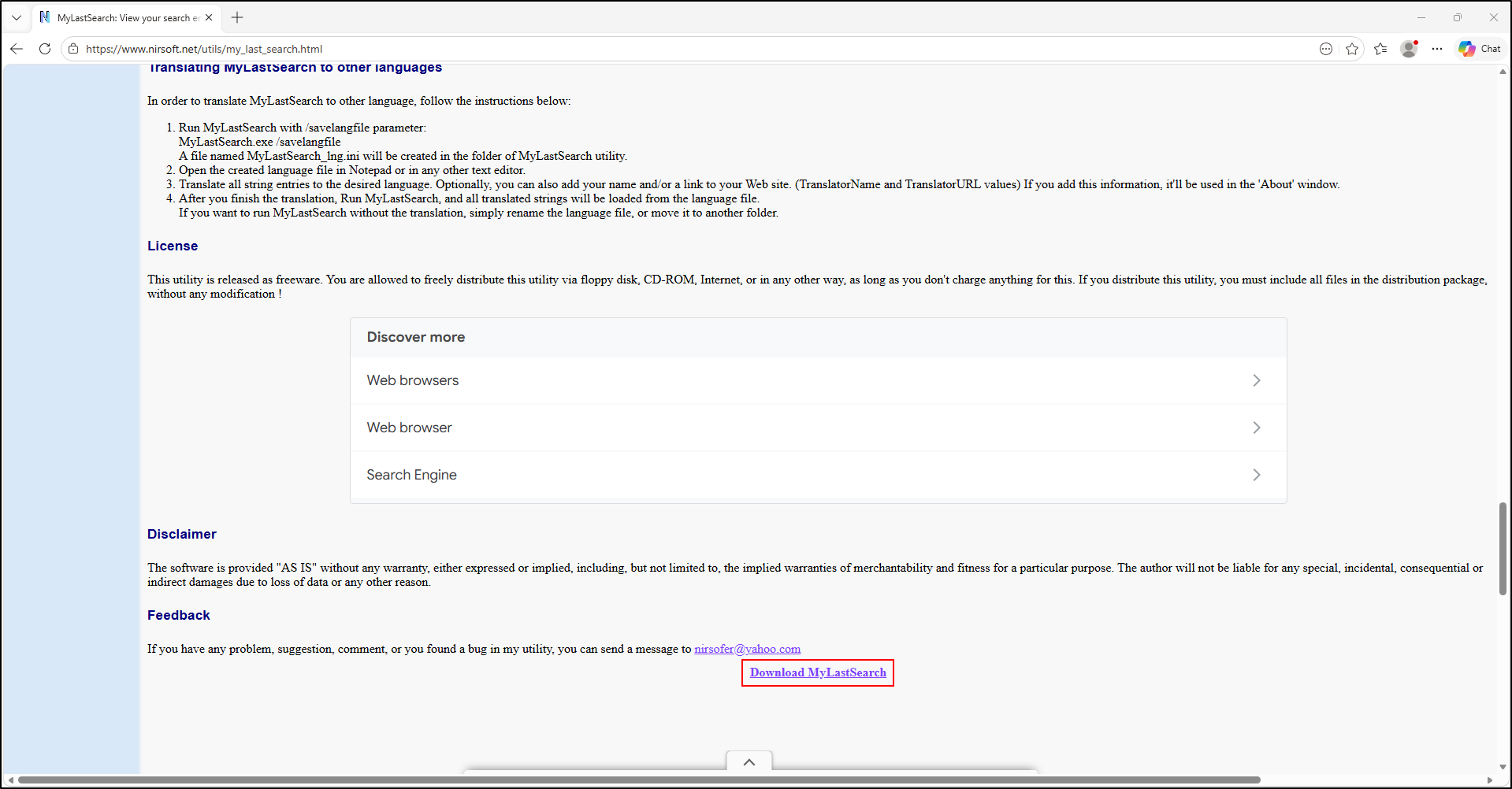
Extract into C:\Tools\MyLastSearch, then select the relevant evidence source before examination.
FavoritesView
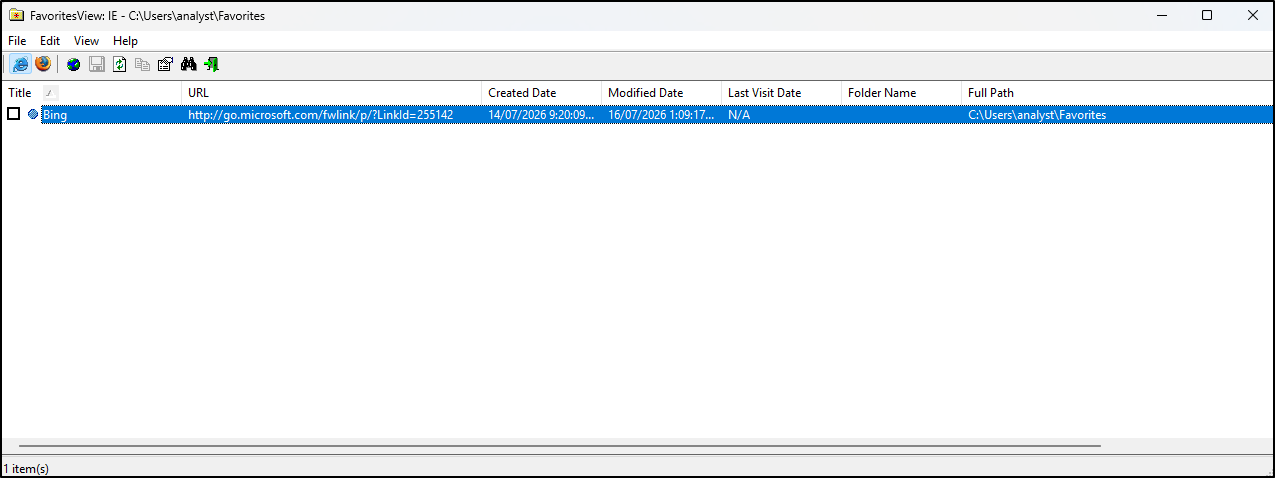
In FavoritesView, use File → Select Favorites File/Folder to choose the copied IE folder or supported Mozilla bookmark input. Retain URL, title, folder and the meaning of any created/modified fields. Export selected items; do not use the deletion feature. The documented Firefox 3 places.sqlite support is not a guarantee for current Firefox schemas.
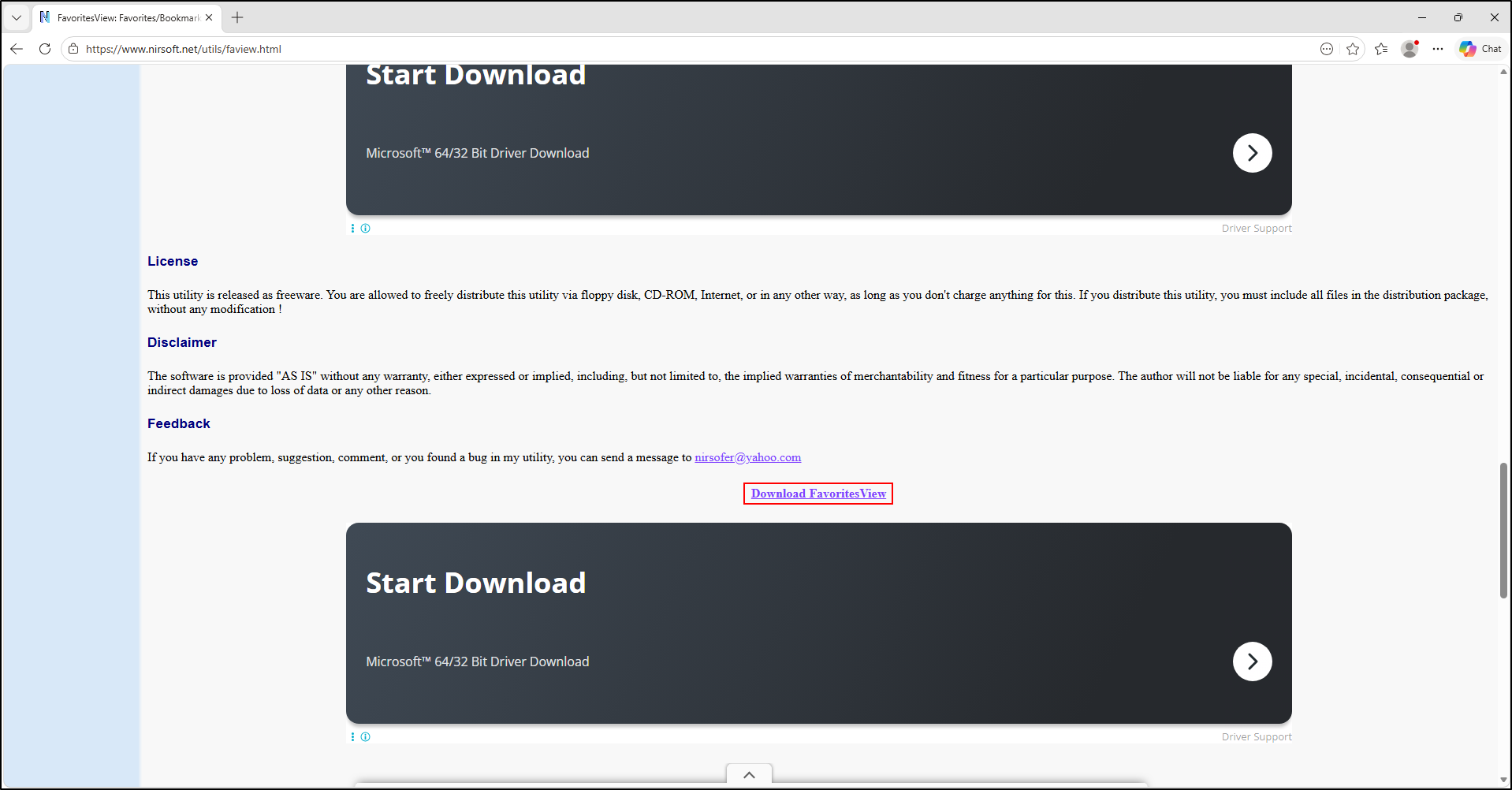
FavoritesView screenshots
The following screenshots use C:\Tools\FavoritesView and rename faview to FavoritesView. Keep the actual executable identity in your notes. Do not interpret a bookmark date as a browser visit time.