Search and Hunt with Chainsaw
02 / Ask one question at a time
Start with search to understand the evidence, then hunt for behaviour that needs review.
- Search
- Find a pattern or field condition
- Hunt
- Apply detection rules
- Starting folder
C:\Tools\chainsawwith the sample repository; use your actual paths for casework
Find a known event
-t supplies a structured field condition. Before interpreting a hit as a group membership addition, check all three identifiers below. Microsoft documents the event and its fields.
- Event ID
4732- Provider
Microsoft-Windows-Security-Auditing- Channel
- Security
A case-insensitive pattern can find account names or command fragments anywhere in the parsed record. Read the field in which it matched.
Combine event ID with the provider, computer or another field. Multiple -t conditions are ANDed unless you request --match-any.
# Text patterns use regular-expression syntax; -i ignores case.
.\chainsaw.exe search 'powershell' -i .\EVTX-ATTACK-SAMPLES\

# Two conditions must both match.
.\chainsaw.exe search -t 'Event.System.EventID: =4732' -t 'Event.EventData.TargetSid: S-1-5-32-544' .\EVTX-ATTACK-SAMPLES\
Read the field that matched
The second command asks about additions to the built-in Administrators group using its SID, avoiding a translated group name. A match still needs context and authorisation checks.
The CLI definitions document the pattern, -t, -i and output options.
Run the original sample hunt
- 1 / RuleSigma describes the fields and values to match.
- 2 / MappingTranslate rule fields to the event's structure.
- 3 / RecordRead the actual EventID and target group SID.
- 4 / MatchKeep the detection and return to the source event.
The mapping connects portable rule logic to the fields in your evidence.
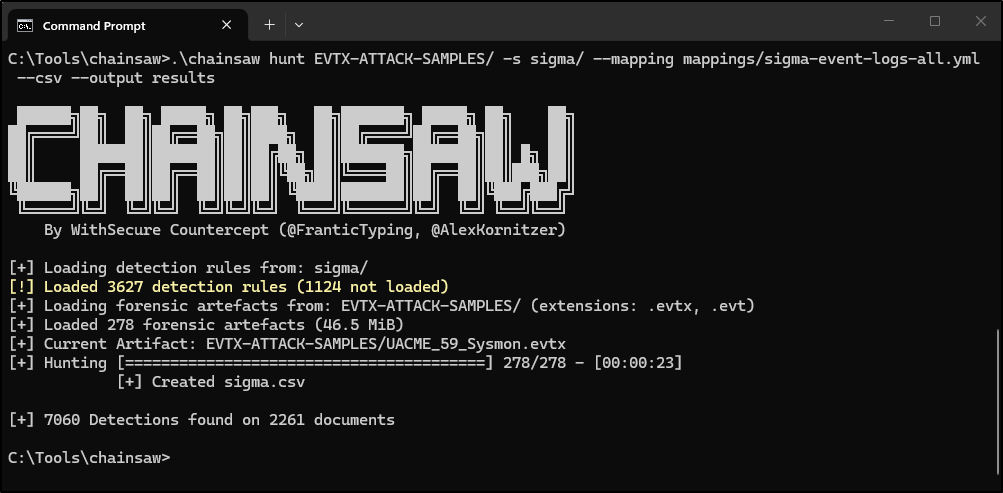
The original SUSA command hunts all supplied EVTX samples using Sigma and writes CSV results to results:
Check the whole run
- Input files loaded
- Rules loaded
- Processing completed
- Output files present
Record warnings and errors as well as hit counts. Counts vary with sample, rule and tool revisions; the screenshot's counts are not a pass condition.
hunt EVTX-ATTACK-SAMPLES/- Input files to analyse recursively.
-s sigma/- Sigma detection logic.
sigma/rules/windows/is a more focused Windows subset. --mapping mappings/sigma-event-logs-all.yml- Translates rule fields and log sources into the parsed event structure.
--csv --output results- Writes CSV tables into a result directory.
Narrow the time window and preserve full records
Use the event's timestamp basis, not today's date. This example brackets the two Full Lab records from 22 September 2019. Keep a wider initial search so an incorrect time assumption does not hide relevant evidence.
Hunt uses the mapping's event timestamp. Retain UTC by default and record it. If using --local or --timezone, record those options.
Search time filtering also requires --timestamp. It names the timestamp field against which the window is applied.
Bracket the event with time on either side. Avoid relying on exact endpoint inclusion or a narrow first search.
See the search implementation for how the selected timestamp field is filtered.
To preserve complete matching source records, export a separate search as JSON. A hunt's detection JSON and a search's raw event JSON serve different purposes.
Check coverage before interpreting the resultWhat if there are zero matches or warnings?
Zero matches is a result, not a clean bill of health. Follow these checks in order and retain the console output with your results.
Did the intended files load?
- Check
- Confirm the input path, loaded files and available channels. Check that you are analysing the intended working copies.
- Record the gap
- Missing or overwritten logs cannot be searched. State which sources were available.
Is the window hiding the event?
- Check
- Compare the filter with the source event's timestamp and timezone. Widen the search if the clock context is uncertain.
- Record the change
- Retain the first run and explain any revised time bounds.
Do the rules cover these logs?
- Check
- Review loaded rules, mapping coverage and required log sources. A Sysmon process rule cannot find its events in a Security-only export.
- Record the limit
- Unsupported rules may fail to load. A rule that did not run provides no detection coverage.
Were any records skipped?
- Check
- Read parse warnings and errors, then confirm processing completed and inspect the saved output files.
- Record the effect
- Keep the messages and identify the evidence affected before writing a finding.