Install and Open Event Log Explorer
Step 01 / get the viewer ready
From download to an empty workspace
This is the original SUSA installation walkthrough, with all 15 screenshots retained. The screenshots show a Standard edition registration and an older installer. Check your installed version and edition; the vendor may change labels or the download process.
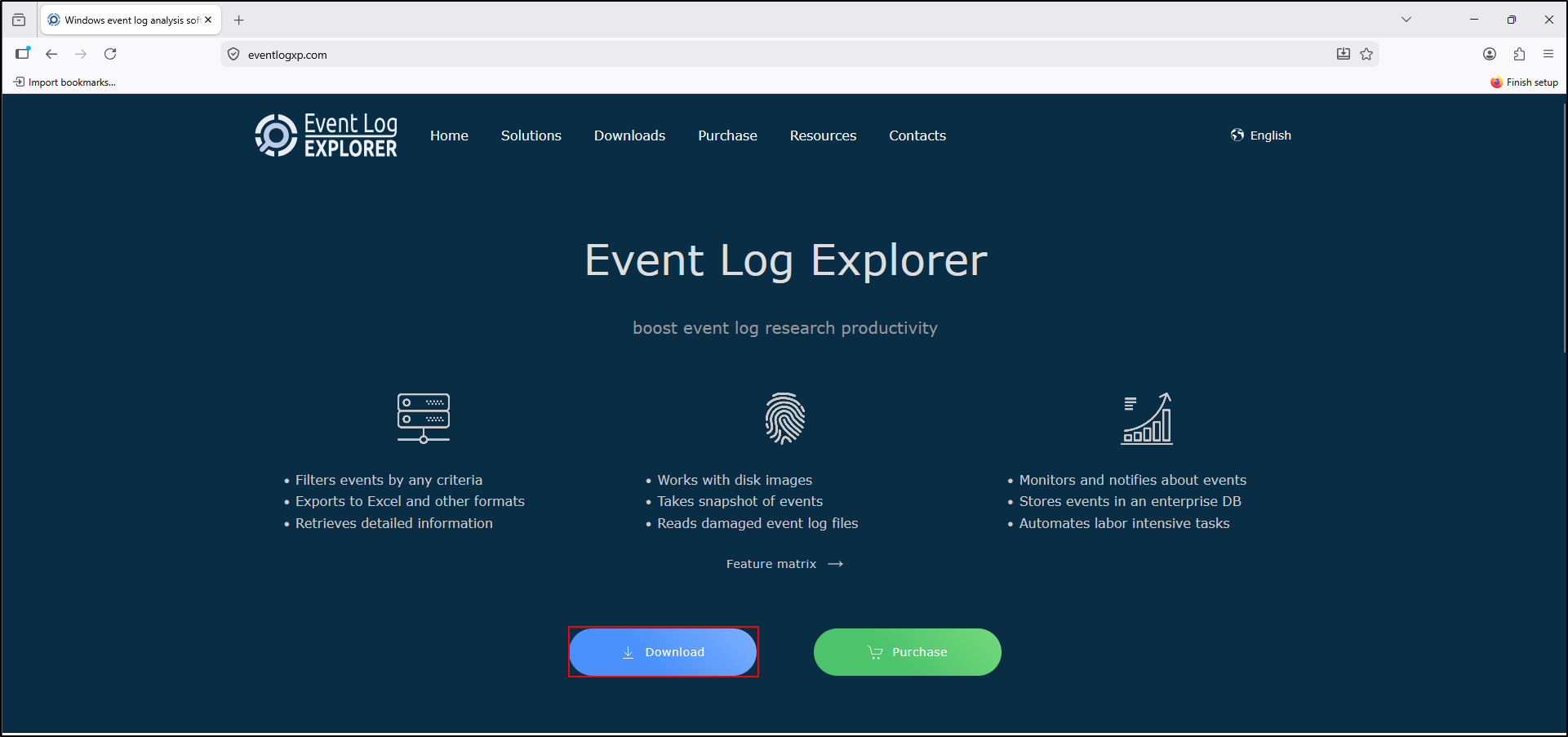
1. Download the Windows installer
Download Event Log Explorer from FSPro Labs. The vendor sends the download link by email after registration.
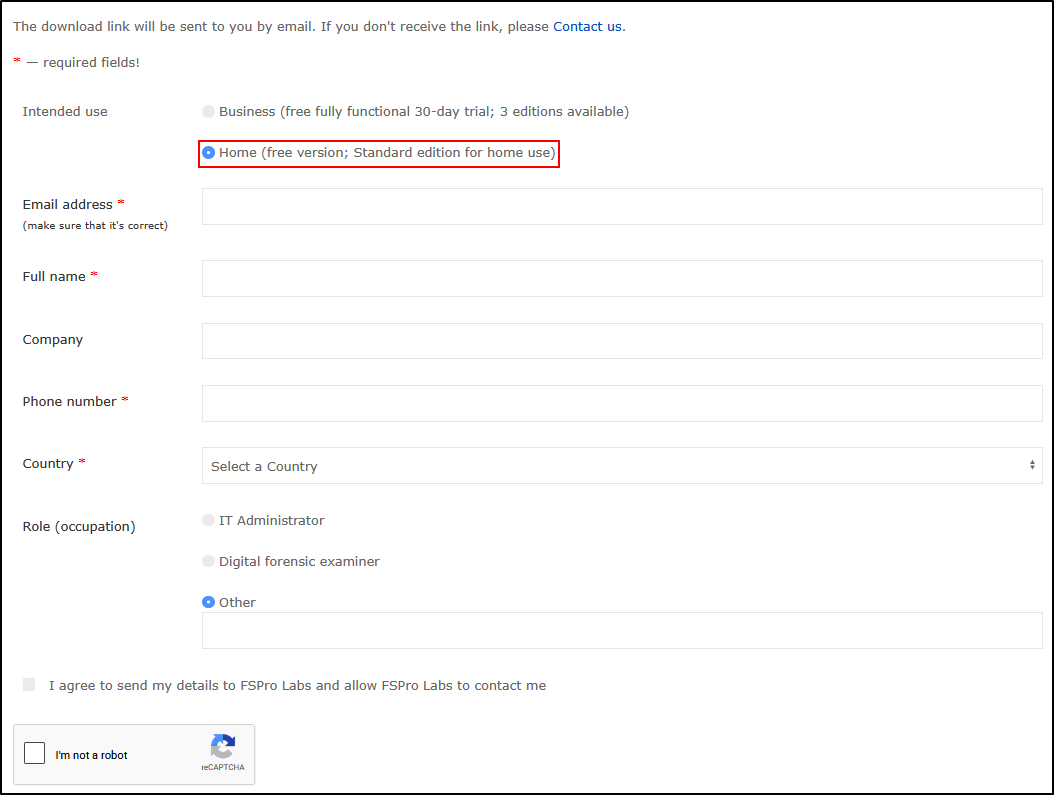
Fill out your details. The original walkthrough selects Home for intended use. Use that option only when your use meets the vendor's home-use terms; for organisational work, use the appropriate business licence or trial. Check the current terms on the download page before choosing.
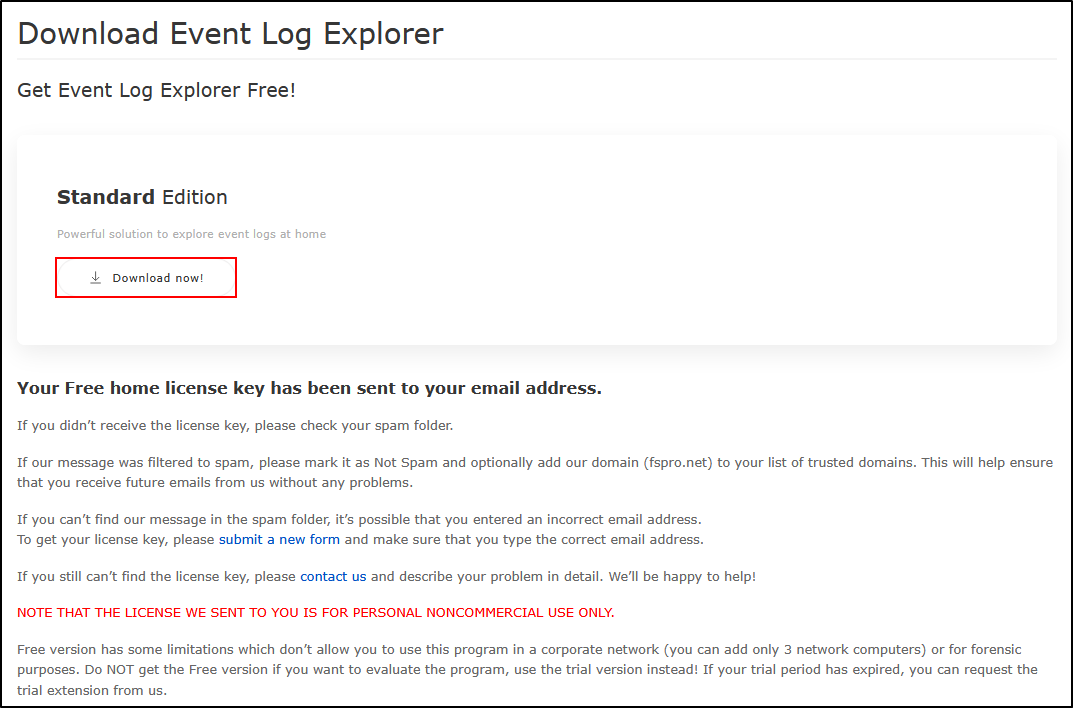
After submitting your details, download Event Log Explorer using the link provided.
2. Install and record the location
Move the downloaded executable to C:\Tools\Event Log Explorer. Double-click it to begin installation. Read the agreement and accept it if you agree to its terms.
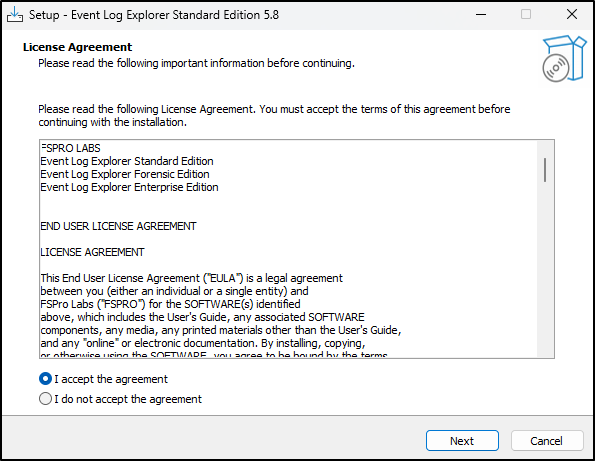
Keep the default options, select Next, and record the destination. The original installation uses C:\Program Files (x86)\Event Log Explorer.
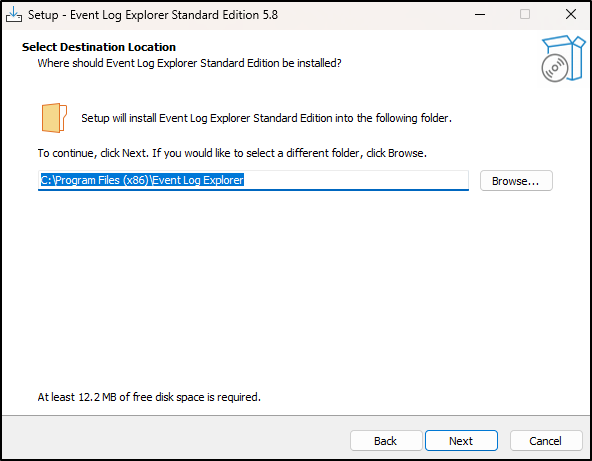
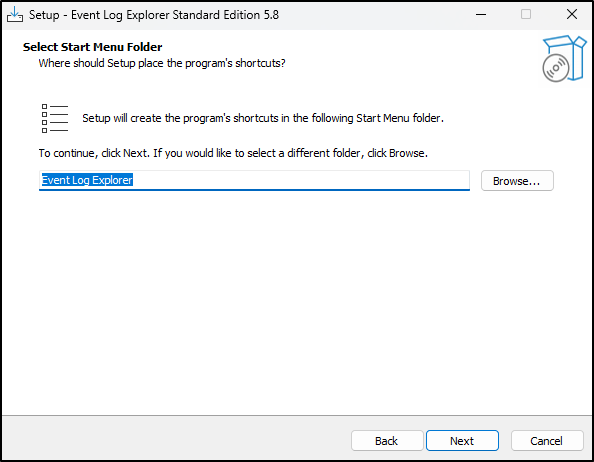
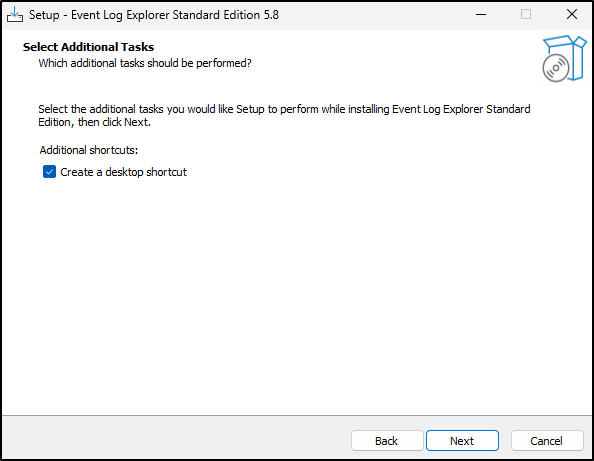
Click Install, then Finish when installation completes.
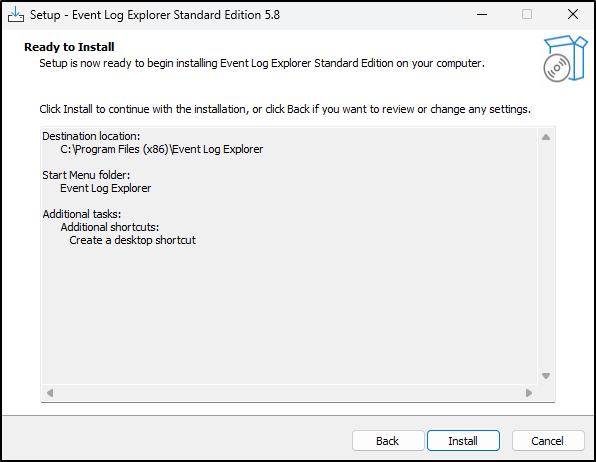
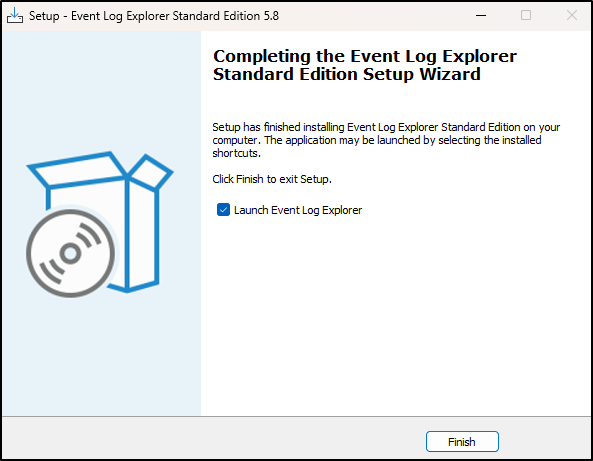
Check: the application is installed. The folder under C:\Tools is your SUSA launch location; the program files remain at the installed destination.
3. Apply your registration, if required
Event Log Explorer opens and may ask for a licence key. In the original walkthrough, select Enter license key.
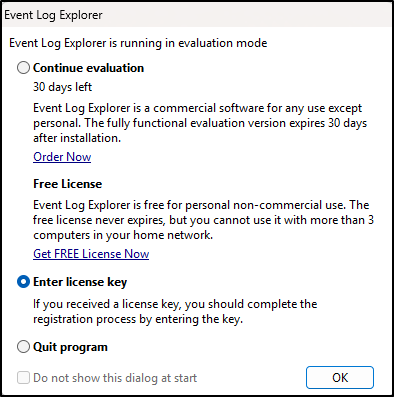
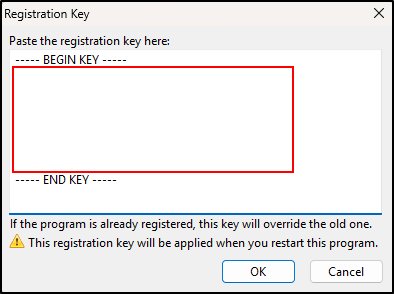
Copy and paste the key sent to your email, then click OK. Keep the key out of case notes and screenshots you share.
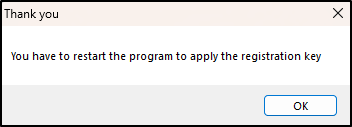
Click OK and restart the program to apply the registration. A trial or a different edition may use another activation path.
4. Create the SUSA shortcut and verify startup
Move the desktop shortcut to C:\Tools\Event Log Explorer and name it Event Log Explorer. Move the shortcut, not the installed program folder.
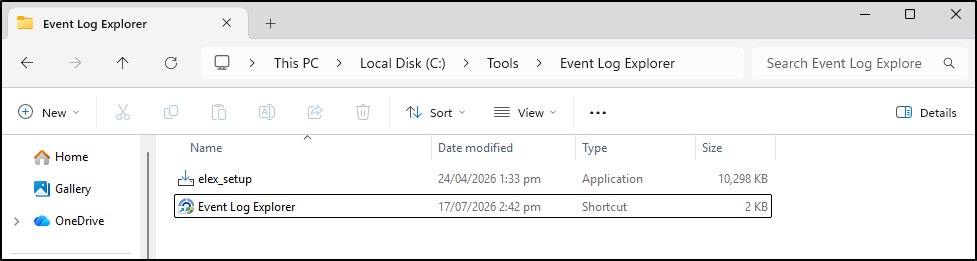
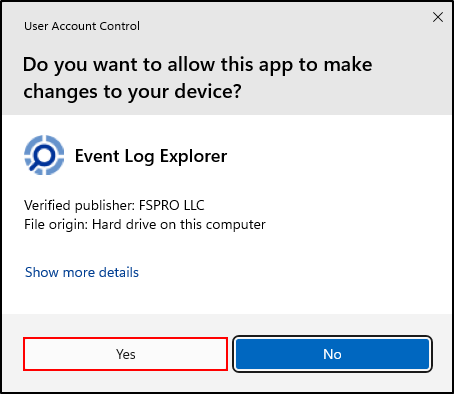
Double-click the shortcut. If the expected installed application requests elevation through User Account Control, check the application and publisher before selecting Yes. Access to a readable saved EVTX normally does not require changing your workstation's audit policy or group memberships.
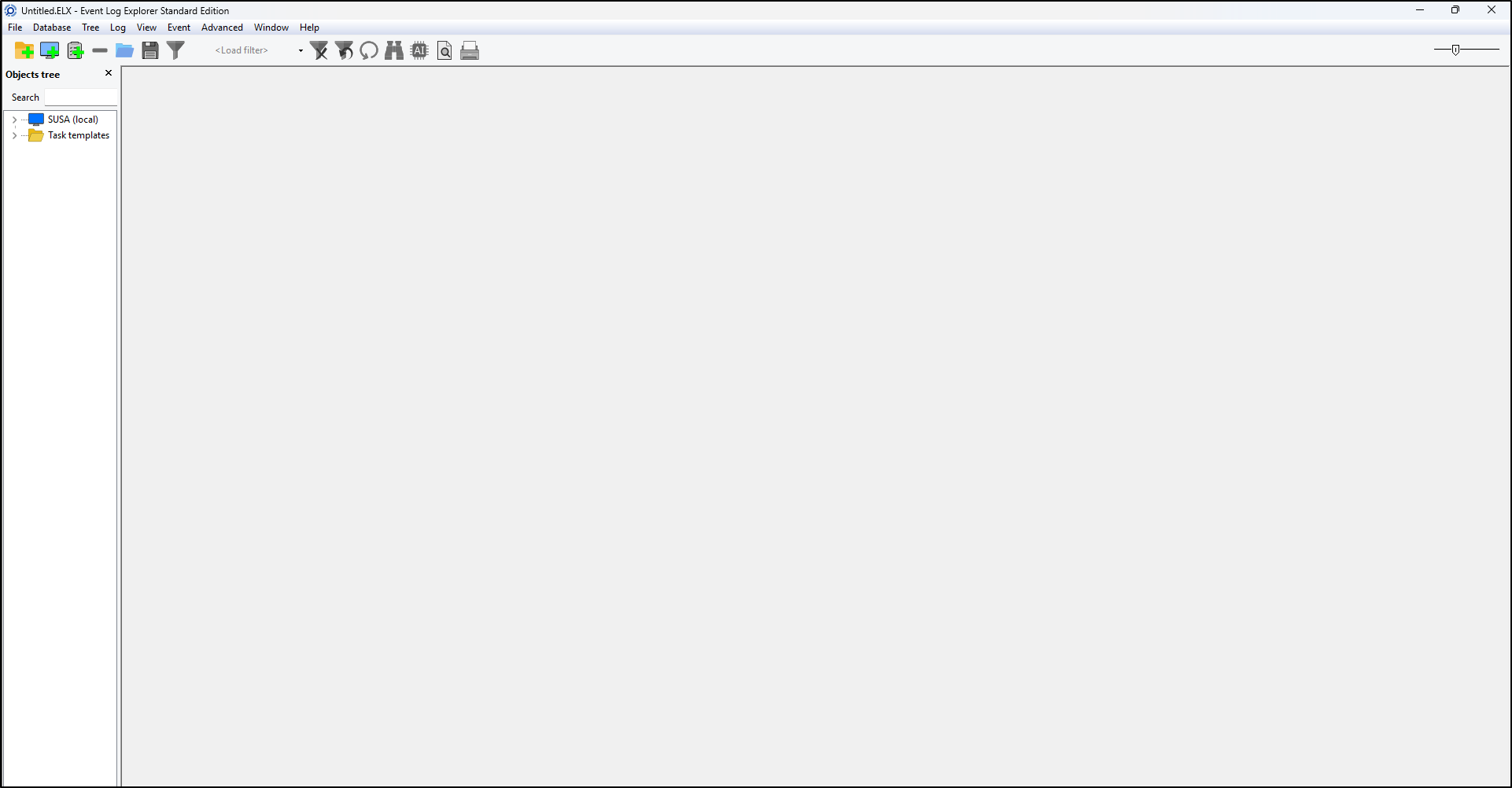
Check: you can see the menu, Objects tree and an empty log-view area. Record the version and edition from the application's About information. An empty workspace is normal; no log has been opened yet.
Continue to Examine and filter. You will open a saved log rather than the local workstation's live Security log.