Review and Report Hayabusa Results
Step 03 / detection to evidence
A rule match starts the review
Open results.csv with Timeline Explorer. Keep the original CSV and EVTX files; save any filtered or annotated views separately. Timeline Explorer is a separate application, rather than a graphical Hayabusa interface.
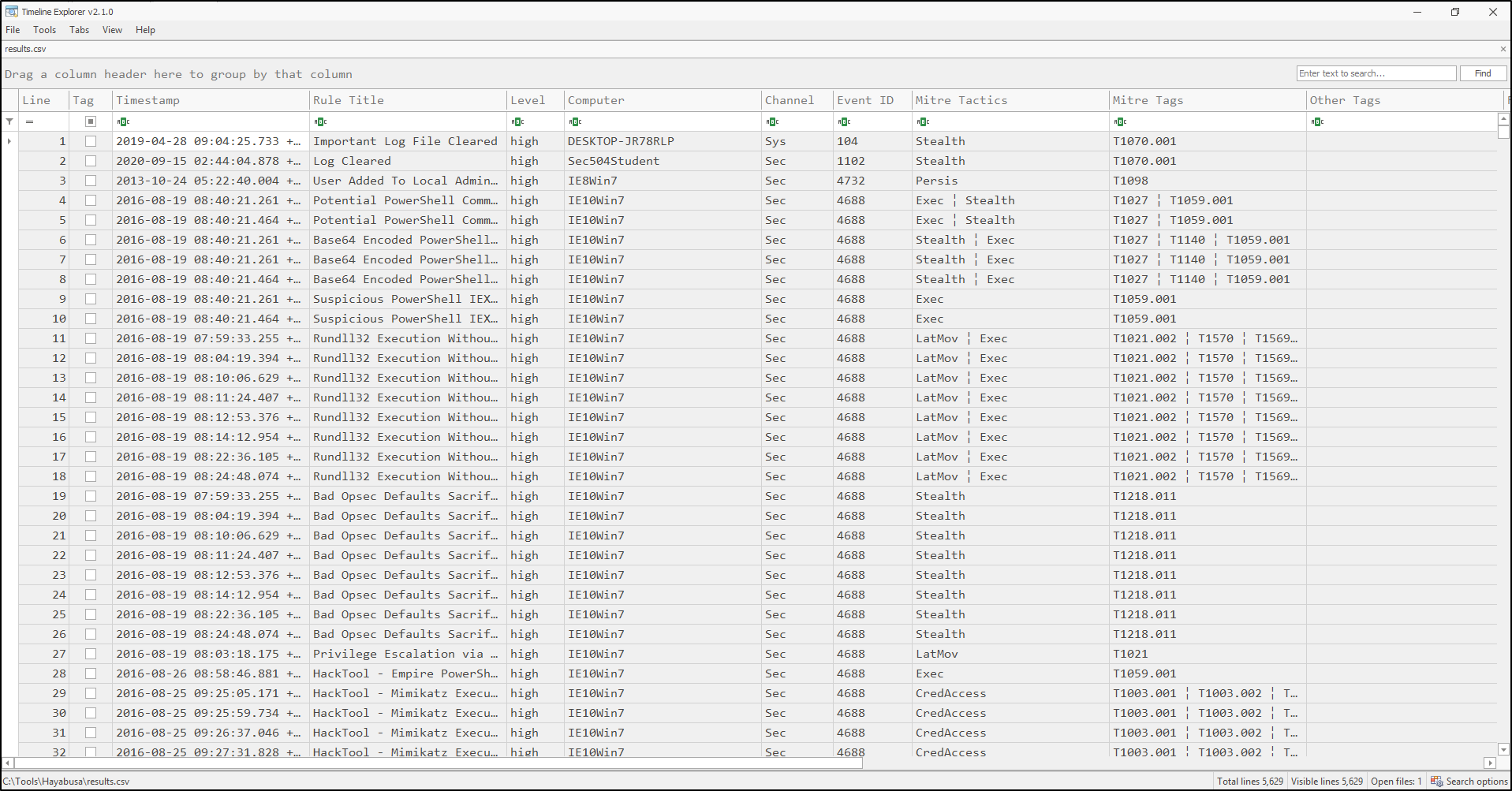
Read the columns with a purpose
Column names and spacing depend on the selected profile and version. Use list-profiles to inspect yours.
| Field | Analyst use | Common mistake |
|---|---|---|
| Timestamp | Place the event in time and retain the displayed zone. | Treating local time as UTC or merging unrelated sample histories. |
| Computer / Channel / Event ID | Identify the host, log and event type. | Treating an event ID alone as globally unique. |
| Rule Title / Level | Prioritise the lead and read its detection logic. | Reporting “high” as proof of malicious activity. |
| Record ID | Locate an event within its source log. | Confusing the viewer's row number with the source record ID. |
| Details / Extra Field Info | Extract accounts, paths, addresses and identifiers. | Assuming absent fields mean the activity did not occur. |
| Rule ID / Rule File / Evtx File | Preserve the detection and input references. | Saving a cropped screenshot without enough context to reproduce it. |
Follow one lead through four checks
- 01 / Timeline rowRead the rule, host and timestamp.
- 02 / Source referenceKeep file + host + channel + record ID.
- 03 / Original eventCompare the XML fields and rule logic.
- 04 / Case noteSave the evidence, limits and next action.
Timeline: start with the detection, then follow its reference to the original event.
Filter Computer first, then inspect timestamps around the lead. Keep UTC consistent. The original sample collection contains many independent examples.
Record the rule, source file, channel, event ID and record ID. Inspect the rule's conditions and plausible legitimate explanations.
Open the saved log in Event Viewer and use Details / XML View to compare the record and fields. Keep the host and channel with the record ID.
Compare nearby authentication, process and service events. Use identifiers and paths where available; a close timestamp alone cannot link two actions.
Useful event families for a first investigation
Security 4624 / 4625: successful and failed logons; check account, logon type and source address. Security 4688 / Sysmon 1: process creation when configured; check parent, image and command line. System 7045: a service installation. Security 1102: the Security audit log was cleared. Interpret these with host policy, approved changes and the original event fields. Logs and audit settings determine what is available.
Use hayabusa.exe logon-summary --help, hayabusa.exe search --help, and hayabusa.exe eid-metrics --help to explore account summaries, keyword pivots and event coverage. These are supplementary views; retain source records for your finding.
Check your judgement
Choose the next action supported by the evidence.
Save a finding another analyst can check
Case / question:
Evidence source, acquisition or download context, SHA-256:
Hayabusa version, rules snapshot, command and wizard choices:
Output file and timestamp basis:
Observation: host, channel, event ID, record ID, timestamp, relevant fields.
Interpretation: why the activity matters; plausible legitimate explanation.
Limitations: missing logs, filtered rules, parsing errors, attribution gaps.
Next action: which evidence or approval record would test the explanation?
Retain the original EVTX, working copy hashes, full timeline, relevant source XML, rules used, scan transcript and finding. A screenshot helps explain the result but does not replace these files.
Troubleshoot the workflow
| Symptom | First checks |
|---|---|
| Unrecognized command | Check hayabusa.exe help; choose dfir-timeline or the older csv-timeline. |
| Rule/configuration error | Run from the complete extracted tool directory. Check the rules and configuration paths. |
| Existing output file | Keep it and use a new filename for the next scan. |
| Many similar detections | Compare source references: several rules may match one event. Keep the full output before deduplicating. |
| Missing account, command line or Sysmon data | Confirm the supplied channel and audit coverage. A tool option cannot restore unrecorded fields. |
| Parsing errors or unexpected gaps | Retain the errors, compare source files and avoid reporting a complete host history. |
Continue to Hands on labs.