Analyse a File with FLOSS
Use this sequence for approved training material or a preserved working copy from an investigation. Start with a Notepad setup check, then extract and interpret strings from an identified file.
Accessing FLOSS in SUSA
Download the latest stable FLOSS binary from the official release page.
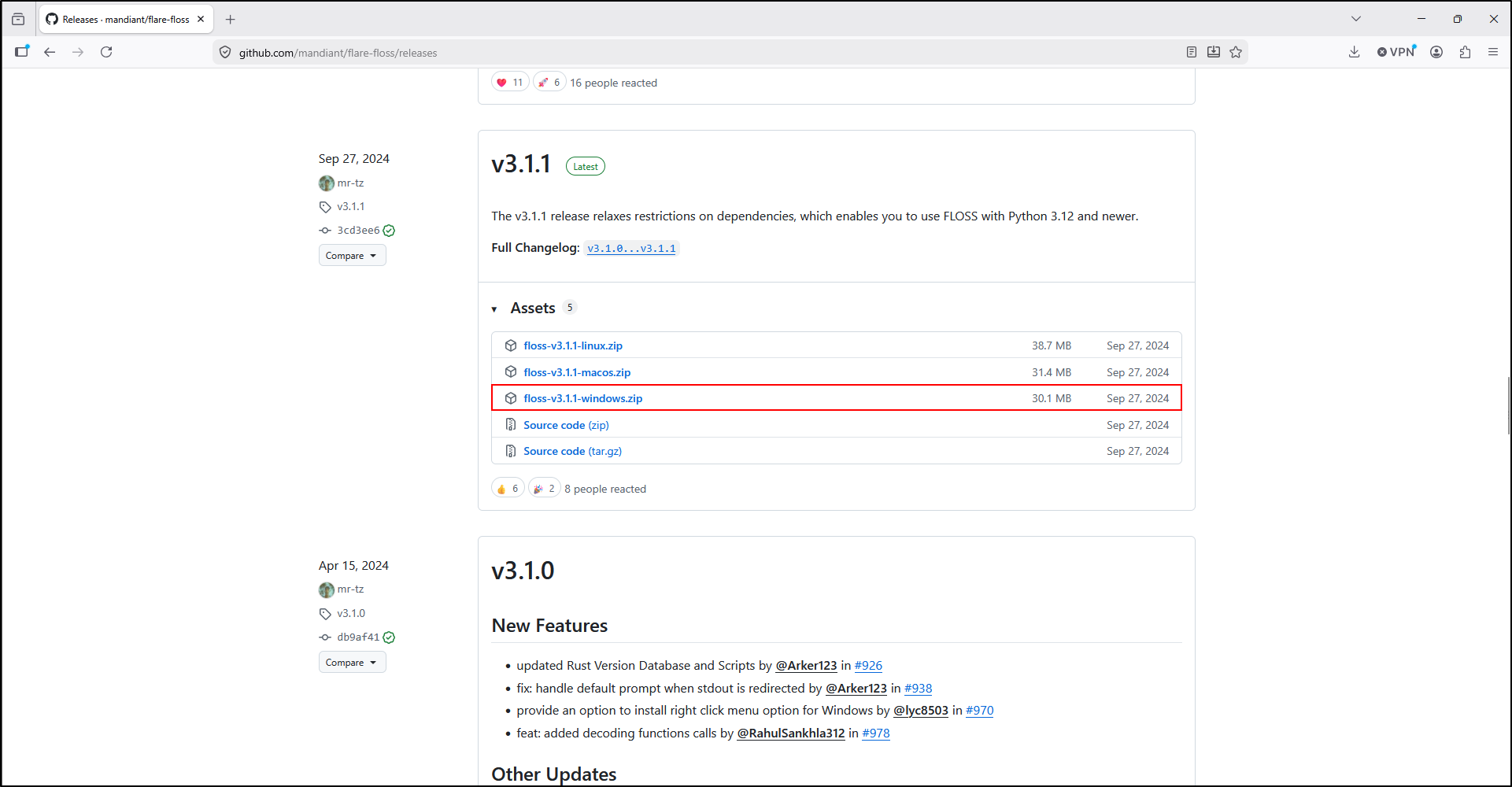
Extract the ZIP archive to the C:\Tools\FLOSS directory.
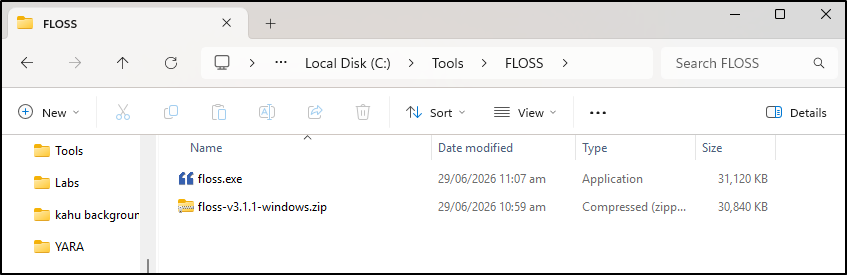
Confirm that floss.exe is directly inside that folder, then check it in Command Prompt:
Adding FLOSS to PATH environment variable
PATH lets Windows find floss.exe when you enter floss from another folder. This is optional; the full executable path works without changing PATH.
Open Environment Variables (Start → Environment Variables → Edit the system environment variables → Environment Variables).
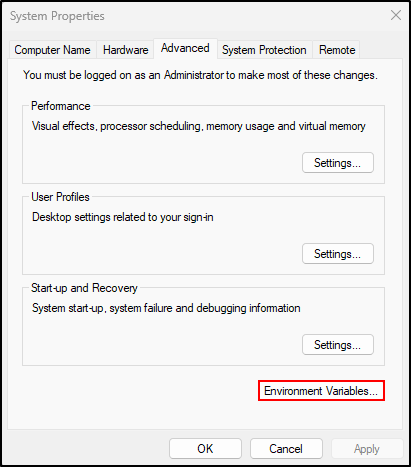
Under User variables, select path and click Edit.
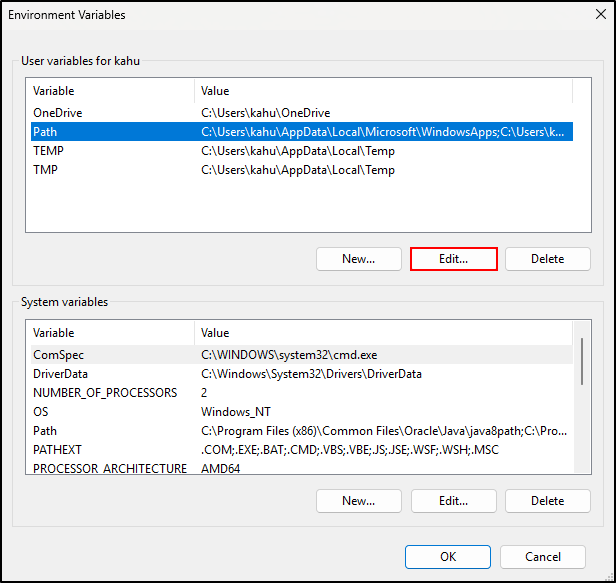
Click New and add (one entry per line):
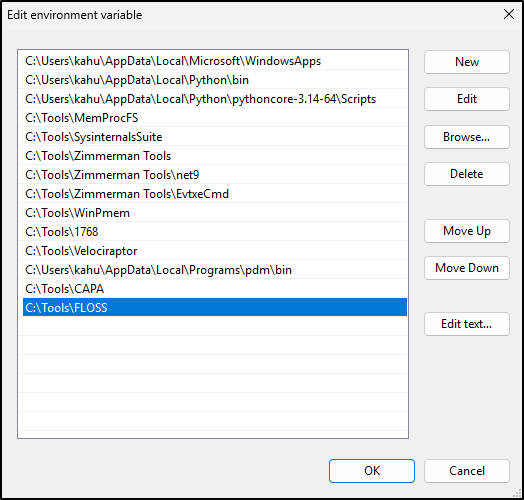
Click OK (then OK on other windows to save changes).
Open a new Command Prompt and enter floss --version. If the command is not recognised, check the folder or use the full executable path. Add the containing folder, not the executable filename.
Testing FLOSS
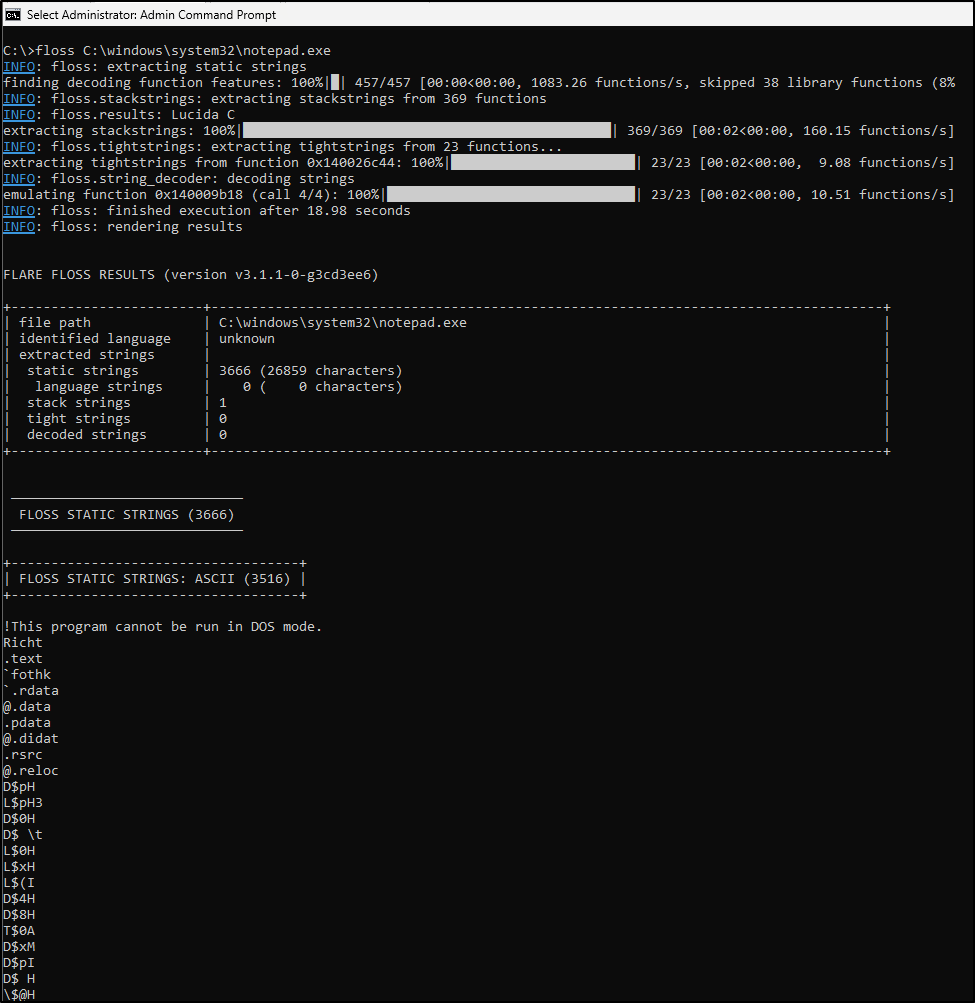
The original walkthrough uses an administrator Command Prompt, as shown below. Elevation is not normally needed to read a file you already have permission to access. The browser lab retains the Administrator title to match this example.
Open an administrator Command Prompt and run FLOSS against notepad.exe:
Read the summary first
In the original screenshot, find FLARE FLOSS RESULTS, the version, file path and string counts. The recorded run recovered 3,666 static strings, one stack string, zero tight strings and zero decoded strings. “Unknown” in the language field is not a malware classification.
Zero decoded strings does not mean installation failed. The useful setup outcome is a completed report for the intended file without an analysis error. Neither these counts nor the name notepad.exe establish a file's trustworthiness.
Read the progress and string sections
Blue INFO labels are logging messages, not maliciousness scores. The progress bars show phases of analysis. “Emulating function” refers to FLOSS's recovery method; it does not prove that function executed on the source endpoint.
Below the summary, the screenshot begins FLOSS STATIC STRINGS: ASCII. PE section names and the DOS message are ordinary executable content. Review the other category sections too; do not treat every visible line as an indicator.
Prepare an investigation file
Use a disposable Windows training VM and an identified working copy. Retain the original, its source and collection context separately. Do not launch an unknown sample. The Full Lab supplies a harmless executable, source and manifest if you need training material.
The commands below assume string-lab.exe is in C:\Cases\FLOSS-LOCAL-01\working and an empty output folder exists beside it. Follow the Full Lab to prepare those folders first. Use Command Prompt for these examples; redirection and variables can behave differently in PowerShell.
Compare the hash with the source manifest. Record the case question, source, input path and hash, tool version, time/time zone and output location. A hash identifies bytes; it does not establish malicious intent.
Extract and preserve the output
Run an initial analysis:
For a saved run, keep results and error messages separately. These examples are for FLOSS 3.1.1. Use fresh output filenames for subsequent runs; > replaces an existing file.
floss --color never string-lab.exe 1> ..\output\strings.txt 2> ..\output\strings-errors.txt
echo %ERRORLEVEL% > ..\output\strings-exit.txt
floss -j string-lab.exe 1> ..\output\strings.json 2> ..\output\json-errors.txt
echo %ERRORLEVEL% > ..\output\json-exit.txt
Run each echo immediately after its FLOSS command. Check the status and error files before interpreting results; a nonzero status needs investigation. Retain warnings even if the tool completes. JSON preserves category and location fields; the text report is convenient to read.
Focus on decoded strings
In FLOSS 3.1.1, --only decoded selects the decoded category and -v includes locations:
The -- ends the list of category options before the filename. Consult floss -h or floss -H for your version; newer releases may use different option names. See the v3.1.1 usage guide.
Turn a string into an investigation lead
For each useful value, record the complete string, extraction category, available location fields, sample hash and report reference. An offset or virtual address is a location, not a timestamp. A value recovered in multiple categories is not several independent events.
| String looks like | Ask | Corroborate with |
|---|---|---|
| URL or domain | Is this relevant configuration, library text or a test value? | Code context and endpoint/network records for the identified file. |
| File or Registry path | Is this a possible target, configuration value or message? | File-system or Registry evidence with host and time context. |
| Command or API name | How is the value referenced by code? | Code inspection, process records or other relevant artefacts. |
Keep ordinary application text and distracting values in the original report. Put selected leads in a separate note. Avoid opening recovered URLs or assuming that a reference to an API proves it was called.