Persistence Sniper: Set Up & Analyse
Move from installation to a reviewable persistence finding. Keep the same Windows PowerShell window open as you work. The Full Lab provides a complete before-and-after exercise.
Before you begin
Use the VM and administrator account described in Overview. Open 64-bit Windows PowerShell 5.1 as administrator. Record the host, account, time zone, module source, version, and scope. Use a new case folder for each investigation so existing evidence is not overwritten.
Accessing Persistence Sniper in SUSA
Choose one acquisition route below. The release download gives you a fixed training version; cloning retrieves the repository's current revision. Record which you used. The screenshots illustrate the v1.17.1-era workflow; confirm the behaviour of your installed copy with its local help.
Download the release
Download PersistenceSniper.
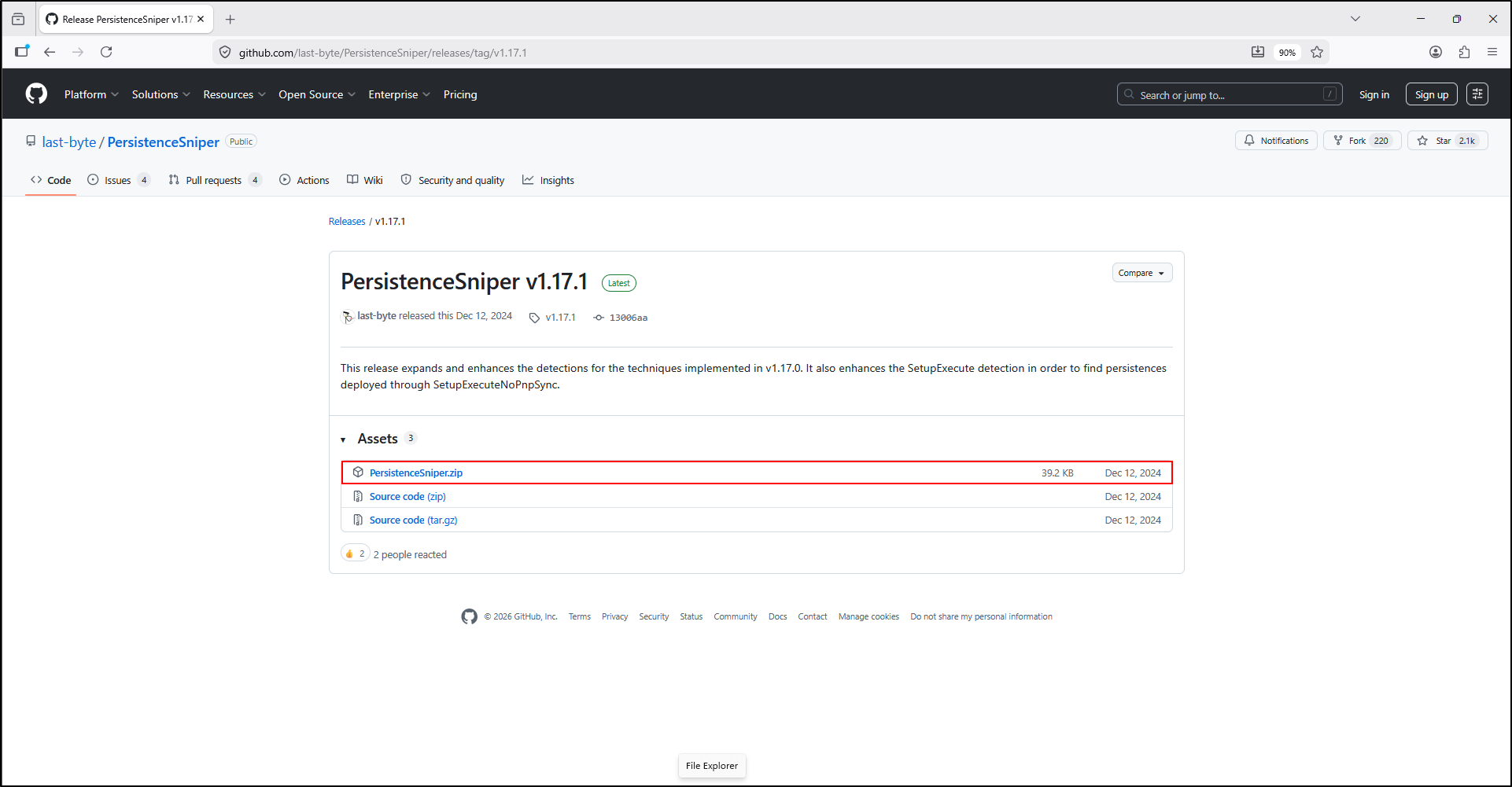
Choose the module ZIP shown in the screenshot. Extract it into a new tool folder and locate the .psd1 manifest and .psm1 module.
Alternatively, clone the repository
Open a command prompt and navigate to C:\Tools. Clone the GitHub repository by running:
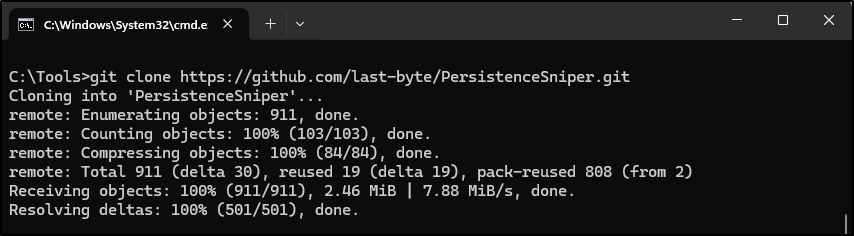
The clone creates C:\Tools\PersistenceSniper, with the module files in its nested PersistenceSniper folder. Record git rev-parse HEAD before reorganising the working copy.
Prepare the SUSA folder
Navigate to C:\Tools\PersistenceSniper\PersistenceSniper. Move PersistenceSniper.psd1 and PersistenceSniper.psm1 to C:\Tools\PersistenceSniper.
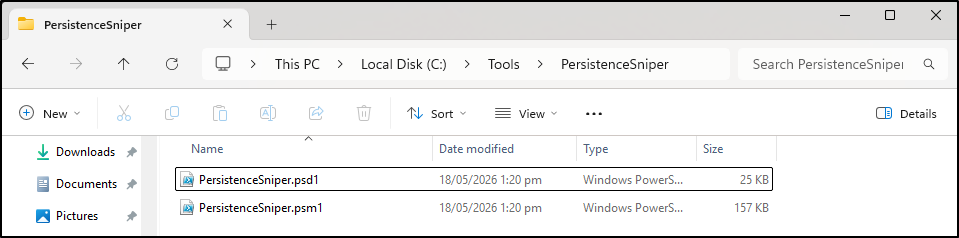
This folder arrangement supports the relative import command below. A release ZIP may already contain the two files without the extra nested folder.
If you choose to delete everything else in the folder, limit this optional cleanup to the expendable tool working folder after retaining the archive, source/revision details, and documentation. It is not necessary to run the module. Keep case evidence elsewhere and inspect files before deleting them.
Import and verify the module
Check the files and their signatures before importing them:
Set-Location 'C:\Tools\PersistenceSniper'
Test-Path .\PersistenceSniper.psd1
Test-Path .\PersistenceSniper.psm1
Get-AuthenticodeSignature .\PersistenceSniper.psd1, .\PersistenceSniper.psm1 |
    Select-Object Path, Status, SignerCertificate
Look for: two True results and signature information you can check against the source. Investigate unexpected trust, certificate, or modification results before loading the module. See upstream deployment guidance.
Understand execution policy
Start from an administrator PowerShell prompt in the tool folder. If your authorised lab setup requires it, this command opens a child PowerShell session with an execution-policy override:
This sets the execution policy for that new session. It does not elevate the shell, verify the module, or override enforced organisational policy. Use it only when your authorised lab setup needs it, after checking the source. Run subsequent commands in the child window; parent variables are not carried into it.
Import the module and inspect its version and supported parameters:
Import-Module .\PersistenceSniper.psd1 -ErrorAction Stop
Get-Module PersistenceSniper | Select-Object Name, Version, Path
Get-Command Find-AllPersistence -Syntax
Look for: the loaded module and a command syntax listing. Successful import normally produces no output. Read Get-Help Find-AllPersistence -Full for the installed version.
Testing Persistence Sniper
Run your first persistence scan on the local running host:
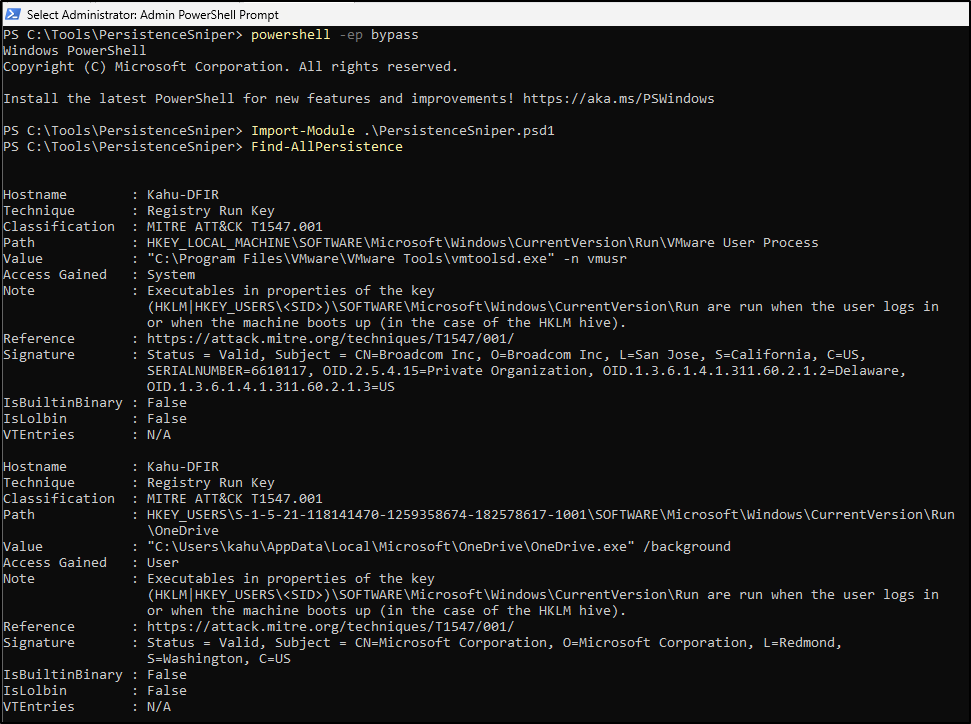
The screenshot shows the import and first scan. Returned Registry Run entries demonstrate enumeration; they do not show that either application is malicious.
Start with one persistence method
For a smaller investigation, inspect Run and RunOnce only:
Look for: objects with locations and values. No returned objects is different from an import failure, access failure, or interrupted scan. Retain errors and record the scope. This method does not cover every persistence mechanism.
Understand the results
Read related fields together. These are the fields in the output screenshot and teaching lab; installed versions may differ.
| Field | What to examine | What it does not establish |
|---|---|---|
Hostname |
The host returning the entry; the wiki also uses ComputerName. |
Who created it. |
Technique / Classification |
Mechanism and technique reference. | A confirmed attack or severity score. |
Path |
Hive, user SID, key, and value name, or a file location. | Creation time. |
Value |
Configured executable, arguments, and quoting. | That it executed. |
Access Gained |
The module's context label; verify actual execution context independently. | A measured token or proof of SYSTEM execution. |
Signature |
Reported status and signer of the associated executable. | Safety of the arguments or whole launch chain. |
IsBuiltinBinary / IsLolbin |
Recognition of a built-in executable or one that can be abused. | Malicious use in this entry. |
VTEntries |
Optional reputation information when configured. | N/A is not a clean verdict. These labs need no lookup. |
Read the VMware and OneDrive example
In the PowerShell output above, the VMware entry is under HKEY_LOCAL_MACHINE and points to vmtoolsd.exe in Program Files. The OneDrive entry is under a user's SID and launches OneDrive.exe with /background. Both display valid signatures in that captured output.
These are plausible application startup entries. Verify the installed software, exact file, arguments, signer, user context, and baseline. The screenshot alone cannot establish when the entries were added or whether they ran.
Validate a persistence entry
Write down one row's full path and value. Check its underlying configuration rather than relying solely on a label. For the training marker used in the labs, the Registry query is:
Get-ItemPropertyValue -Path 'HKCU:\Software\Microsoft\Windows\CurrentVersion\Run' -Name 'SUSA-LabMarker'
This query creates nothing. If you have not created the Full Lab marker, it should be absent. HKCU means the shell's account. When the result refers to another SID, examine that identified hive; do not substitute your own HKCU.
Compare with a baseline from the same host and scope. Check the target file, arguments, signature, inventory, and available process or event records. A new entry is a change to explain. A baseline match still needs context if the target file has changed.
Save results and document your finding
Save objects before applying display formatting. Retain the unfiltered result even when you later focus on one row:
$psnCase = 'C:\Cases\Persistence-Review-01'
if (Test-Path -LiteralPath $psnCase) { throw 'Choose a new case folder.' }
New-Item -ItemType Directory -Path $psnCase -ErrorAction Stop | Out-Null
$psnResults | Export-Clixml -LiteralPath "$psnCase\run-findings.xml"
$psnResults | Export-Csv -LiteralPath "$psnCase\run-findings.csv" -NoTypeInformation
Get-FileHash -LiteralPath "$psnCase\run-findings.xml", "$psnCase\run-findings.csv" |
    Export-Csv -LiteralPath "$psnCase\output-sha256.csv" -NoTypeInformation
Keep host/account, scan time and time zone, module version and source, commands, selected method, output paths, and errors. Record zero returned objects explicitly when appropriate; an empty file alone does not explain the outcome. The Full Lab uses a transcript for this record.
Use Observation → supporting output → interpretation → limits → next check. For example: “The local Run scan returned a OneDrive startup entry for the recorded user SID. The saved value and reported signature are consistent with an expected application, pending inventory comparison. Configuration does not establish execution. Next, verify the target file and correlate host records.”
Troubleshooting
The module or command is not found
Use Get-Location and Get-ChildItem to check the folder and both module files. Repeat import in the same session. Releases and clones may have different nesting. Continue only after Get-Command Find-AllPersistence succeeds.
Import is blocked or access is denied
Check the source, signature, shell elevation, and execution policy with your lab administrator. Retain the exact error. Do not disable protection or change enforced policy to make the exercise pass.
Results are empty or differ from the screenshot
Check host, account/SID, loaded user hives, method, version, and scan completion. The tool filters some entries and installed software differs across hosts. VMware and OneDrive rows are not expected on every VM. Preserve the result and limitations.
Continue to Hands on Labs to practise interpreting and verifying one entry.