RSA NetWitness Investigator Setup & Usage
Accessing RSA NetWitness Investigator in SUSA
The screenshot walkthrough uses Windows desktop Investigator 11.4. Keep your installed version in your notes; screens and registration steps may differ. The vendor's freeware page provides the registration route. This guide does not assume that a historical installer or activation service is available to every learner. If activation is unavailable, the browser lab still works without an account.
Download the installer
Navigate to the download page and register your details.
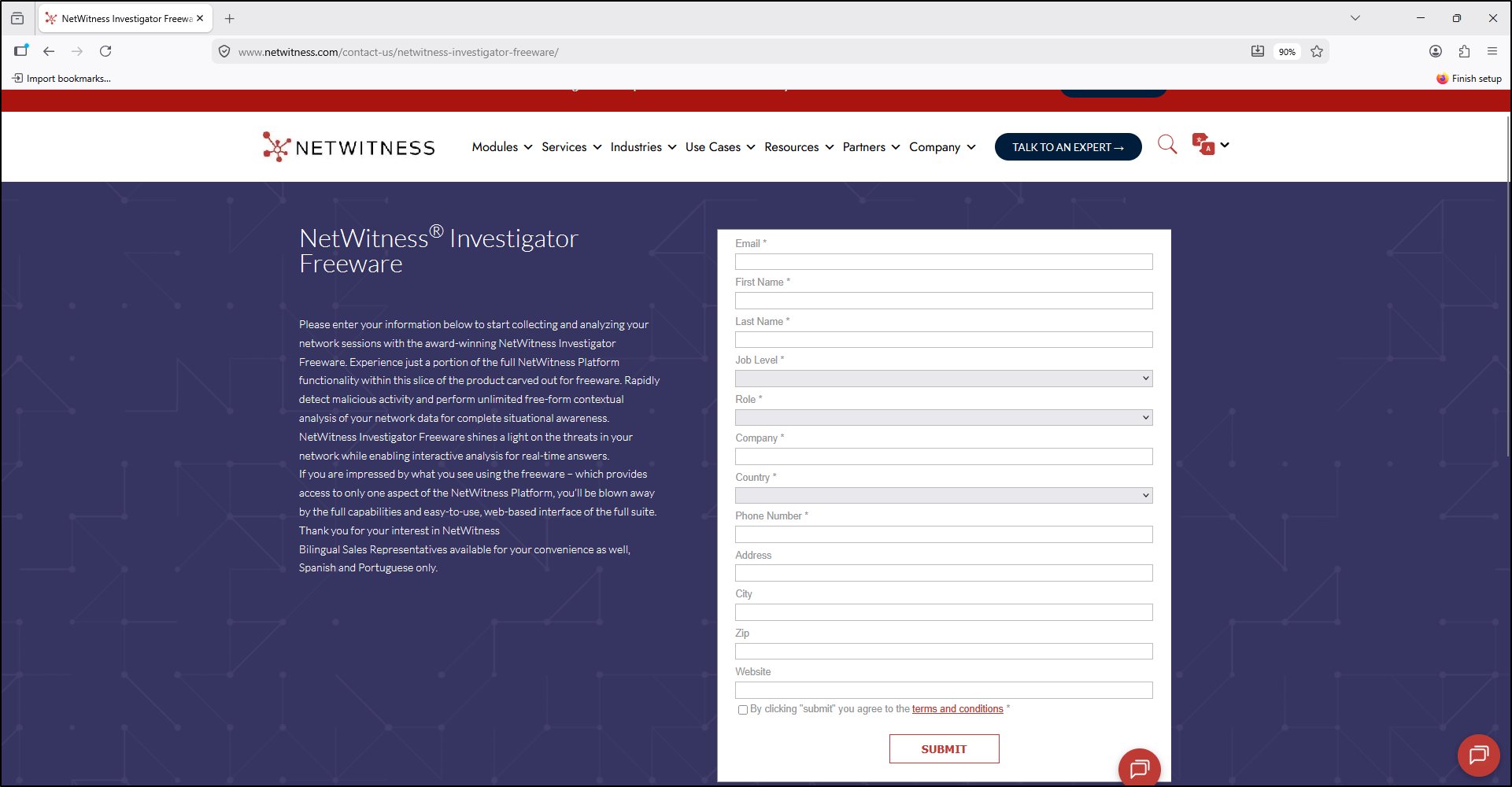
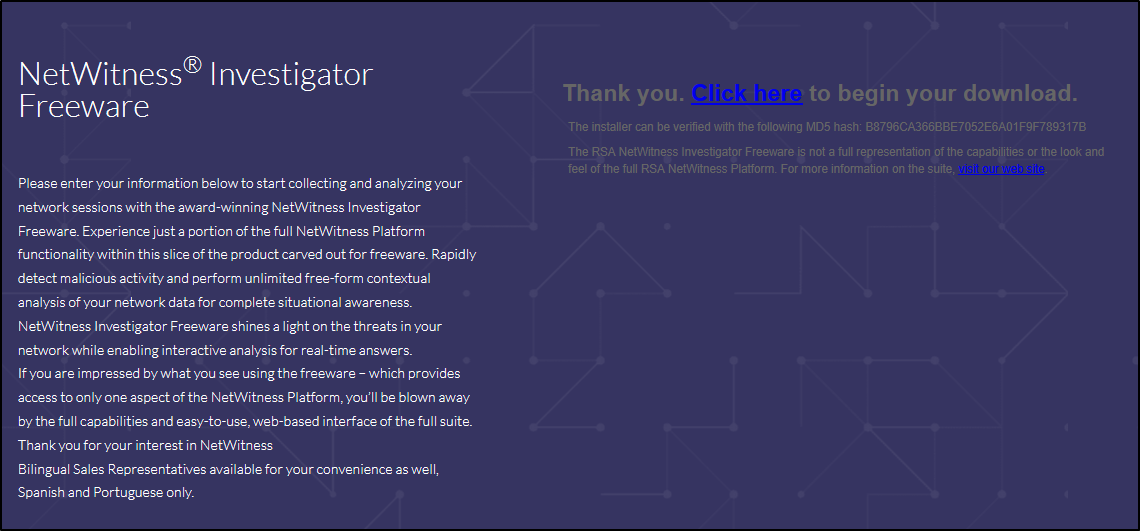
Click the download link to download RSA NetWitness Investigator.
Install the desktop application
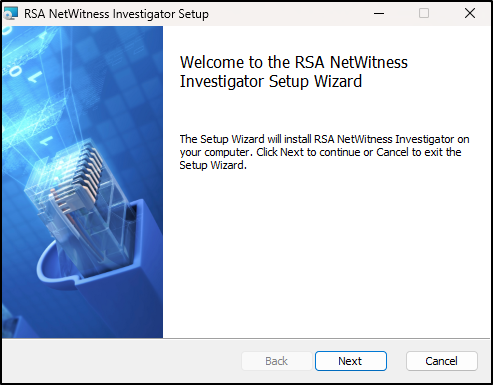
Extract the downloaded zip file to C:\Tools\RSA NetWitness Investigator. Double click the Windows installer file to begin the setup. Click Next.
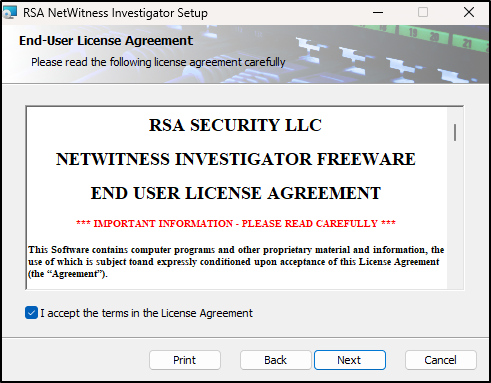
Accept the License Agreement and click Next.
Select Typical for Setup Type.
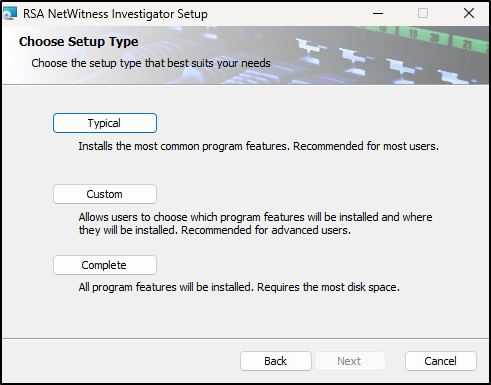
Click Install.
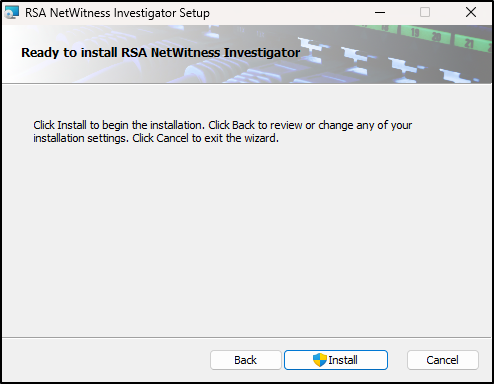
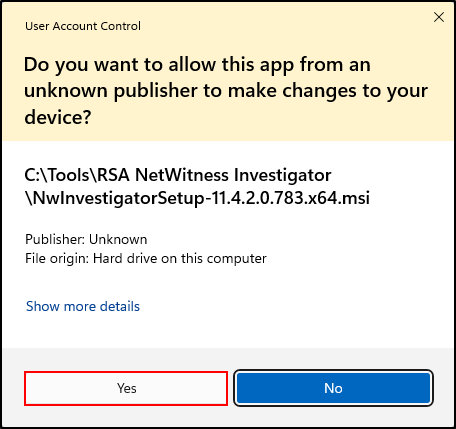
When prompted by the User Account Control, select Yes.
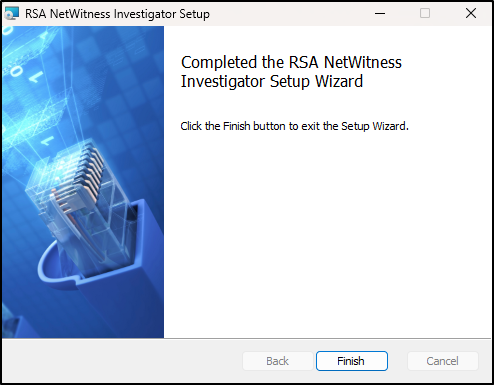
Once the installation is complete, click Finish.
Open and activate Investigator
Navigate to C:\Program Files\RSA\NetWitness Investigator 11.4 and double click NwInvestigator.
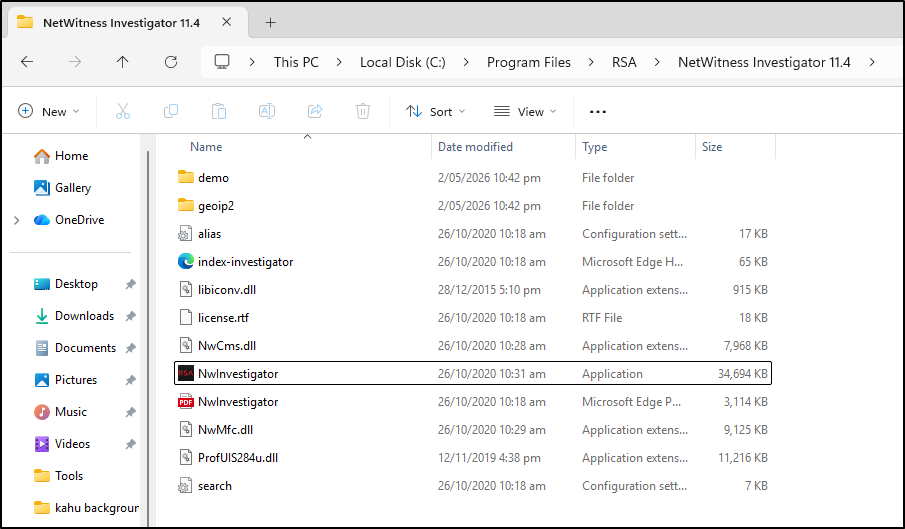
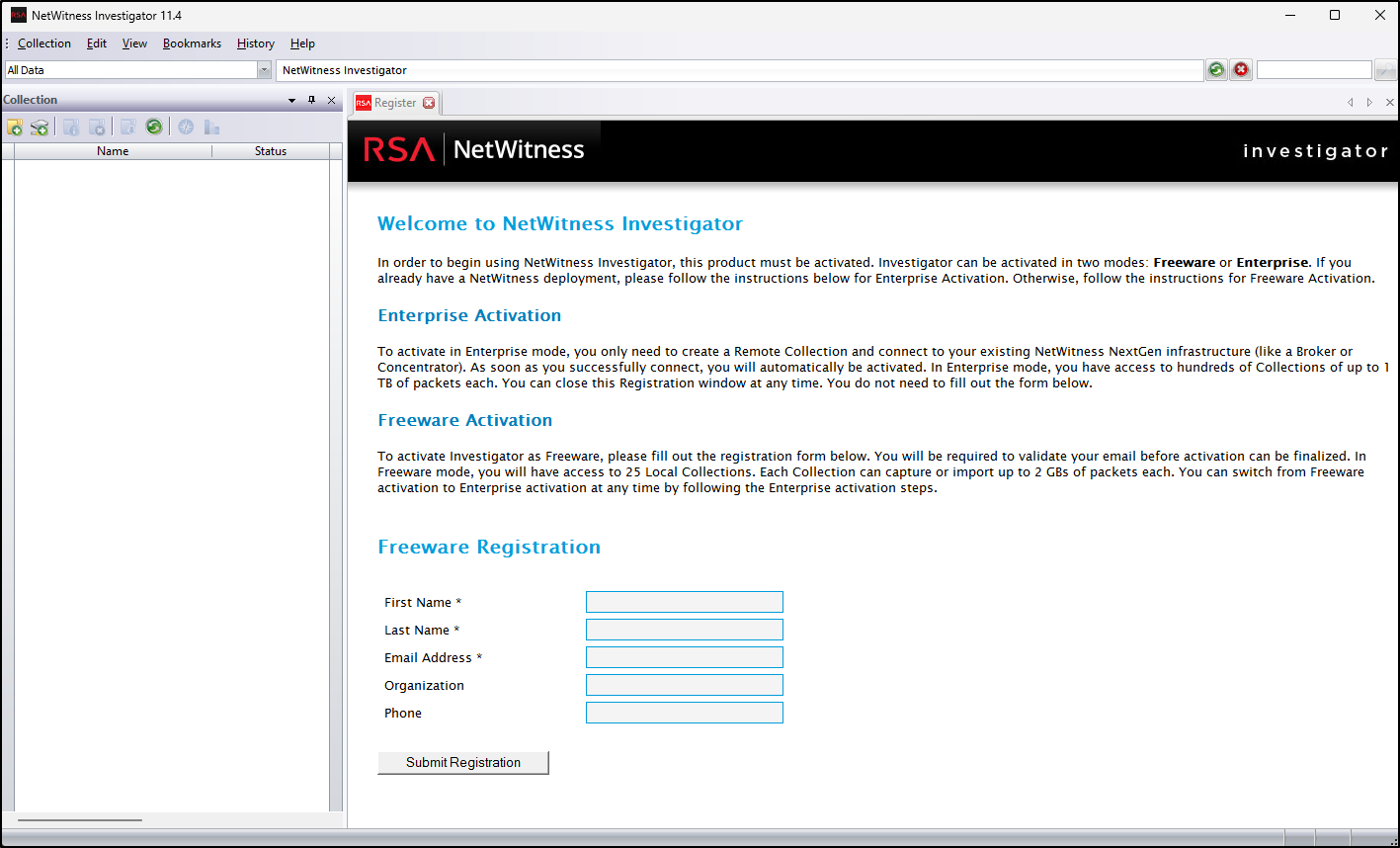
Fill in your details for Freeware Registration and click Submit Registration.
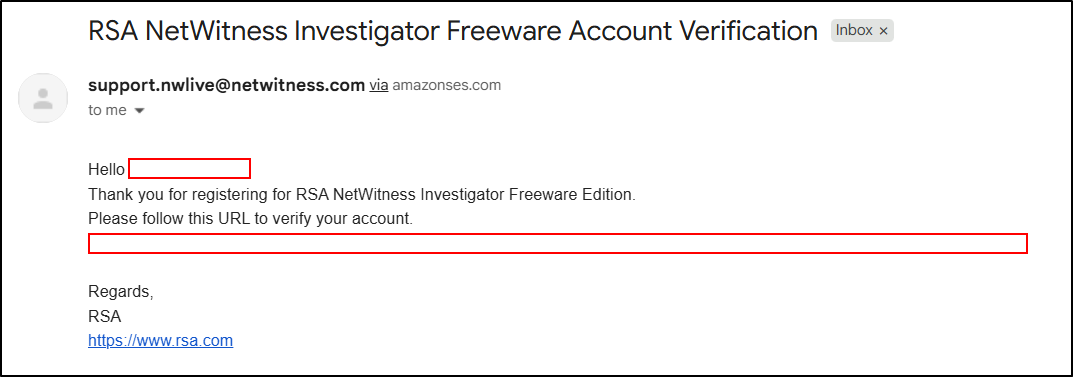
Use the verification URL sent to your inbox to complete registration.
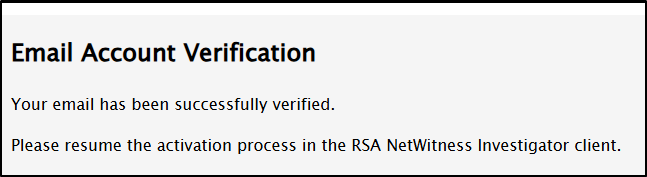
In the RSA NetWitness Investigator, click Activate Freeware.
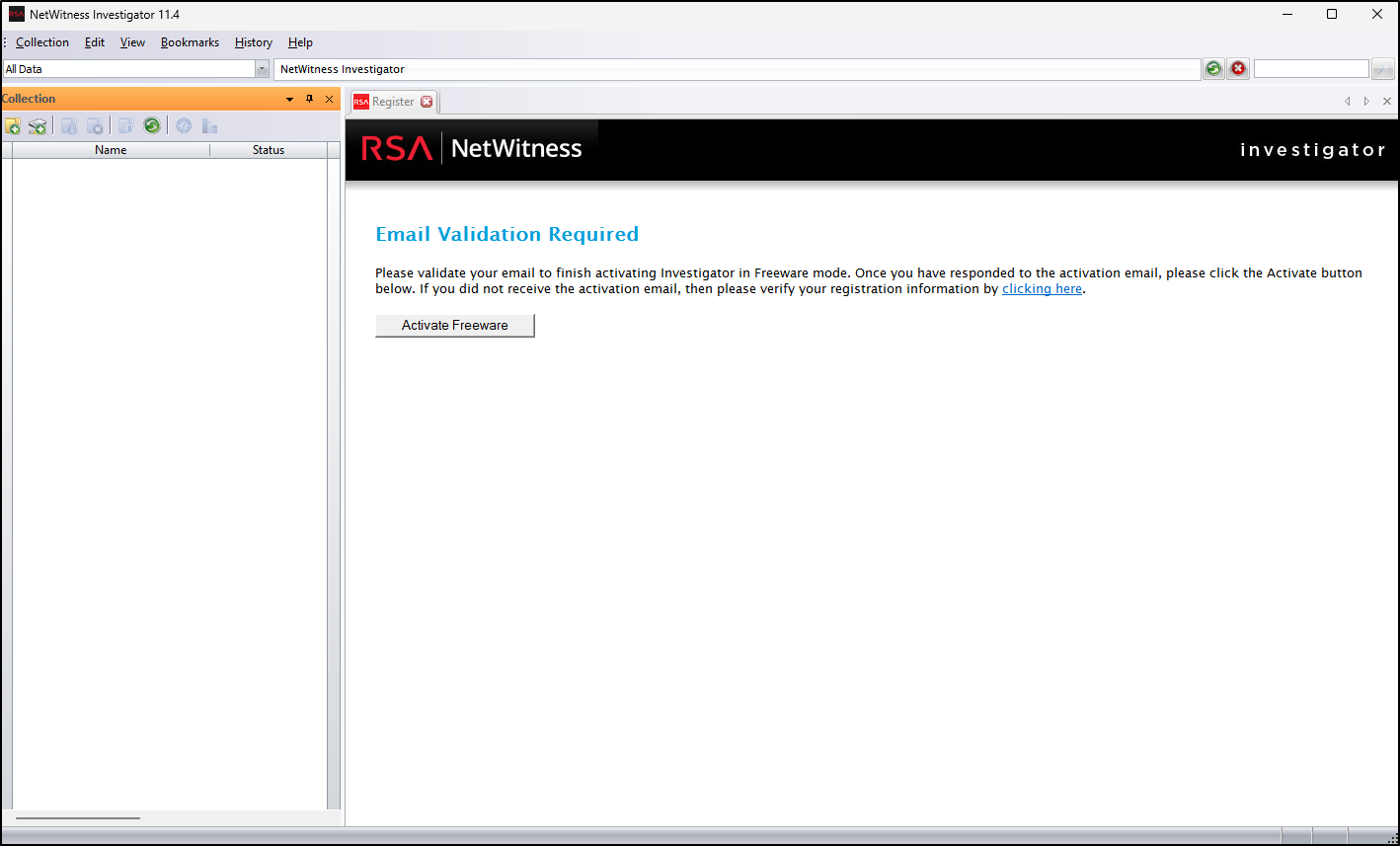
This will activate the application.
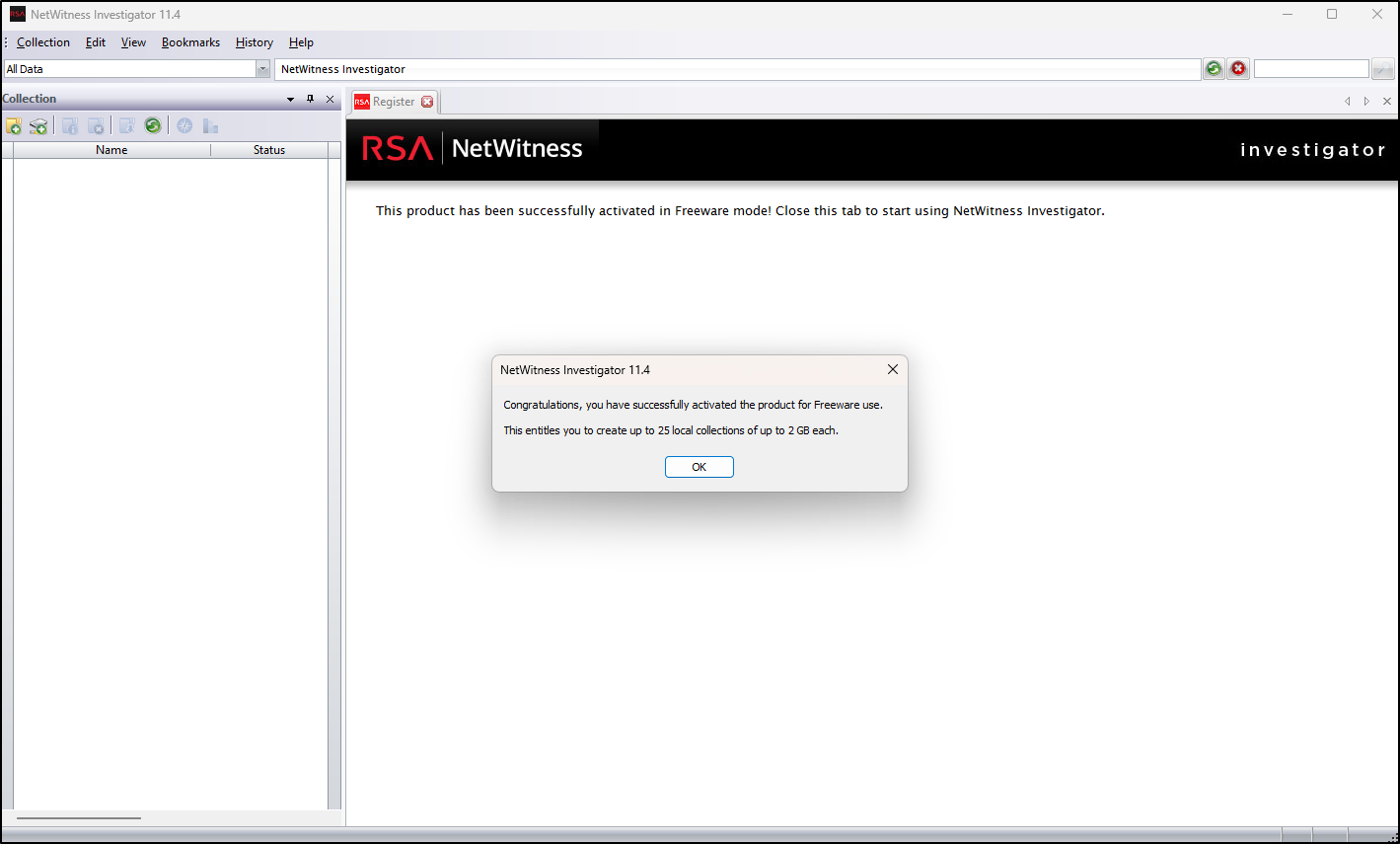
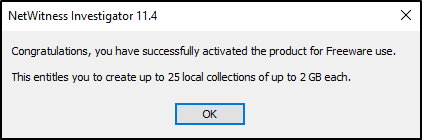
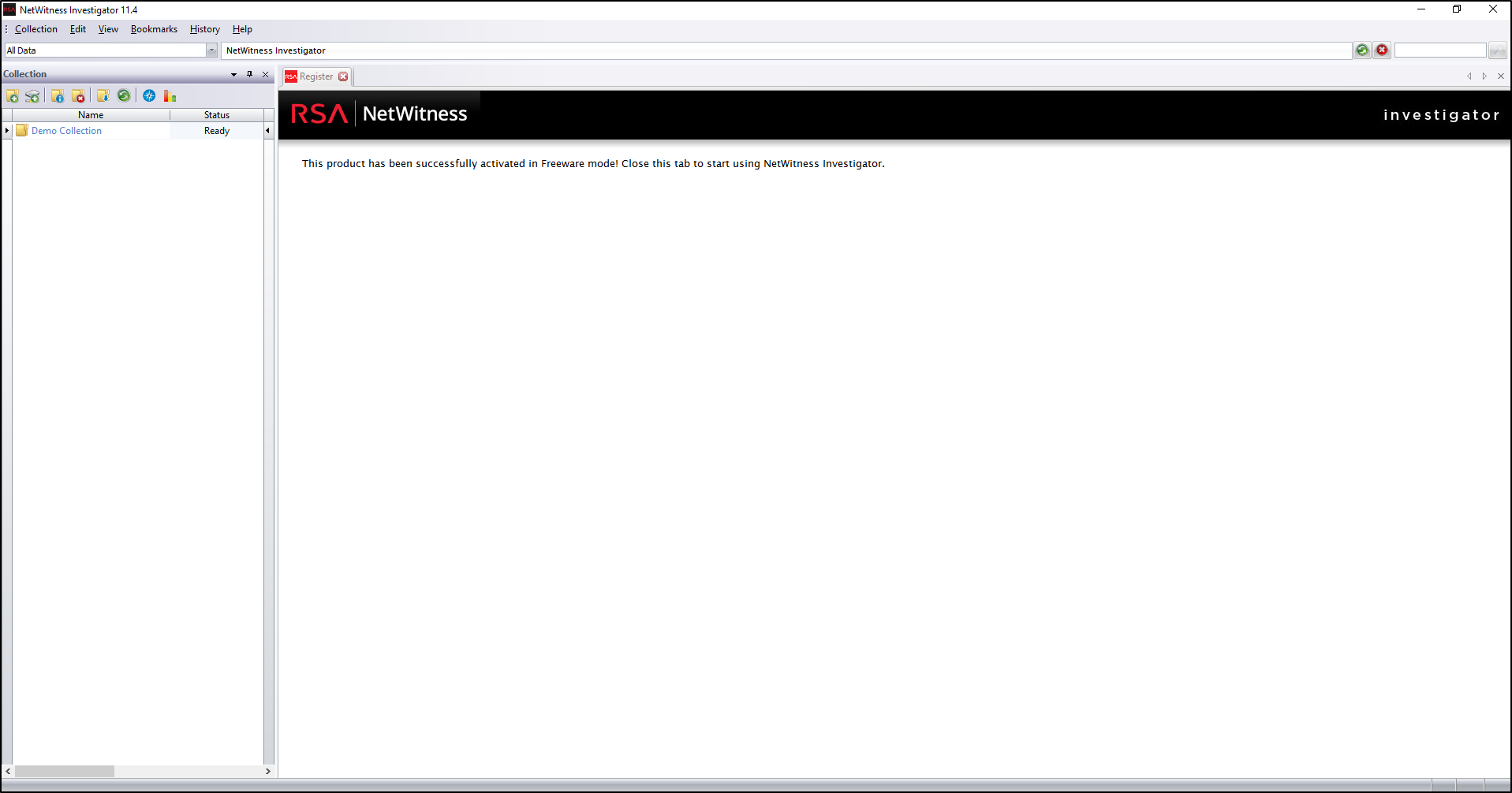
The 11.4 registration screen below shows up to 25 local collections, each up to 2 GB. Check the limits and activation requirements of your installed release rather than assuming these terms apply to every version.
When prompted to install Demo Collection, select Yes.
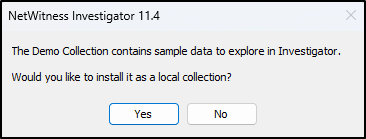
This will show sample data in the NetWitness Investigator.
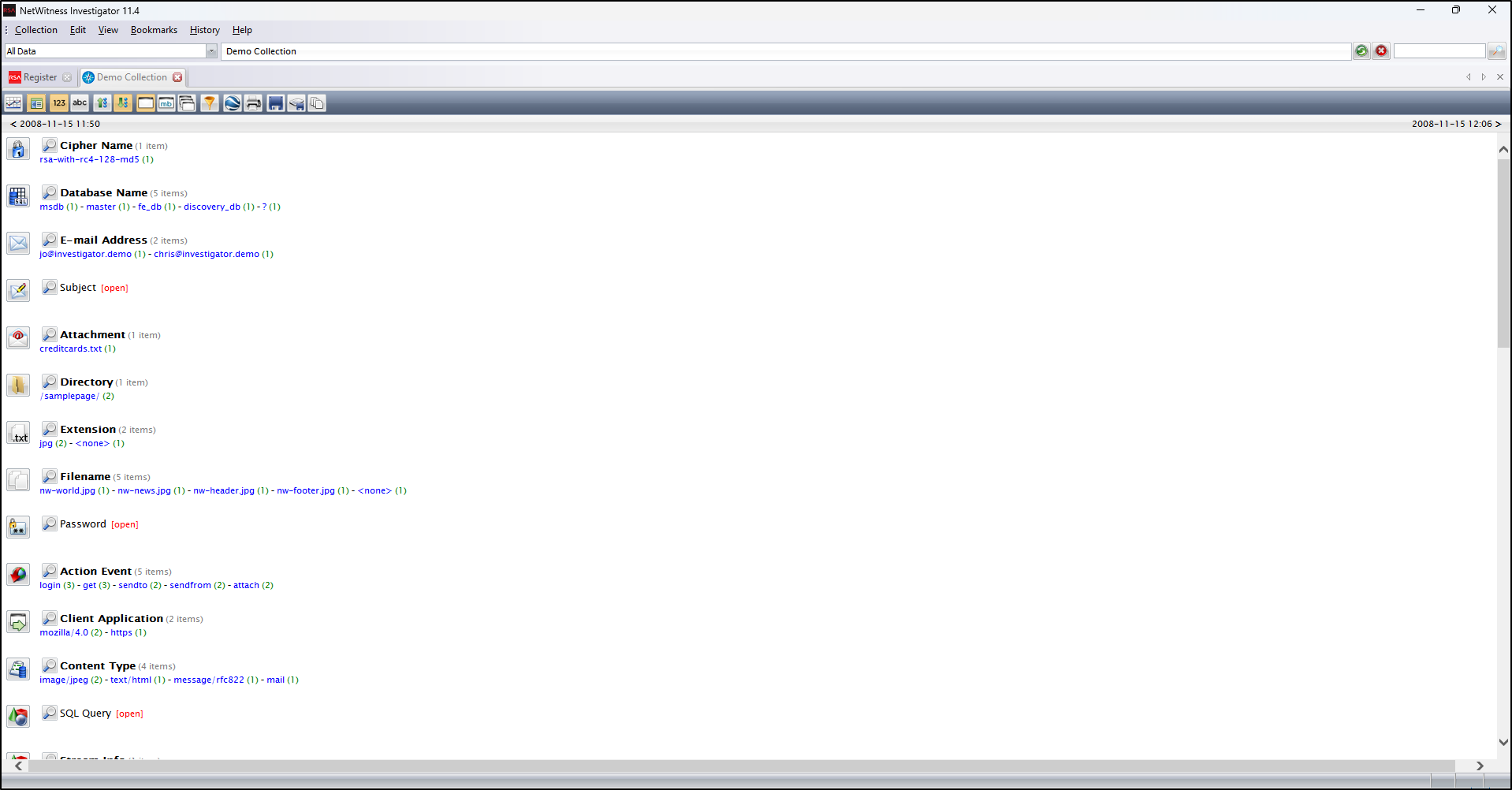
Add a SUSA shortcut
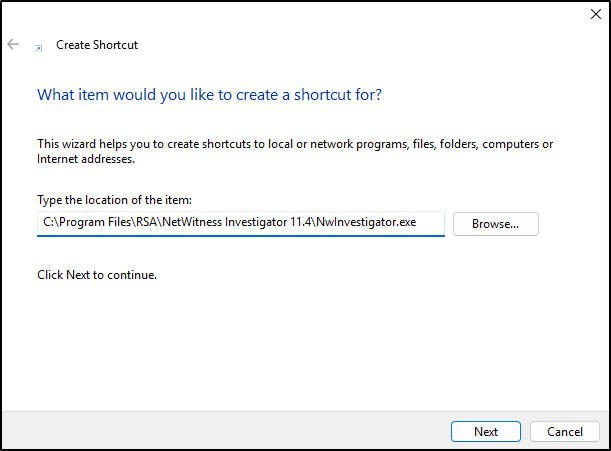
In the C:\Tools\RSA NetWitness Investigator, create a shortcut (Right click → New → Shortcut).
For location, enter C:\Program Files\RSA\NetWitness Investigator 11.4\NwInvestigator.exe and click Next.
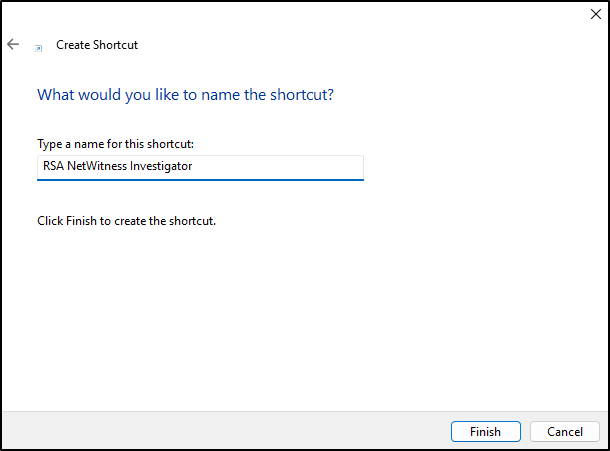
For name, enter RSA NetWitness Investigator and click Finish.
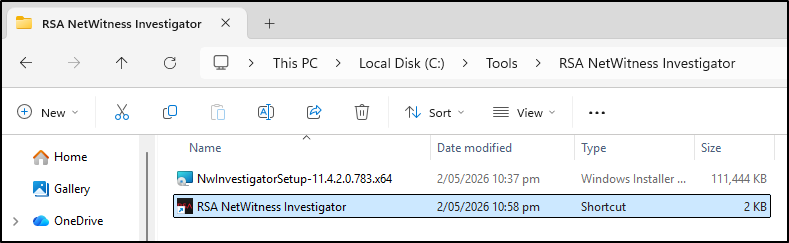
Verify that the application opens
Open RSA NetWitness Investigator and confirm that the application starts without an error.
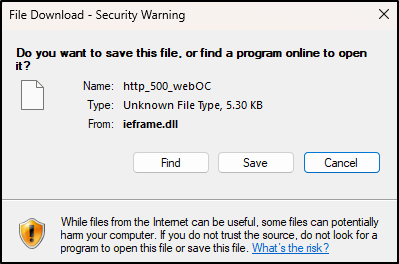
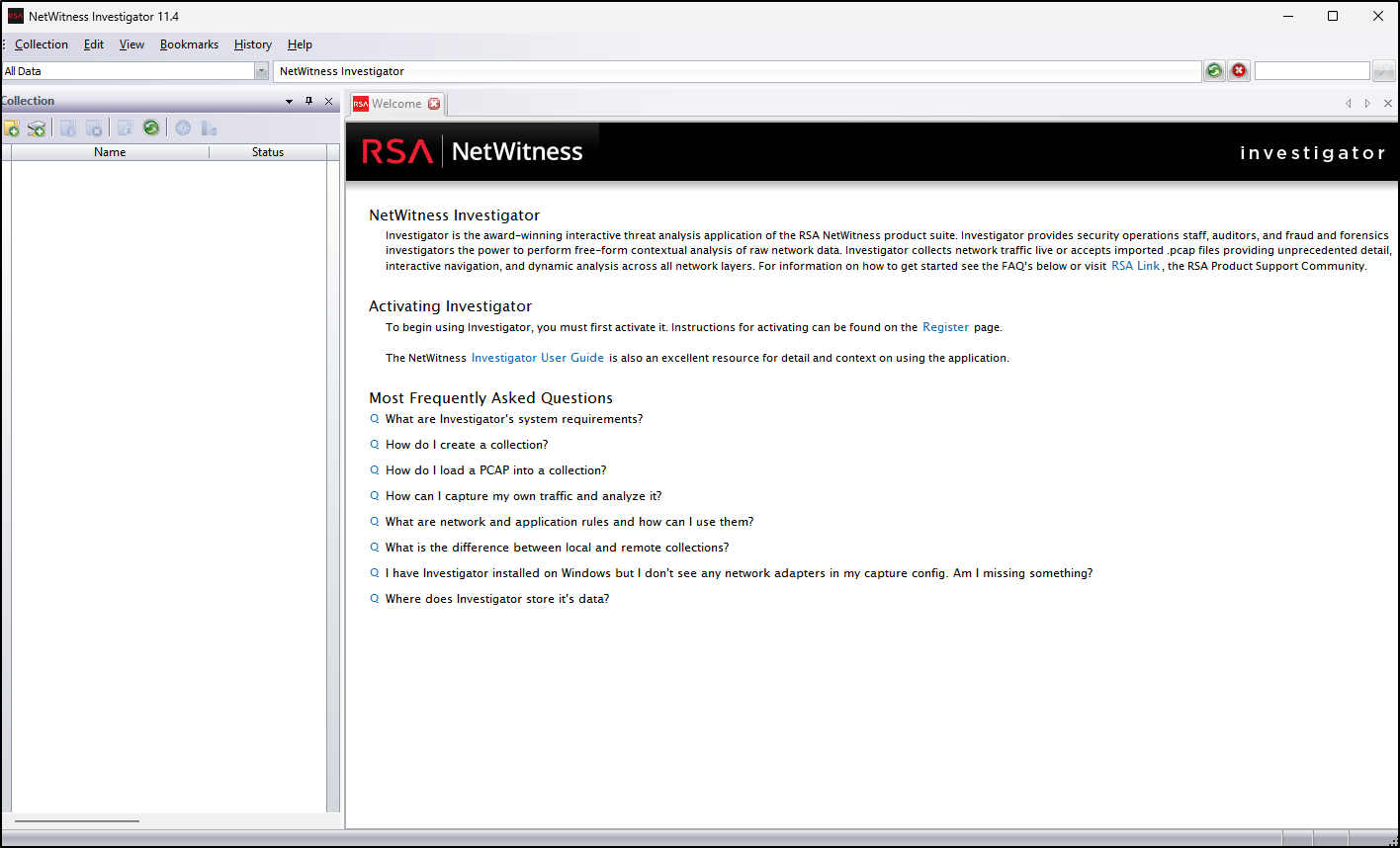
If an unexpected download prompt appears, choose Cancel and do not open the file. The screenshots show a prompt encountered while loading the embedded welcome page; they do not establish the cause or safety of every download. Record what happened and check the application version and vendor guidance if it repeats. You can practise offline imports without using external page content.
Analysing Network Traffic with NetWitness
Start with a working copy of a PCAP and a case question. Record the file source, SHA-256, capture times and time zone, tool version, collection name, and any import errors. A collection is Investigator's analysis workspace; it does not replace your original PCAP. For a harmless first case, use the supplied file in the Full Lab.
Open NetWitness Investigator
- Launch the tool by double clicking
NwInvestigatoron the desktop. - If you installed the Demo Collection during setup, it provides a demonstration dataset. Select your own named collection when working on a case.
- In NetWitness, a collection refers to a set of captured packets (e.g. a PCAP file) that you load for analysis.
Create a New Local Collection
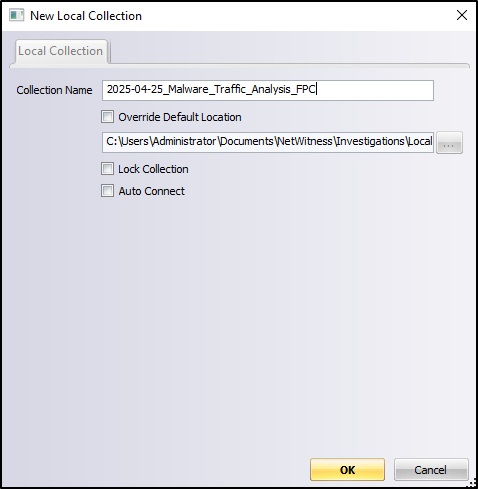
- On the left panel, right click and select New Local Collection
- Give it a name like
2025-04-25_Malware_Traffic_Analysis_FPC - Note FPC means Full Packet Capture
Import PCAP Files
- Right click the new collection and choose Connect
- Wait until the status changes to Ready
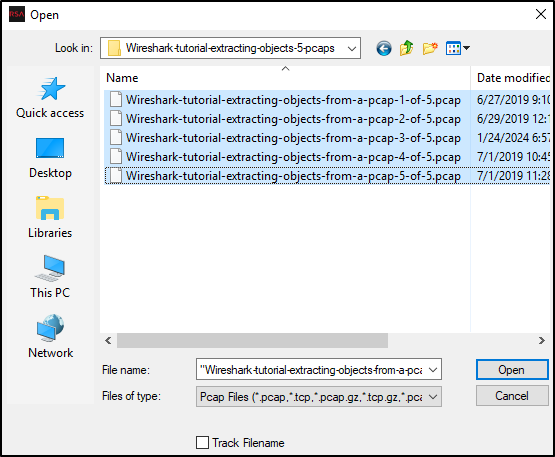
- Then right click again and select Import Packets
- Browse to the folder containing your PCAP files (e.g.
Desktop\PCAP) - You may need to change the file filter to All Files (.) to see
.pcapfiles. - For the email example below, we use PCAP files that are introduced in Malware Traffic Analysis using Wireshark.
Navigate and Explore the Collection
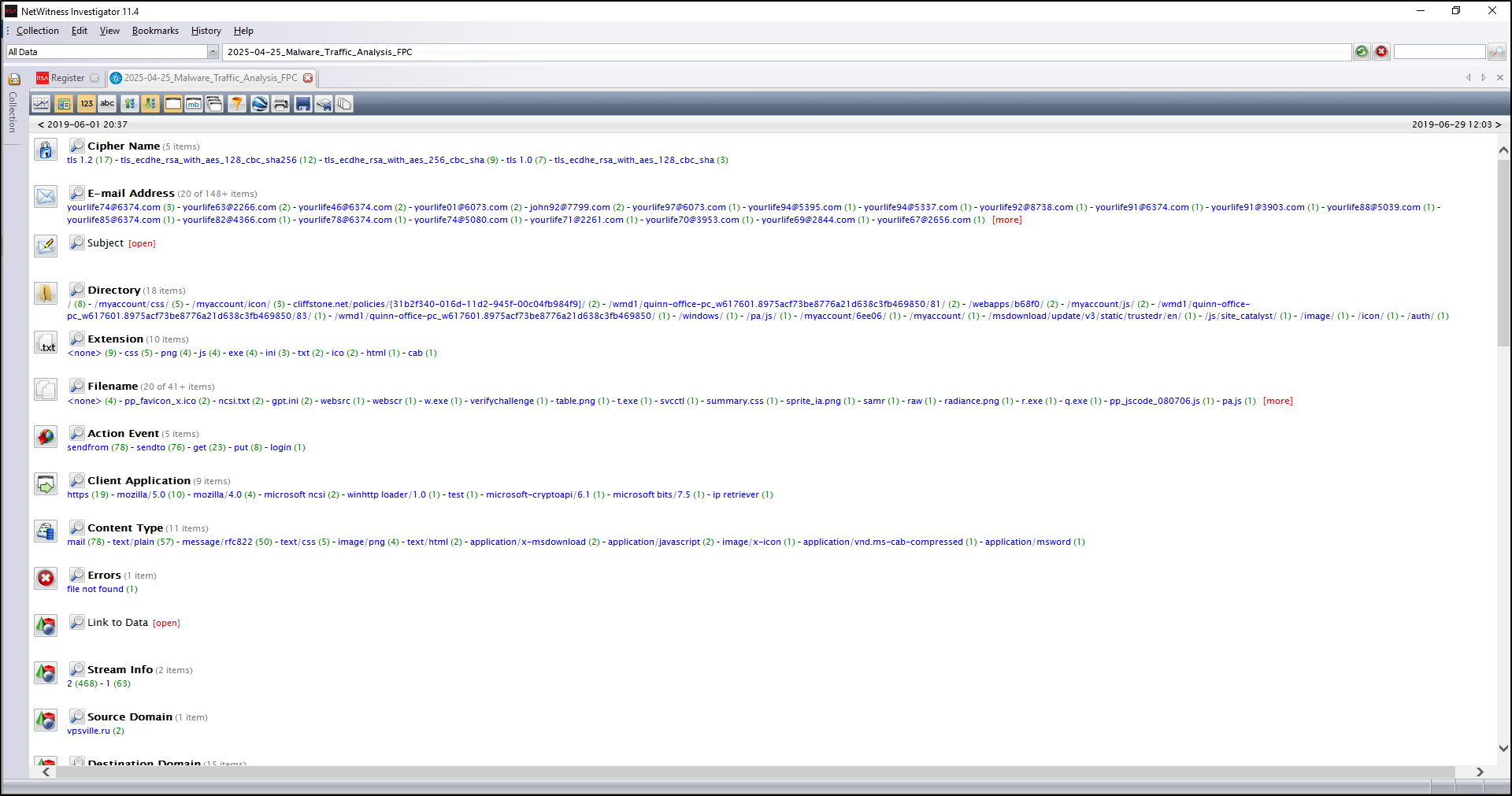
Once imported, right click the collection and choose Navigate Collection.
The Navigation view groups extracted metadata into reports. Metadata means fields read from traffic, such as a name, address, or filename. Which reports appear depends on the packets and enabled parsers. This opens a detailed view grouped into categories like:
- Email address
- File attachment
- Domains and extensions
- Filenames and protocols
Investigate Email Subjects and Artefacts
This optional email example uses the separate captures linked above, rather than the invoice PCAP in the labs. Analyse those captures in an isolated training VM; any extracted files may be malicious. Do not open attachments or visit addresses from captured messages.
Expand the list of Subjects, and click the number in brackets next to something suspicious (e.g. “hurry up and pay!: ganjaman”).
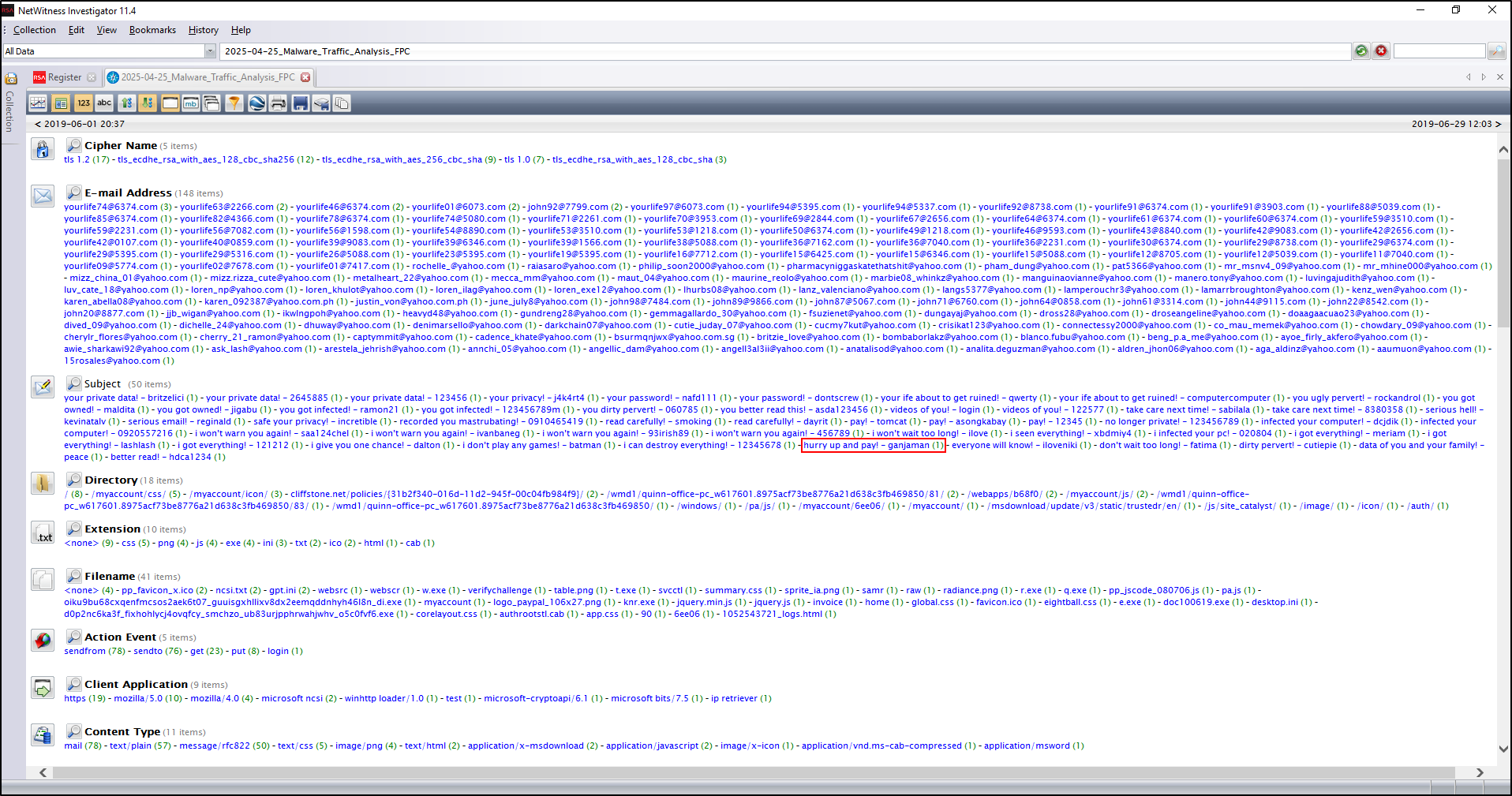
Each result represents a network session, a related conversation that you can reconstruct. A report value narrows the current drill path; its session count opens the matching session list. Keep the time range and drill path visible so you know what you have included or excluded.
Click View on the first result to see the original email contents reconstructed from the packet data.
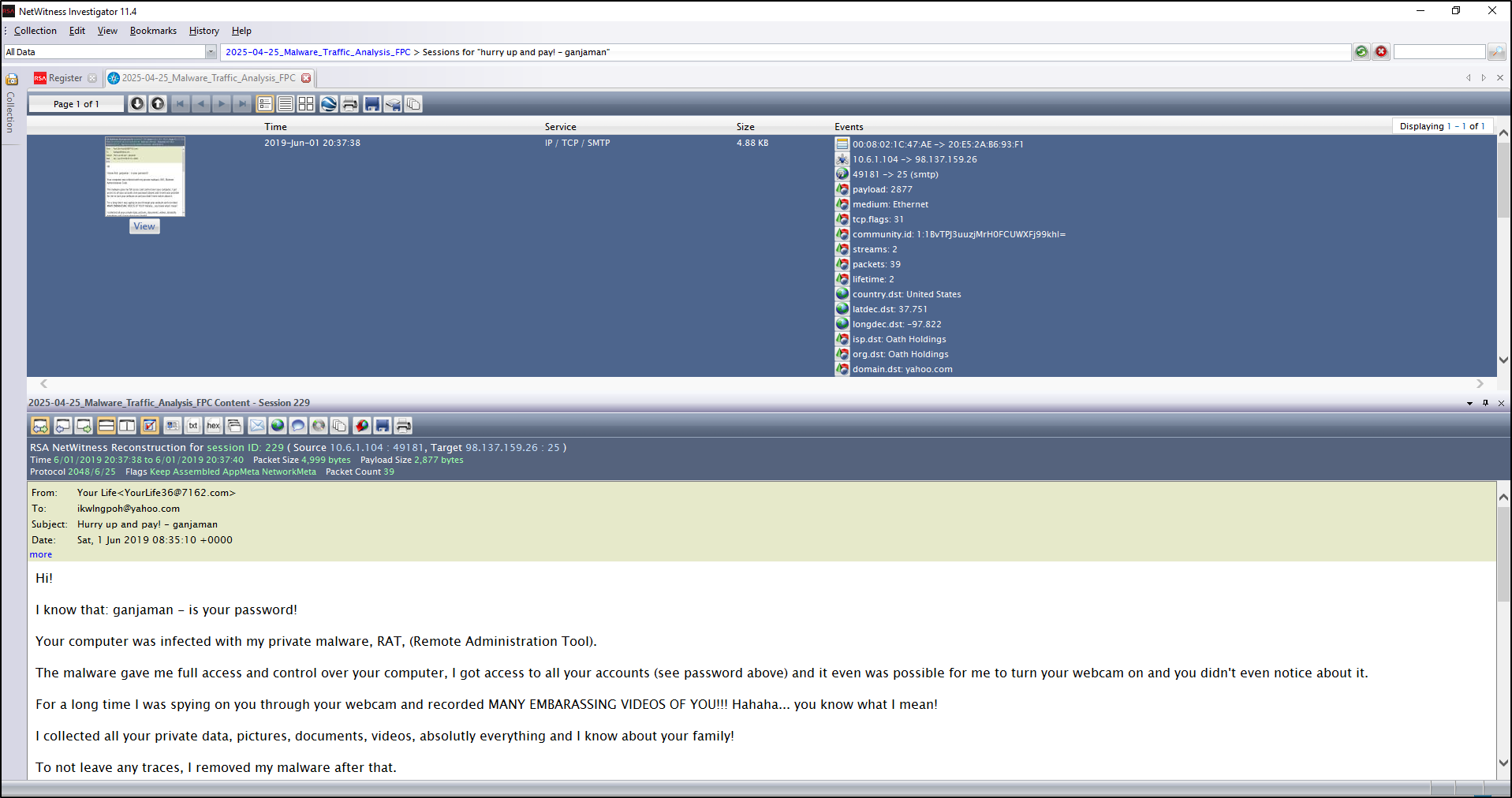
Read the content as evidence of what the message says, not proof that its claims are true or that an attachment ran. Compare the source and destination, capture time, session ID and protocol with the reconstructed message.
This is useful for investigating leads such as:
- Phishing lures
- Malicious attachments
- Suspicious sender addresses
- Remote command payloads
Keep the drill path in context
Start broadly with the right collection and capture time range. Select a report value to narrow the view, then select a count to see the matching sessions. To explore another lead, return to an earlier part of the drill path before adding a new value. Otherwise, an old filter can silently exclude the traffic you want.
| What you see | What to check next |
|---|---|
| A filename or extension | Open the session and check the request, reply, and available content. A name alone does not prove a transfer completed. |
| A large session count | Check whether the display counts sessions, packets, or bytes. Volume is a lead, not a malware verdict. |
| A TLS/SSL session | Read available connection metadata. Encrypted content may be unavailable; a server name is not an upload record. |
| An empty report | Check the time range, current drill path, import result and parser settings before concluding that an activity is absent. |
Preserve a session and explain the finding
In the session list, confirm exactly which sessions are shown before using Export to File to save a PCAP of that group. Retain the source PCAP separately, and record the drill path and time range with the export. Use File Extract when the supported protocol contains recoverable files; keep extracted material in evidence storage and do not run it.
Save a screenshot or note of the session ID, time, endpoints, service, request or subject, and reconstructed result. Hash exported files and reopen the PCAP to check that you exported the intended traffic. Do not treat an export operation as proof that all incident data was captured.
Example observation: “The selected session contains a message with this subject and body. I saved its session ID, endpoints, time and source capture. This does not establish that the sender's claims are true, that a person read it, or that an attachment executed.”
If something does not look right
| Problem | Try this |
|---|---|
| Activation is unavailable | Check the vendor route for your version. Use the browser lab while access is unresolved; do not download an installer from an unverified mirror. |
| Collection is not Ready | Confirm the selected collection is connected and its storage location is accessible. Wait for the import to finish and retain any error message. |
| PCAP is not listed | Check the file type filter; try All Files (.). Confirm the capture format and keep its original extension. |
| No sessions appear | Check collection, capture time range, drill path and import result. Try the whole capture range before adding filters. |
| Filename, subject or content is missing | The packet bytes or relevant parser may be missing, or the content may be encrypted. Record the gap rather than inventing a value. |
| Export contains too much traffic | Return to the session list, check its count and drill path, and export again to a different filename. Preserve both attempts with a note. |